
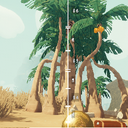
PeakPitchCrosshair
Peak Pitch Crosshair can display world-anchored pitch markers in the game.
By Codaaaaaa
| Date uploaded | 9 months ago |
| Version | 0.3.3 |
| Download link | Codaaaaaa-PeakPitchCrosshair-0.3.3.zip |
| Downloads | 1416 |
| Dependency string | Codaaaaaa-PeakPitchCrosshair-0.3.3 |
This mod requires the following mods to function

BepInEx-BepInExPack_PEAK
BepInEx pack for PEAK. Preconfigured and ready to use.
Preferred version: 5.4.2403

README
Peak Pitch Crosshair
Peak Pitch Crosshair is a mod for Peak that overlays pitch-aligned markers directly in the game world. Instead of a flat HUD, the markers are world-anchored to objects in the scene—so as you tilt your view, each marker corresponds to a musical note (C4 through C6). The plugin uses the player’s vertical look angle to map directly to pitch, and raycasts are used to “stick” the markers onto visible geometry (like trees or terrain). This way, the crosshair doesn’t float statically on screen—it naturally follows your perspective, showing exactly which note range you’re aiming for as you play the in-game bugle.
Features
- World-anchored pitch ranges: Each note’s angle range is represented by a bracket or label that aligns with whatever world object it hits.
- Corrected angle boundaries: No overlapping ranges; bottom note (“1′”) properly extends toward the horizon edge.
- Edge clamping: Optional extension of first/last ranges up to ±EdgeClampDeg (default is 85°).
- Raycast fallback: Configurable fallback option to render markers even when raycast doesn't hit any object.
- Sharp toggle (F7): Show or hide sharp (
#) note ranges at runtime. - Precision Point (F8): Show or hide precision point at runtime.
- Readable labels: Uses in-game fonts, big bold characters, text outlines, and dark semi-transparent backgrounds for high visibility.
- Configurable styling: Adjust font size, boldness, tick width/thickness, opacity, and more via BepInEx config.
Installation
- Install BepInEx in your Unity game.
- Place
PeakPitchCrosshair.dllinto theBepInEx/plugins/folder. - Launch the game and press F6 to toggle the overlay on/off, F7 to toggle sharp notes visibility, or F8 to toggle precision point.
Configuration
All settings are accessible in the generated config file (BepInEx/config/PeakPitchCrosshair.cfg). Configurable options include:
- Range & fallback:
EdgeClampDeg: Maximum angle to extend topmost/bottommost note ranges (default: 85).FallbackWhenNoHit: Whether to render markers even when no object is hit (default: true).
- Font styling:
FontSize,FontBold,PreferredFontName.
- Visual settings (bands):
TickHalfWidthPx,TickThicknessPx,BracketThicknessPx,AlphaNatural,AlphaSharp,AlphaActiveBoost.
- Behavior (bands):
InvertPitch,ShowLabels,HighlightActive,ShowSharps.
- Precise points overlay:
ShowPrecisePoints,TogglePrecisePointsKey(default: F8).PrecisePointSizePx,PrecisePointThicknessPx,PrecisePointAlpha.PrecisePointShowLabel(default: false).- Sharp precise points respect the global
ShowSharpstoggle.
Usage
- Toggle the overlay on/off with F6.
- Toggle sharp (
#) note ranges and sharp precise points with F7. - Toggle precise anchor-point crosshairs with F8.
- Customize all appearance, opacity, and behavior options via the config file at runtime.
CHANGELOG
Changelog
All notable changes to this project are documented in this file.
The format is based on Keep a Changelog and this project follows Semantic Versioning.
[Unreleased]
Added
- Feature: Option to extend the topmost and bottommost ranges to ±EdgeClampDeg (default 85°).
- Feature: Raycast fallback to render markers at max distance if no collision is detected.
- Configurable:
EdgeClampDeg,FallbackWhenNoHit, font styling updates.
Changed
- Fixed visibility issue where the bottommost range (“1′”) failed to render due to missing scene geometry.
- Preserved label clarity with larger font, outline, and background.
Fixed
- Overlapping angle ranges adjusted so that “1′” now properly appears and spans to the top/bottom edge without overlap.
[0.3.2] - 2025-8-31
Added
- Top and bottom marker bands now extend to ±EdgeClampDeg (configurable, default: 85°).
- Fallback rendering: when Raycast misses, markers are drawn at a far point to guarantee visibility.
- New configuration options:
EdgeClampDeg,FallbackWhenNoHit.
Changed
- Improved font rendering: uses in-game font, increased font size, added bold style, outline, and semi-transparent backdrop for better readability.
- Ensured that “1′” note range is properly displayed at the extremes.
Fixed
- Angle ranges adjusted to eliminate overlap; ensures that all note ranges are rendered correctly in non-overlapping order.
[0.3.3] - 2025-8-31
Added
- icon
- Precise points overlay: render measured anchor notes as crosshair markers at exact angles (labels off by default).
- Hotkey: F8 toggles precise points (ShowPrecisePoints, TogglePrecisePointsKey).
- Sharp-point gating: sharp (#) precise points follow the global ShowSharps (F7) toggle.
New configuration options:
- PrecisePointSizePx
- PrecisePointThicknessPx
- PrecisePointAlpha
- PrecisePointShowLabel (default false)
Fixed
- Precise points now render even when Physics.Raycast misses (respects FallbackWhenNoHit).
