
Please disclose if any significant portion of your mod was created using AI tools by adding the 'AI Generated' category. Failing to do so may result in the mod being removed from Thunderstore.

AAABuildMenu
Better Valheim 1.0 build menu: Can Build, Most Used and Pinned tabs, resizable window, sorting, pinned recipes with a material tracker. Optional classic pre-1.0 menu with search, filters and favorites.
| Date uploaded | 2 days ago |
| Version | 1.0.4 |
| Download link | Azumatt-AAABuildMenu-1.0.4.zip |
| Downloads | 1183 |
| Dependency string | Azumatt-AAABuildMenu-1.0.4 |
README
AAABuildMenu
AAABuildMenu makes the Valheim build menu faster to use. On Valheim 1.0 it builds on the game's new build menu with extra tabs, a sort button, a resizable window, recipe pinning and more. If you'd rather have the menu from before 1.0, one setting brings it back, along with everything AAABuildMenu has always added to it: search, filters, favorites, pinning, scrolling and a resizable window.
It is built to stay compatible with PieceManager and Jotunn content, so modded pieces and categories work the same as the base game ones.
What's new in 1.0.4
Valheim 1.0 replaced the build menu, and this update is all about that.
- Works on Valheim 1.0. Everything was updated for the game's new build menu code, including a patch that would have stopped the whole mod from loading on 1.0.
- New tabs in the 1.0 build menu.
- Can Build shows only what you have the materials and crafting station for right now. Its tag list only shows tags that have something buildable in them.
- Most Used ranks pieces by how often you've actually placed them, so what you build all the time is always one click away.
- Pinned lists your pinned pieces.
- Q/E and the controller bumpers cycle through them like the built-in tabs.
- Resize and move the 1.0 build menu by dragging the grips at its bottom corners. The grid adds columns as it gets wider, and the size and position are saved and kept on screen.
- Icon size setting for the 1.0 menu's grid.
- Sort button next to the search box: default order, A to Z, cheapest first, or most placed first.
- Material counts on the By Material tags, so "Wood" reads "Wood 120".
- Recipe pinning in the 1.0 menu. Hold Alt and click a piece to pin it. The pinned recipe tracker shows the materials you still need, whichever menu you use.
- Tags for custom categories. Jotunn mods (and PieceManager older than 1.3) still create their own categories the pre-1.0 way, and the 1.0 menu only shows their pieces under All. AAABuildMenu gives each of those categories its own tag. If a PieceManager mod and a Jotunn mod share a category name, they share one tag.
- Classic build menu option. Turn on
Use Classic Build Menuto get the pre-1.0 menu back, with all of AAABuildMenu's classic features. It switches live, no restart. - Bug fixes
- A modded piece with a broken recipe no longer breaks the build menu. Before, one bad piece could leave the menu stuck showing a single recipe for everything, or spam errors every frame. Requirements with no item are dropped (they never cost anything anyway) and the log names the piece so the mod author can fix it.
- The info panel no longer freezes on the last recipe when a piece has more requirements than it has slots.
- Fixed a small leak in 1.0's own piece buttons that made each one refresh several times on a language change.
- The 1.0 Deep North category gets a proper tab name in the classic menu instead of "DEEPNORTH".
- In the classic menu, clicking a category tab (or using Q/E or the wheel) clears the search and shows that category. Configurable.
- Tab counts in the classic menu show the category's real size instead of the number of search hits.
- Reset Size & Position now also resets the 1.0 menu's window.
- An error that repeats every frame is logged once (with the details) instead of flooding the log.
- AAABuildMenu no longer gets in PieceManager's way. It leaves PieceManager's category tabs and window layout alone, and runs its classic menu after PieceManager and Jotunn, the way vanilla did.
On Valheim 1.0's build menu
The 1.0 menu already has search (including by material), favorites and a recent list, so AAABuildMenu doesn't duplicate them. It adds:
- Can Build, Most Used and Pinned tabs.
- A resizable, movable window with an adjustable icon size.
- A sort button next to the search box.
- How much of each material you carry, on the By Material tags.
- Recipe pinning (hold Alt and click), a pin badge on pinned pieces, and the on-screen pinned recipe tracker.
- Tags for Jotunn and older PieceManager custom categories.
Classic build menu
Turn on Use Classic Build Menu to use the build menu from before 1.0 instead. Everything below applies to it.
Search
- Type to filter the current category, or every category at once when global search is on.
- A plain term matches a piece by its name, its prefab, a required material, the crafting station it needs, or the station it upgrades. Typing "iron" finds iron themed pieces and anything that needs iron; typing "forge" also surfaces every forge upgrade.
- Prefixes narrow the search when you want precision:
n:matches the name only.r:matches a required material.s:matches a crafting station.su:matches crafting station upgrades, for examplesu:forgelists every forge upgrade.su:on its own lists all station upgrades.- Combine them freely, for example
r:iron s:forge.
- A configurable hotkey focuses the search box while the menu is open. Typing in the box does not trigger game input.
- Picking a category tab clears the search and shows that category (can be turned off).

Filters and sorting
- Quick filter buttons: All (show every category at once), Can Craft, Missing, Favorites, and Recent.
- A Sort button cycles through Vanilla, Alphabetical, Cost, and Usage Frequency.
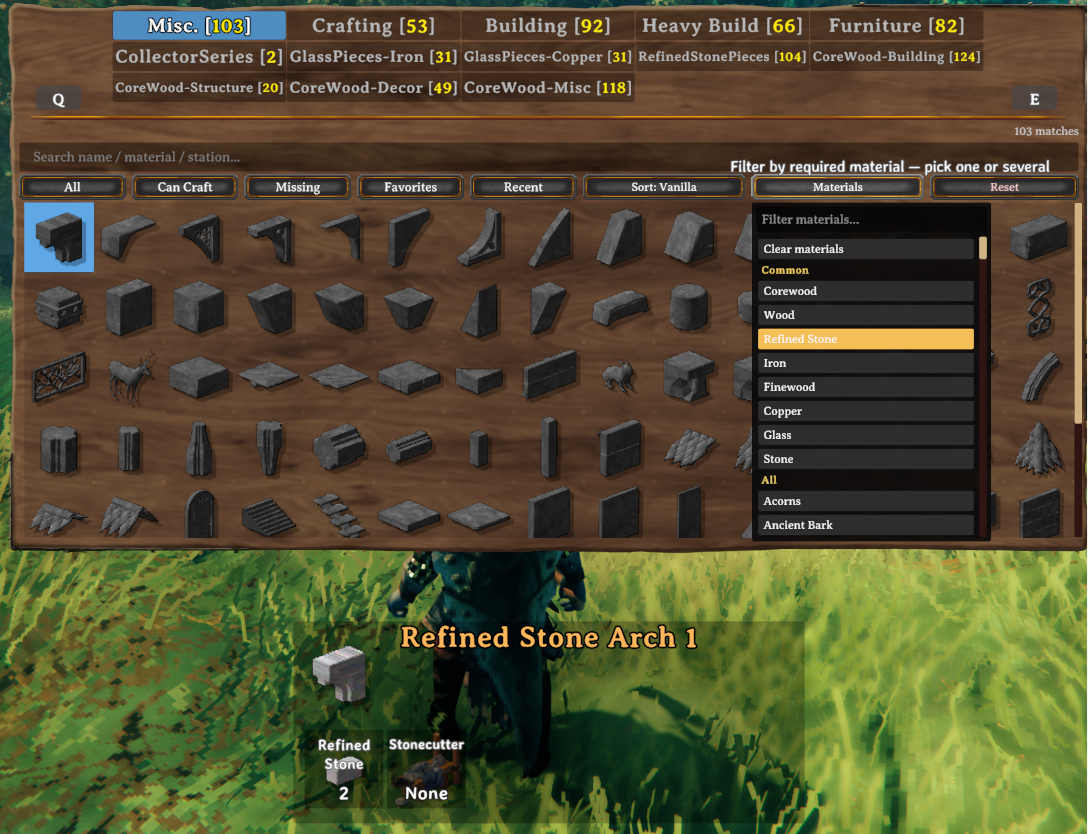
- A Materials button opens a dropdown with its own search field and scrollbar. It shows a Common section with the materials your modpack uses most, followed by the full list. Select one or several materials to show every piece that uses any of them.
- A Reset button clears the search, every filter, and the sort in one click.
- A match count shows how many pieces match the current search and filters.
Favorites and pinning
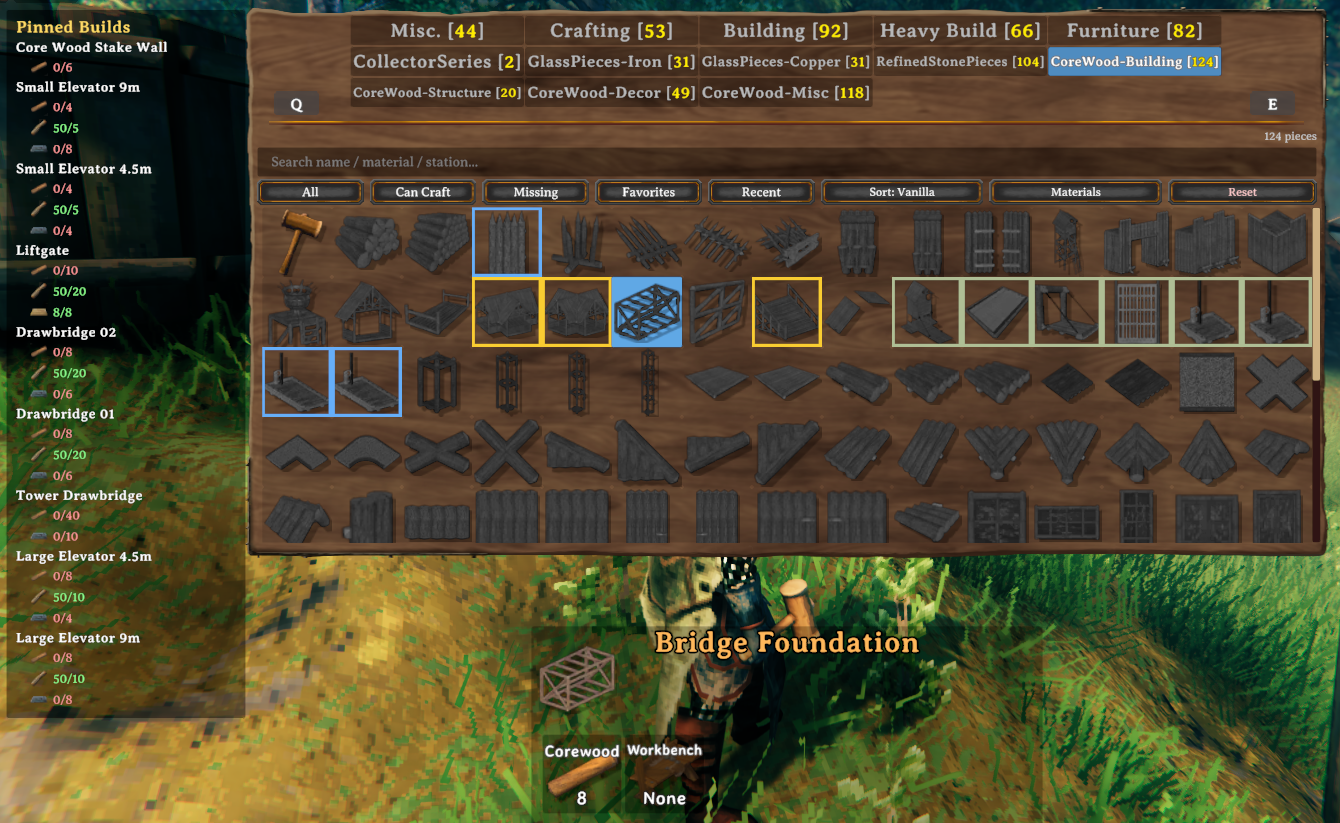
- Colored borders mark state at a glance. A yellow border means favorite, a blue border means pinned, and a blended color means both. The border colors are configurable.
- Quick toggling does not require aiming at a small button. Hold a modifier and click a piece. By default Shift favorites and Alt pins. Both modifiers are configurable.
- Optional clickable star and pin overlays are available, but they are off by default because the borders already show the state.
- Favorite, pin, and search key hints are added to the build hint bar at the bottom of the screen while the build menu is open, so the controls are discoverable. They follow your configured keys and can be turned off.
- Favorites can be stored per character or shared globally.

Window and grid
- Vertical scrolling with no row limit, so large modpacks show every piece in a category.
- The mouse wheel scrolls the grid and the materials dropdown while the cursor is over them, instead of switching category.
- The grid reflows to the window width and fills each cell the way the vanilla menu does. Icon size is configurable.
- The window can be resized and moved using grips in the corners. The size and position are saved and kept on screen so the menu never ends up off the edge.
In both menus
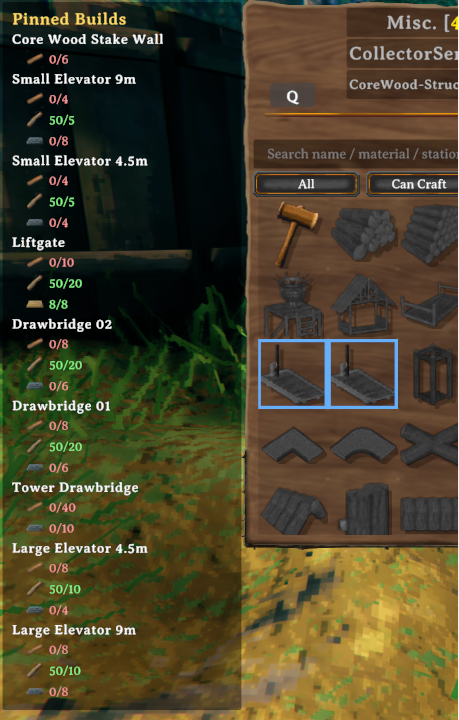
- The pinned recipe tracker is an on screen panel that lists the materials you still need for your pinned builds. You can drag it anywhere, choose a detailed or compact layout, scale it, and set it to appear only while the build menu is open.
- Placement counts are tracked for the Most Used tab and the Usage Frequency sort.
- Most settings apply live, without leaving the menu or restarting the game.
- Reset actions in the config let you clear all favorites, clear all pinned recipes, or reset the window size and position.
Configuration
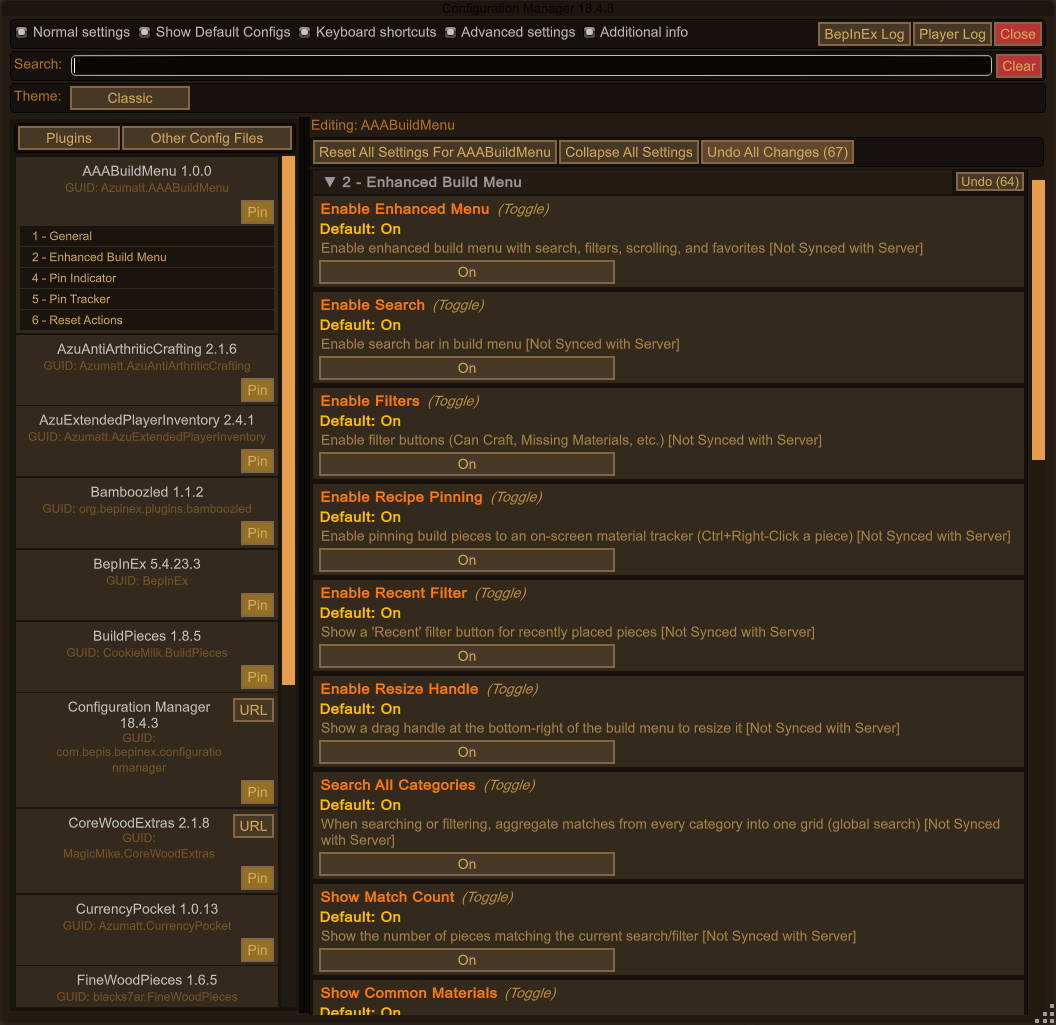
All settings appear in the in game configuration manager and in the config file.
- 1 - Enable Enhanced Build Menu:
Use Classic Build Menu(off by default) andEnable Enhanced Menu, the master switch for everything the mod adds. - 2 - Enhanced Build Menu: the classic menu's features and appearance (search, filters, pinning, resize, icon
scale, border colors, hotkeys and modifiers).
Default Sort Modealso drives the 1.0 menu's sort button. - 4 - Pin Indicator: the optional marker drawn on pinned pieces in the classic menu.
- 5 - Pin Tracker: the tracker panel's screen position, offset, format, scale, and whether it only shows while the build menu is open.
- 6 - Reset Actions: one click clears for favorites, pinned recipes, and the window layout.
- 7 - 1.0 Build Menu: the Can Build, Most Used and Pinned tabs (need a relog), material counts, icon size, the resizable window, and custom category tags.
A hidden data section stores saved information such as favorites, pinned recipes, recents, usage counts and the window layout. You do not need to edit it by hand.
Compatibility
- PieceManager and Jotunn pieces and categories work in both menus. AAABuildMenu runs after them, so it always sees the complete piece list, and it never rebuilds their category tabs or touches the parts of the window they lay out.
- LegacyBuildMenu and AAABuildMenu's classic option do the same job. If both are installed, LegacyBuildMenu steps aside.
- If SearsCatalog is installed, AAABuildMenu's classic menu steps aside automatically so the two mods do not fight over the same menu. Run only one of them.
- Server configuration sync is supported through ServerSync, so an admin can lock and share settings with connected clients.
Installation
- Install BepInEx for Valheim using the BepInExPack Valheim package.
- Place AAABuildMenu.dll in your
BepInEx/pluginsfolder. - Start the game. The configuration is created on first launch and can be changed live from the configuration manager.
Usage tips
- Open the build menu as usual with your build hammer or any piece table tool.
- On the 1.0 menu, check the Can Build tab when you just want to know what you can put down right now.
- Hold Alt and click a piece to pin it, then keep an eye on the tracker while you gather.
- Drag the bottom-right corner of the menu to make it bigger. You'll see a lot more pieces at once.
Contact and support
If you run into a problem or have a suggestion, you can reach Azumatt on Discord at the username Azumatt, or join
the server at https://discord.gg/pdHgy6Bsng for help and updates.
CHANGELOG
Version |
Update Notes |
|---|---|
| 1.0.4 | - Valheim 1.0 support. New Can Build, Most Used and Pinned tabs, resizable/movable window, icon size, sort button, material counts and recipe pinning in the 1.0 build menu. - Optional classic (pre-1.0) build menu with all the old features: Use Classic Build Menu.- Custom Jotunn/PieceManager categories get their own tag in the 1.0 menu. - A modded piece with a broken recipe no longer breaks the build menu. - Classic menu: picking a tab clears the search, tab counts show real category sizes, Deep North gets a proper tab name. - Reset Size & Position also resets the 1.0 menu. Stays out of PieceManager's way. - Errors that can repeat every frame are only logged once. |
| 1.0.3 | - NRE issues |
| 1.0.2 | - Fixes when logging in/out would cause stale state, resulting in the build menu not being recreated. |
| 1.0.1 | - Fixes |
| 1.0.0 | - Initial Release |
