
Please disclose if any significant portion of your mod was created using AI tools by adding the 'AI Generated' category. Failing to do so may result in the mod being removed from Thunderstore.

StorageMaster
Every nearby chest in one window: move, search, gather and tidy up items. Plus inventory sorting that keeps your hotbar, locked slots, quick stack, chest names and Skip for friends' chests. Client-side only.
| Date uploaded | a week ago |
| Version | 1.0.1 |
| Download link | CharmingBeaver-StorageMaster-1.0.1.zip |
| Downloads | 193 |
| Dependency string | CharmingBeaver-StorageMaster-1.0.1 |
This mod requires the following mods to function

denikson-BepInExPack_Valheim
BepInEx pack for Valheim. Preconfigured with the correct entry point for mods and preferred defaults for the community.
Preferred version: 5.4.2351README
Storage Master
Sort your inventory, lock slots, quick stack into nearby chests, and open every chest around you in one window to move, find, gather and tidy up your stuff.
Everything looks and feels like Valheim's own UI, and the whole mod runs on your side only: it works on any server, and nobody else needs to install it.
Download: Thunderstore (r2modman) · Nexus Mods · GitHub releases
Features
Inventory sorting
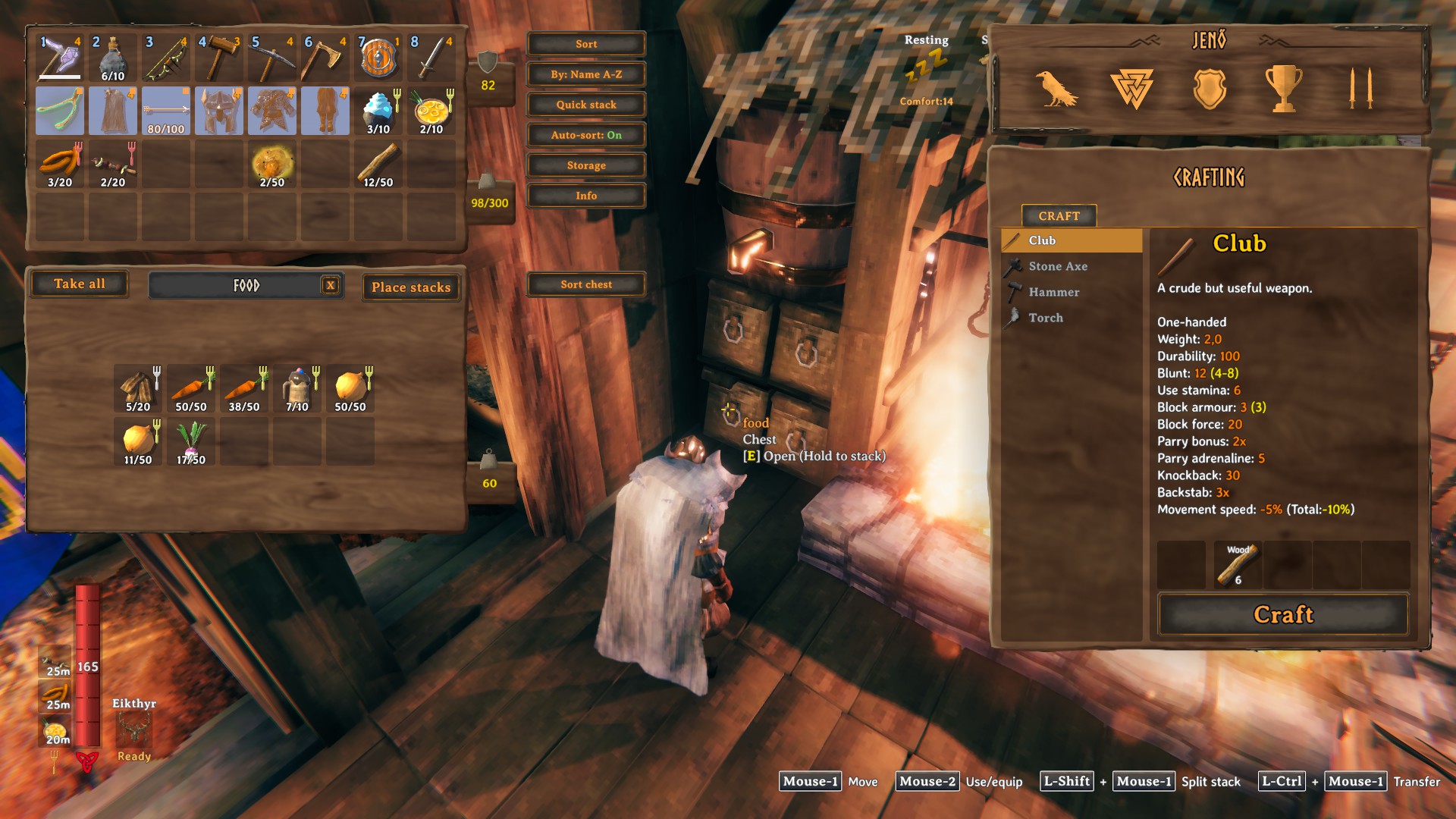
- A Sort button next to your inventory tidies everything below the hotbar. Your hotbar row is never moved.
- Partial stacks of the same item are merged first, so three stacks of 30 wood become one stack of 90.
- By: … switches what Sort orders by:
- Name A–Z and Name Z–A
- Type: weapons, ammo, armor, tools, food, materials, trophies
- Quality: best first
- Weight: heaviest first
- Amount: biggest stacks first
- Sort chest appears next to any chest you open and sorts it the same way.
- Auto-sort (optional) sorts your inventory every time you pick something up.
Locked slots
- Alt + click a slot in your inventory to lock it. Locked slots are tinted orange and get a small lock badge.
- Sort, auto-sort and quick stack never touch locked slots, and neither does the game's own Place stacks button.
- Locks are saved with your character.
Quick stack
- One click (or a hotkey) puts your items into nearby chests that already hold the same kind of item.
- Your hotbar, equipped gear and locked slots always stay with you.
- A short summary shows how many items went into how many chests.
Storage window
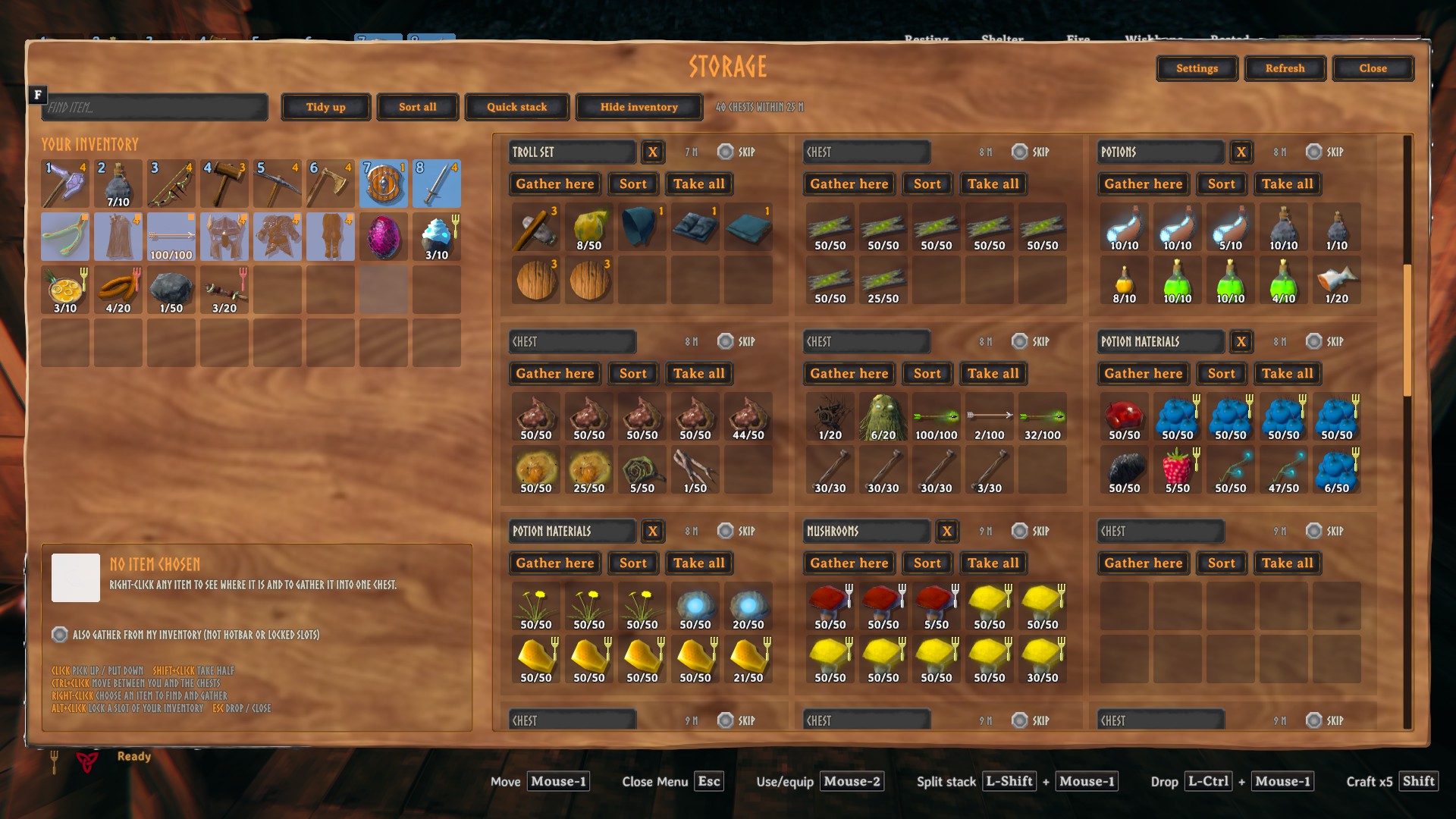
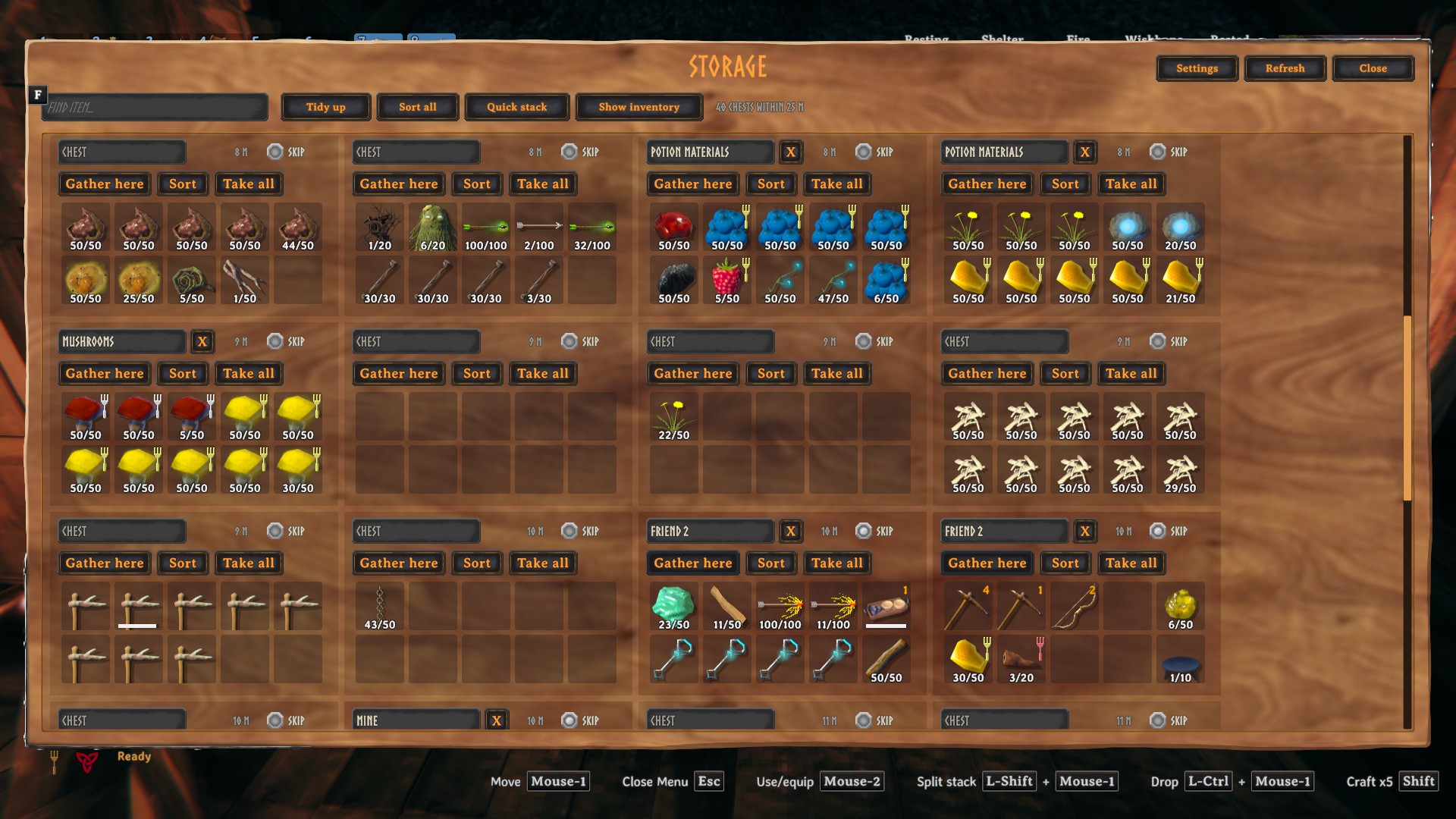
Opens every chest around you at once, next to your inventory, using the game's own item grids.
- Move items freely between your inventory and all chests:
- Click to pick up and put down
- Shift + click to take half a stack
- Ctrl + click to send an item straight to you, or from you to a chest that already has it
- Esc puts a carried item back
- Find item: type a name and every matching slot in every chest lights up; the rest fade out.
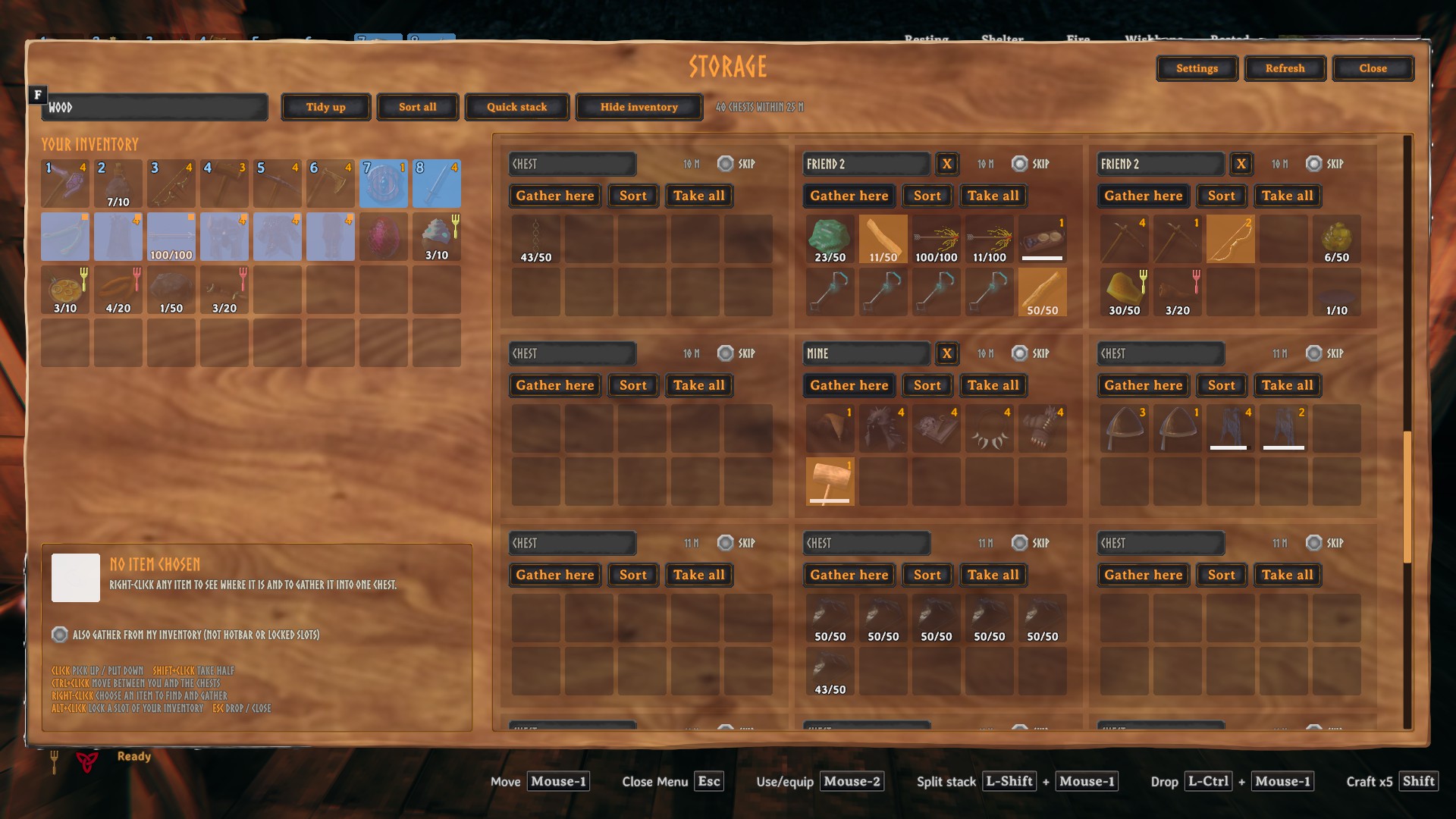
- Choose an item: right-click any item to see how many you have in total, how many chests it's spread over, and where every stack is.
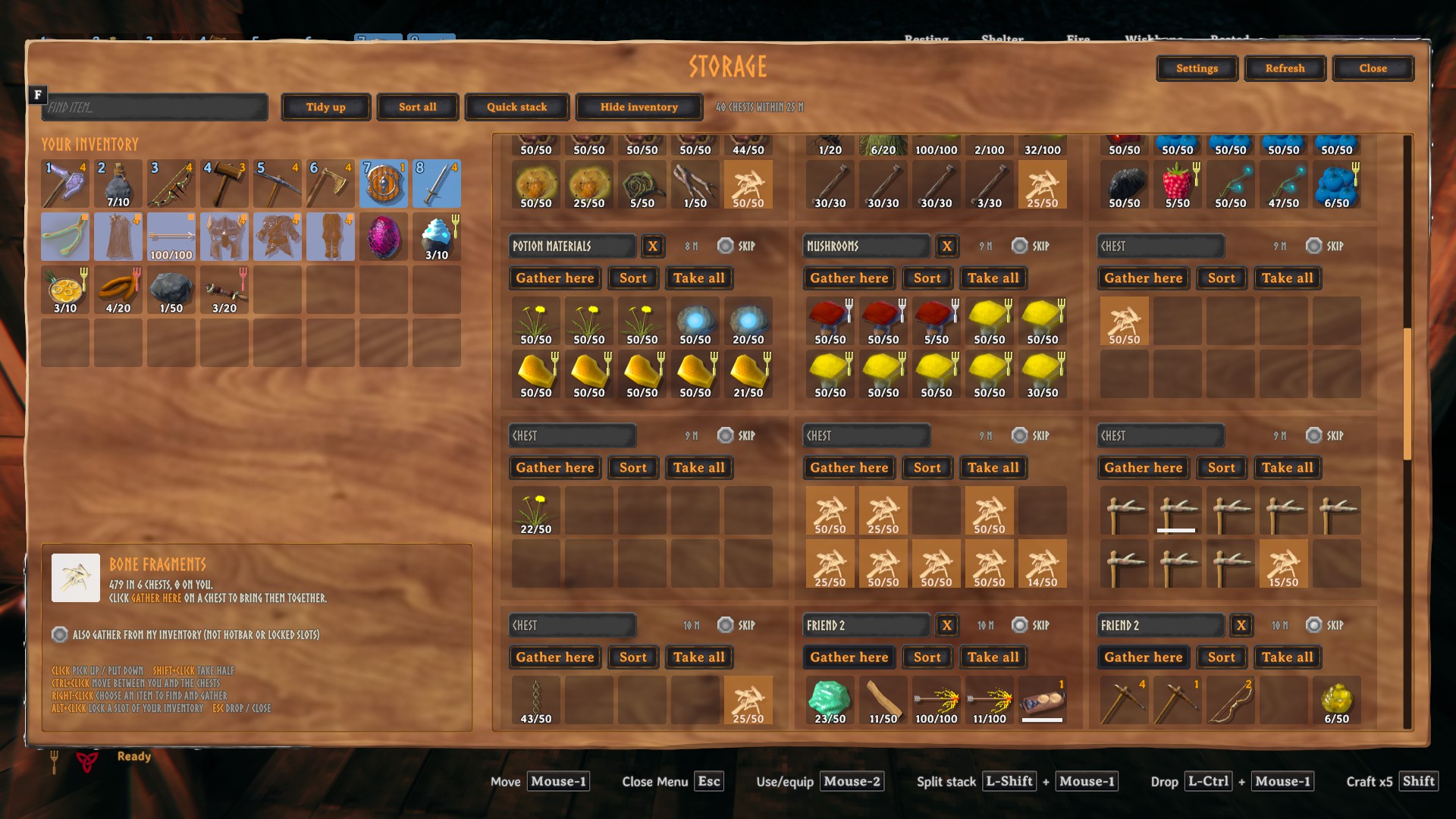
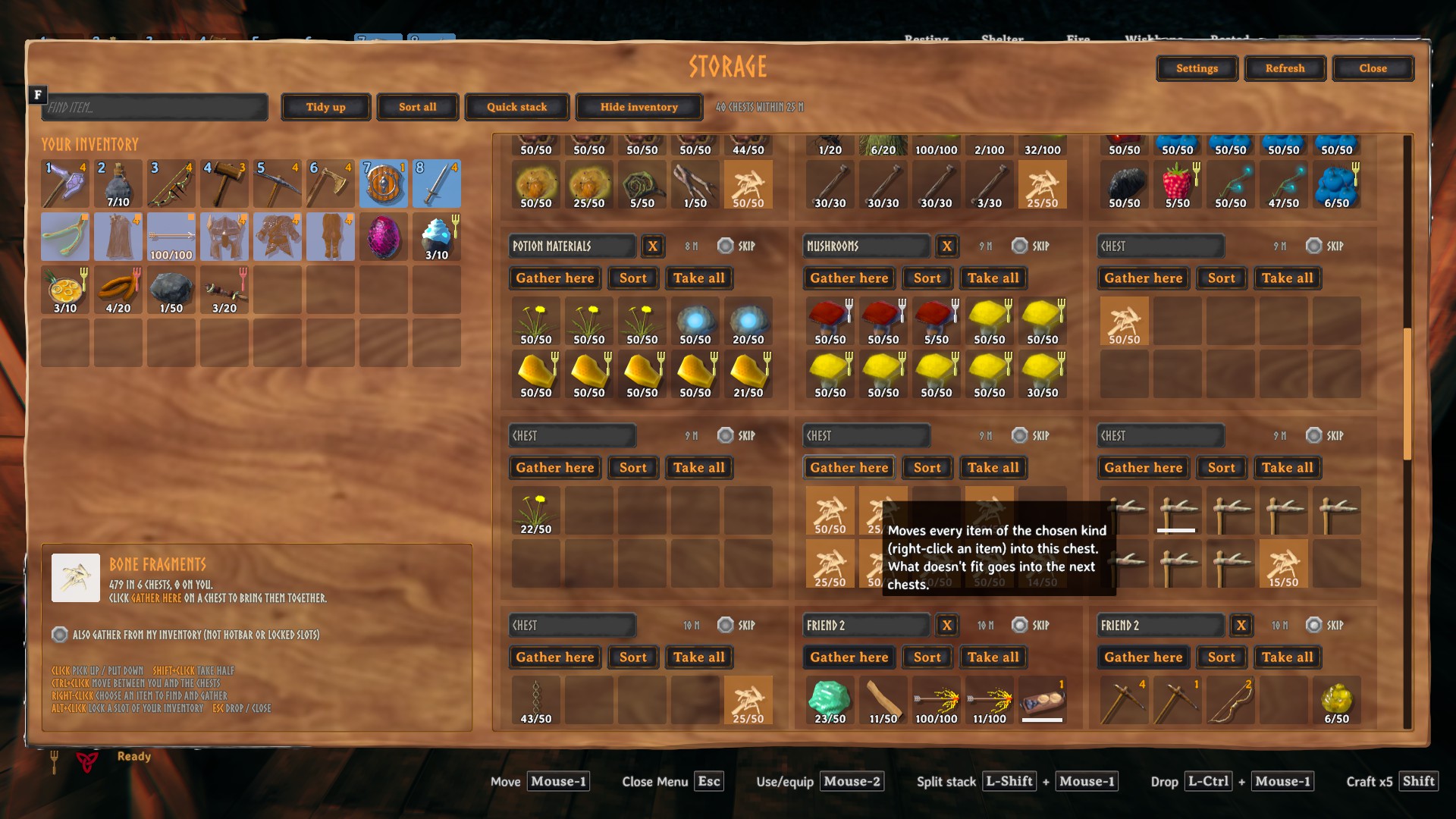
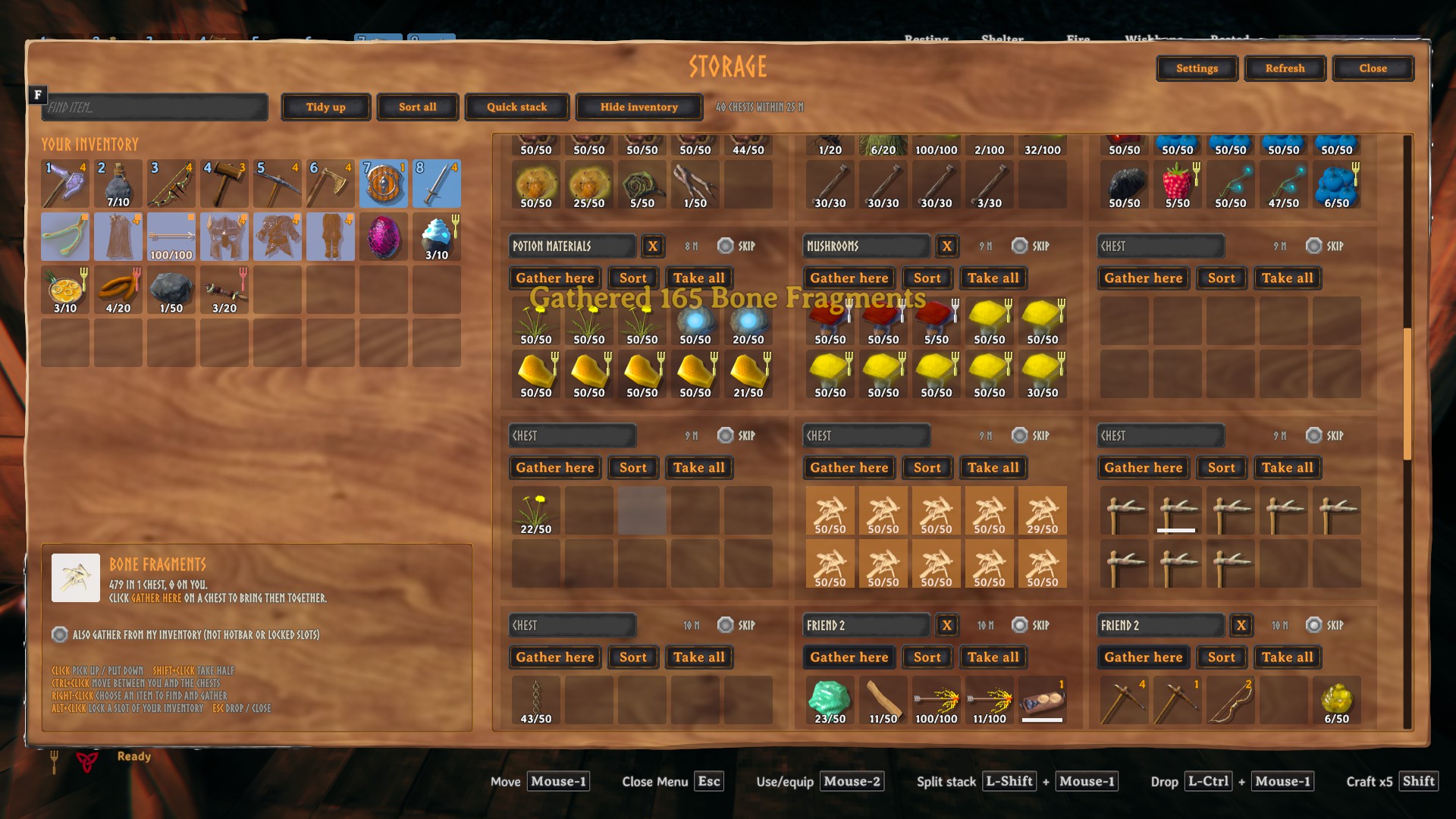
- Gather here: pulls all of the chosen item into one chest. Whatever doesn't fit flows into the next chests. Optionally it also takes them from your inventory (never from your hotbar or locked slots).
| Before | After Gather here |
|---|---|
 |
 |
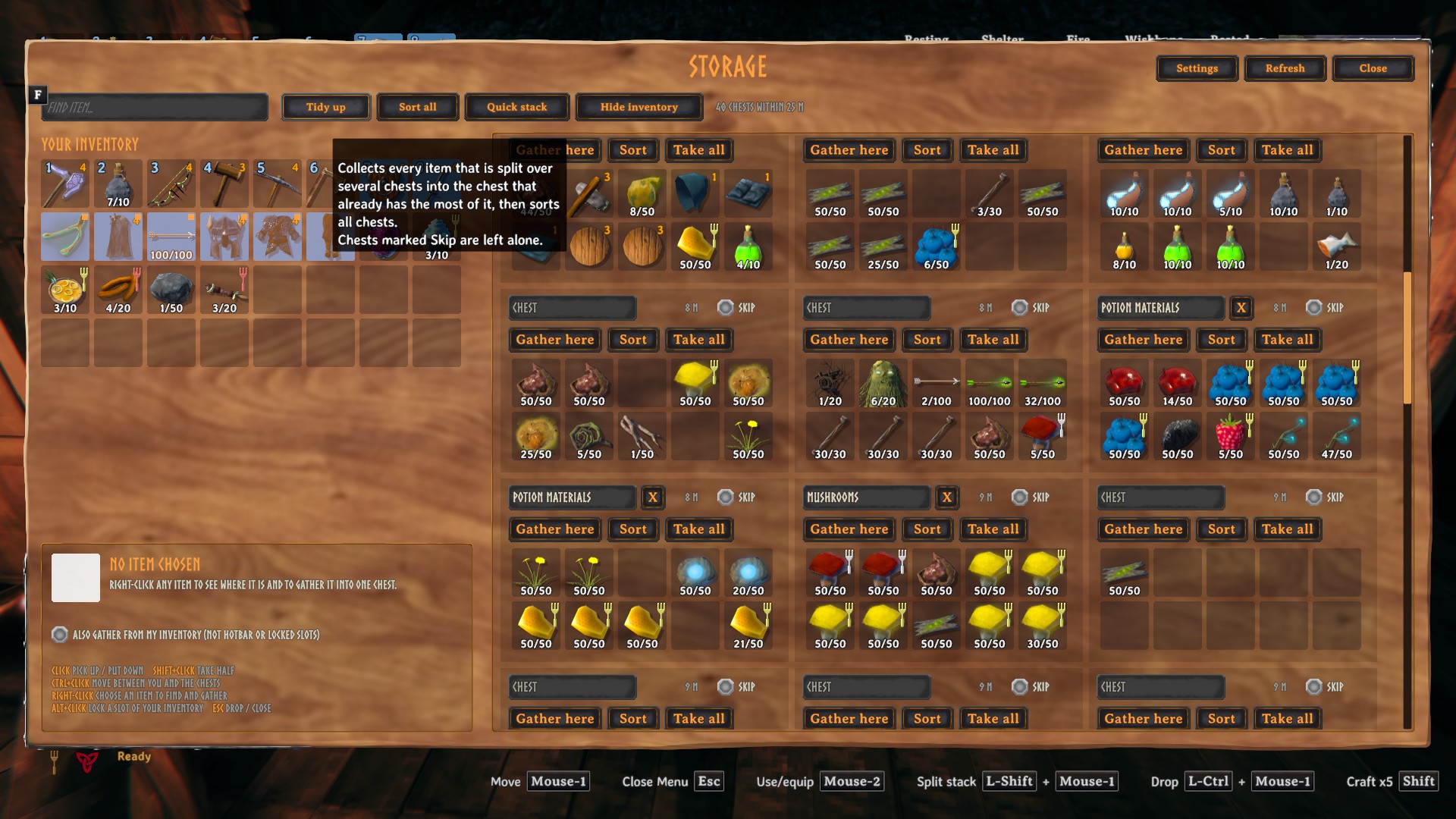
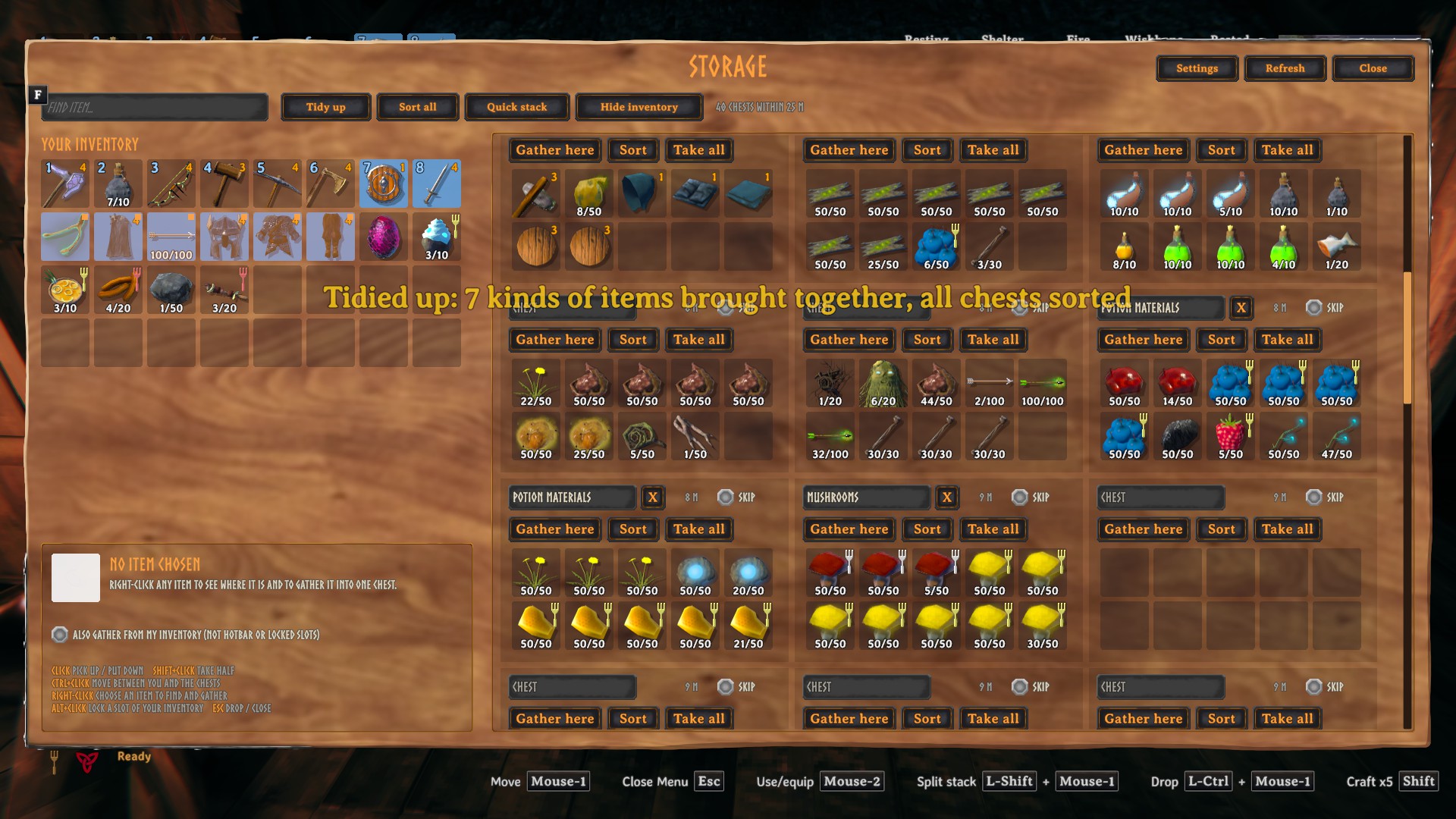
- Tidy up: every item that's split over several chests moves into the chest that already holds the most of it. Then all chests get sorted.
| Before | After Tidy up |
|---|---|
 |
 |
- Sort all, plus Sort and Take all on each chest.
- Quick stack into all the open chests at once.
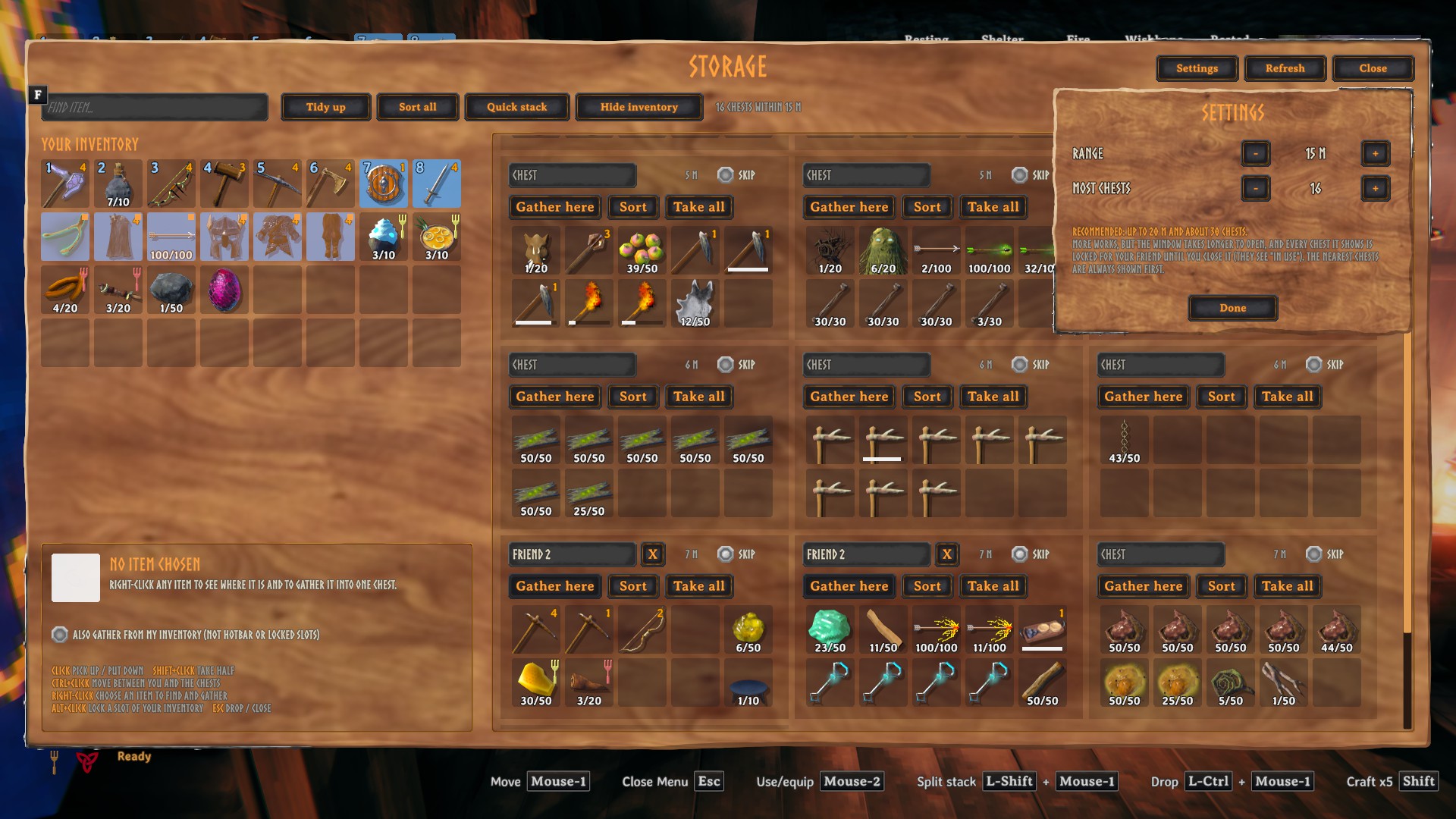
- Name your chests: click a chest's title to name it. The name appears when you look at the chest in the world. The X button removes it.
- Skip a chest: tick Skip on a chest (for example your friend's) and Quick stack, Gather, Tidy up and Sort all will leave it alone. You can still move items by hand. Only you see this setting.
- Hide inventory: gives the chests the whole window, so many more fit side by side on large screens.
- Settings: choose how far away (5–50 m) and how many chests (4–60) the window opens. Up to 20 m and about 30 chests is recommended.
Name chests anywhere
The title of the normal chest window (opened with E) is a text field too. Click it, type a name and press Enter. While you type, your keys only type: E won't close the chest and WASD won't move you.
Info window
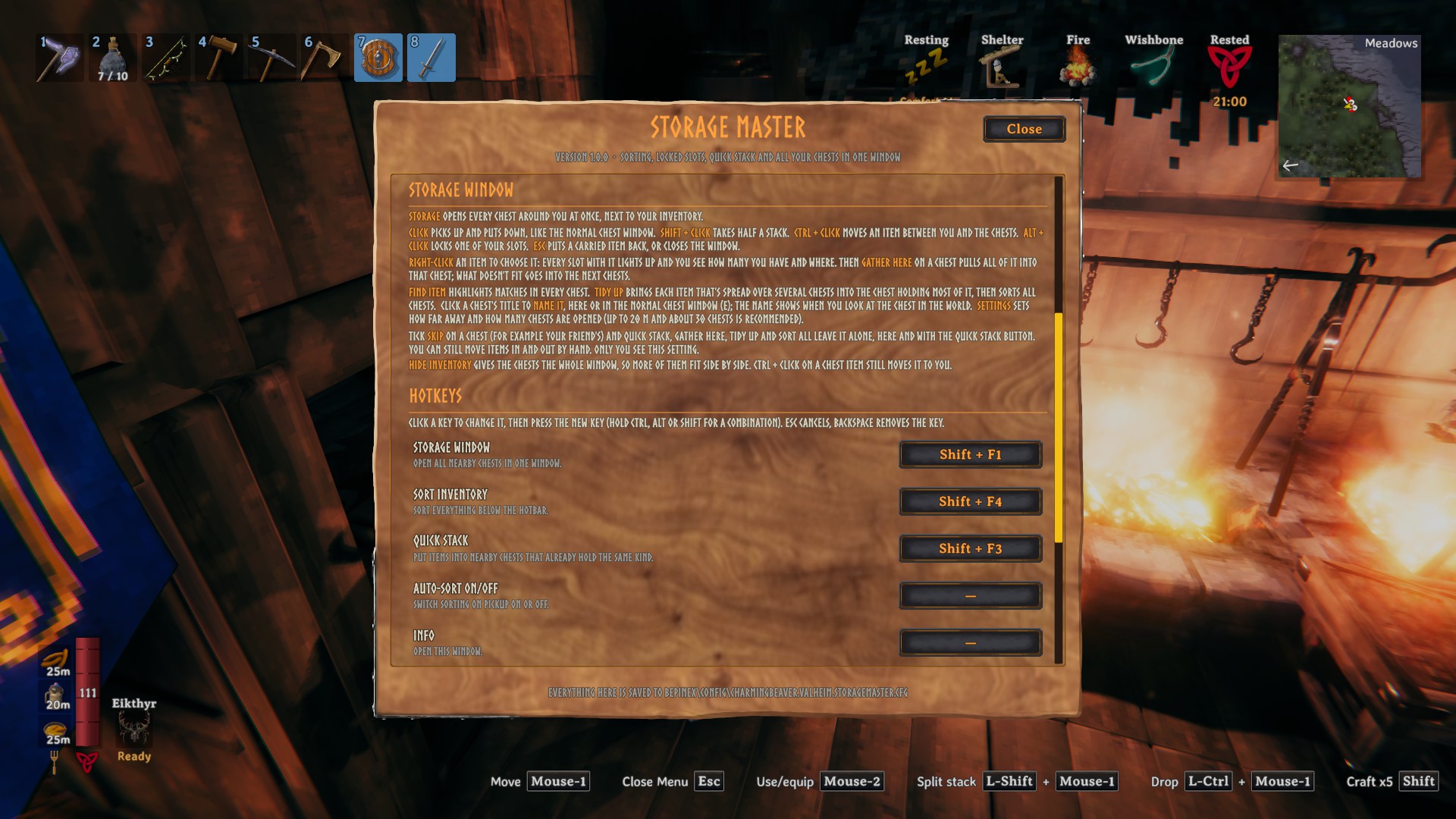
The Info button next to your inventory explains every feature. It also lets you change hotkeys (with warnings when Valheim already uses a key) and adjust the main settings in game.
Hotkeys
| Action | Default |
|---|---|
| Open the Storage window | Shift + F1 |
| Sort inventory | Shift + F4 |
| Quick stack | Shift + F3 |
| Auto-sort on / off | not set |
| Info window | not set |
| Lock / unlock a slot | Alt + click |
Change them in the Info window. Click a key, then press the new one; Esc cancels and Backspace removes the key. You can also edit them in the config file.
Multiplayer
- Client-side only. The server and other players don't need the mod.
- Safe with other players. Before touching a chest, Storage Master asks for it the same way the game's own Place stacks button does. The chest is handed over properly, and chests someone else has open are skipped ("In use by someone else").
- While the Storage window is open, the chests it shows count as in use, just like a normal open chest. Close the window and they're free again.
- Chest names are stored on the chest itself, so everyone with the mod sees them. Skip and locked slots are personal and saved with your character.
- Respects wards: you only see chests you're allowed to open. Tombstones are never touched.
Installation
With Vortex: click Mod Manager Download on the Nexus page.
With r2modman or Thunderstore Mod Manager: install it from there; BepInEx is installed automatically.
Manually:
- Install BepInExPack for Valheim.
- Copy
StorageMaster.dllintoValheim/BepInEx/plugins/StorageMaster/. - Start the game.
Configuration
All settings live in BepInEx/config/charmingbeaver.valheim.storagemaster.cfg. Most of them can also be changed in game from the Info window and the Storage window's Settings.
| Section | Setting | Default | |
|---|---|---|---|
| Sorting | SortMode | NameAsc | What Sort orders by |
| Sorting | AutoSort | false | Sort on every pickup |
| QuickStack | Range | 10 | Meters around you |
| QuickStack | SkipHotbar | true | Keep the hotbar out of quick stack |
| Storage | Range | 15 | Meters around you |
| Storage | MaxChests | 24 | Nearest chests first |
| Storage | ShowInventory | true | Show your inventory in the Storage window |
Compatibility
- Made for keyboard and mouse. Controllers aren't supported in the mod's windows.
- Other mods that change the inventory screen or chest handling (sorting, auto-storing, quick stacking) may clash with this one. If something behaves oddly, try without them first.
Support
If Storage Master saves you some chest-digging, you can buy me a coffee on Ko-fi. It's completely optional and very appreciated.

Issues and source
Bug reports and ideas: GitHub issues. Source code: Charming-Beaver/valheim-mods, MIT licensed.
CHANGELOG
Changelog
1.2.0
Added
- Works with ExtraSlots: Sort, auto-sort, Quick stack and Gather here leave its equipment, food, ammo, misc and quick slots alone, and the Storage window shows only your regular inventory rows
- New Options window (button in the inventory menu, Shift + F6) for hotkeys, settings and the menu buttons, with Reset to bring back a menu button moved out of reach
- F jumps into Find item in the Storage window, as in the build menu
- The Storage window says how many chests are over the Max chests limit, and Tidy up, Sort all, Gather here and Quick stack say when chests were left out because they were still opening or in use by someone else
Changed
- The buttons next to the inventory and the chest are now in menus that open from a small box above the weight. Ctrl + drag the box to move it out of other mods' way (key and position can be set in Options); the menus remember whether they're open
- Info now explains the features and lists your hotkeys; changing them and the settings moved to Options
- The menus, the Storage window, Info and Options use the inventory's darker background
Fixed
- Tidy up brings items together much more completely when chests are nearly full: it merges partial stacks first and keeps going until nothing more can be moved
- Tidy up and Gather here no longer fill the log with "Trying to add item to occupied slot" warnings when chests are nearly full
- Find item lights up the slots of matching items without tinting the items themselves, so they keep their full color
- Text fields other than Find item no longer show an F key that does nothing
- The By and Auto-sort buttons update when their settings are changed in the config file or a config manager
1.0.1
- Pressing Quick stack again within a second no longer replaces the summary with a wrong "the chests are full" message
- The mouse wheel scrolls the Storage window and the Info window at a normal speed. One notch used to move them only a couple of pixels
- Window titles and headers no longer turn into magenta blocks when another mod loads its own Norse font
- No more "LiberationSans SDF Font Asset was not found" warnings in the log
- With SeneaL UI, items in the Storage window show their tooltip (name and description) again, and the buttons' tooltips work
1.0.0
First release.
- Inventory sorting below the hotbar, merging partial stacks, by name, type, quality, weight or amount
- Sort chest button for the open chest, and optional auto-sort on pickup
- Locked slots (Alt + click) that sorting, quick stack and Place stacks leave alone
- Quick stack into nearby chests that already hold the same items
- Storage window that opens every nearby chest at once: move items, find items, gather an item into one chest, tidy up, sort all, take all
- Chest names, set in the Storage window or the normal chest window, shown when you look at a chest
- Skip chests so Quick stack, Gather, Tidy up and Sort all leave them alone
- Hide inventory mode and Settings (range and number of chests) in the Storage window
- Info window with every feature explained, in-game hotkey changes and settings
- Multiplayer safe and client-side only
