
Please disclose if any significant portion of your mod was created using AI tools by adding the 'AI Generated' category. Failing to do so may result in the mod being removed from Thunderstore.

Inventory
Bigger bags and stacks, food, mead and ammo slots, two trinkets, COINS and KEY RING, shared resizable chests with restock and sort, auto pickup, keep-on-death choices, optional packs and grave recovery. Requires MeadWorks Core.
| Date uploaded | 4 hours ago |
| Version | 1.0.0 |
| Download link | MeadWorks-Inventory-1.0.0.zip |
| Downloads | 49 |
| Dependency string | MeadWorks-Inventory-1.0.0 |
This mod requires the following mods to function

MeadWorks-Core
Searchable settings with admin permissions, translations, HUD, compass, chat, campfire character select, world and server picker, loading screens, Compendium, character backups and item recovery. Required by every MeadWorks module.
Preferred version: 1.0.1README
MeadWorks Inventory
A larger inventory, a new inventory screen, chests that several players can use, and automatic pickup. Switch each part on or off on the Inventory page of the MeadWorks menu (F8). Needs Meadworks: Core at exactly the same version.
What it does
Carry more
- Inventory size. Choose the height of your inventory: 4 to 8 rows of the game's 8 columns, the action bar included. The default is the game's 8 by 4. A smaller size is refused while an item is in a slot it would remove.
- Stack multiplier. Multiplies how many of an item fit in one stack. It is 2 by default. Coins are fixed at 999 outside COINS and ignore this setting.
- Per-item stacks. A file you write,
config/MeadWorks/inventory/stacks.json, gives single items a stack size of their own, 1 to 9999, for example[ { "item": "Wood", "stack": 200 } ]. A listed item ignores the multiplier; weight still follows it. Coins, keys and items the game does not stack keep their own limits. The file is read at the next world start, and a server's table applies to everyone connected. To stop using the table, leave[]in the file. - Base carry weight. How much you can carry before worn gear and effects add to it, 100 to 1000. 300, the default, is the game's own value.
- Portals take all items. Off by default. On, ore, metal and the other items the game keeps out of portals go through them, and the no-portal mark and tooltip line disappear.
- Keep on death. Choose Nothing (the world's own death rules), Worn and action bar (worn gear and the top inventory row stay with you), or Everything (all items stay and no tombstone is made). Nothing is the default. Old Off and On settings become Nothing and Everything. Skills and food still follow the world rules.
- Grave recovery. A grave is taken only by the player who died or the player who opens it, and automatic recovery of your own grave asks for the grave first. Gear worn at death is remembered with its owner. When it returns to your inventory, it is equipped through the game's equip path, pack first. Gear you already wear stays on; conflicting recovered gear stays in the bag. This also covers partial recovery. Older graves without wear marks cannot identify which bag items were worn.
The inventory screen
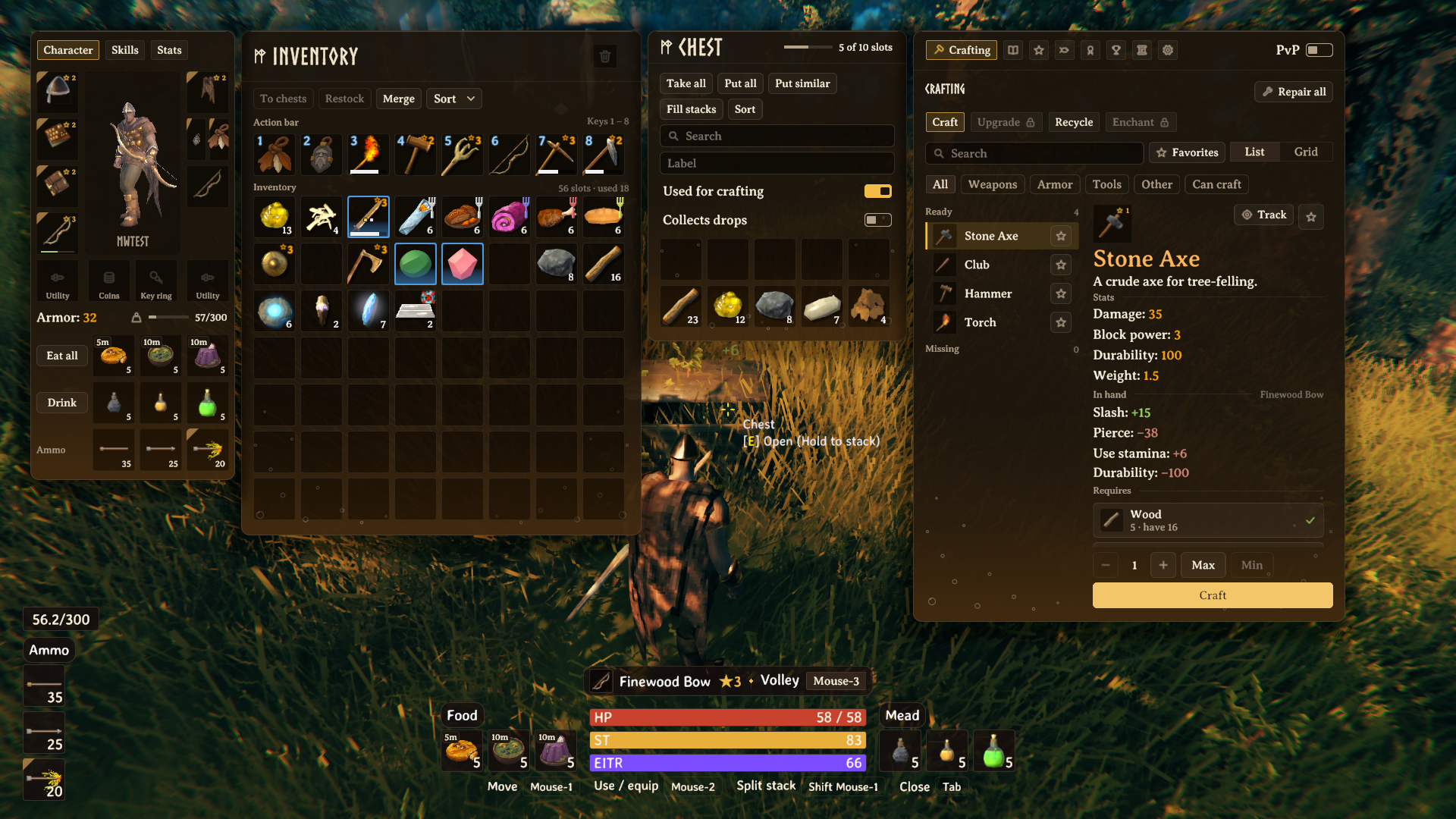
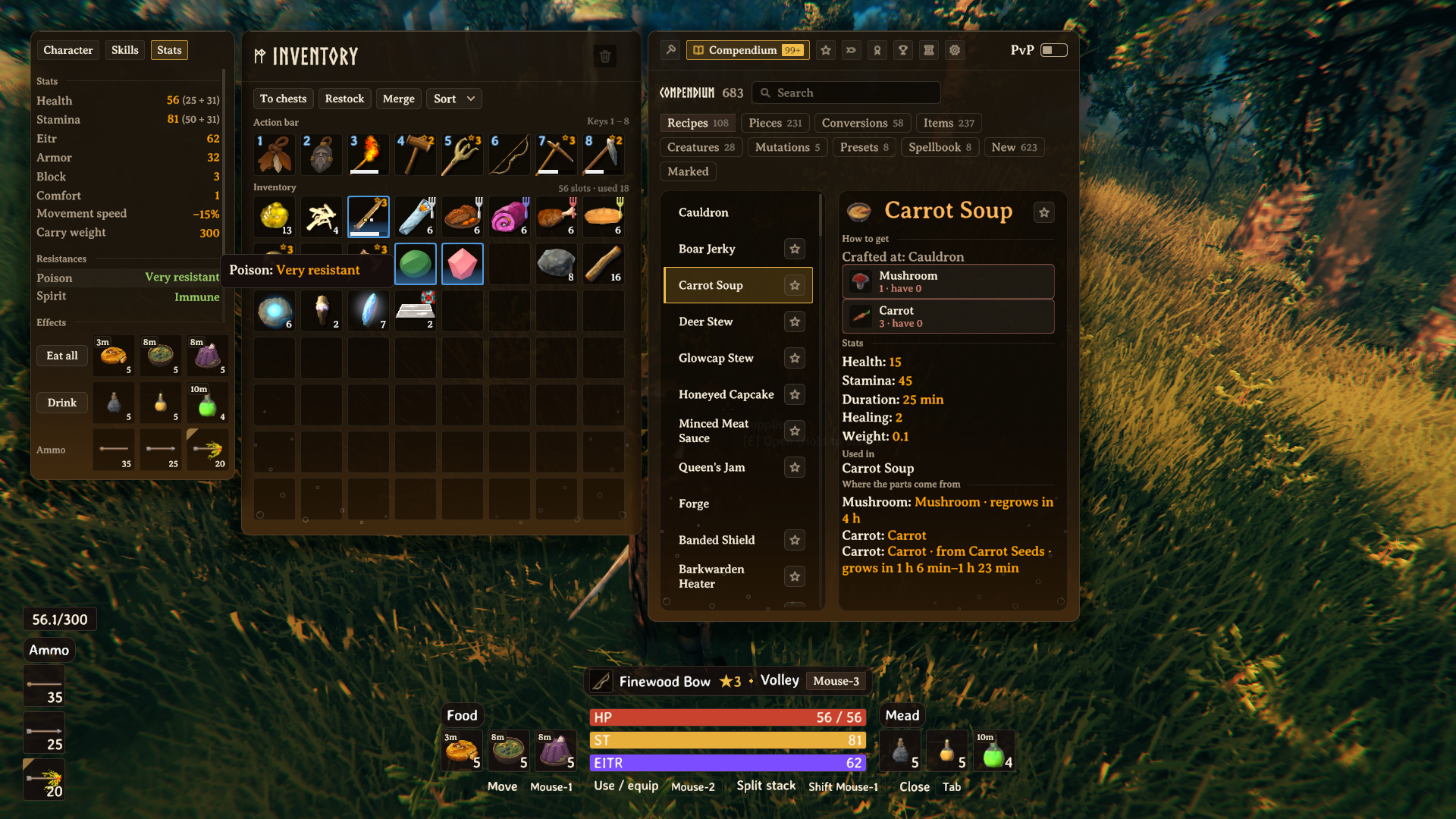
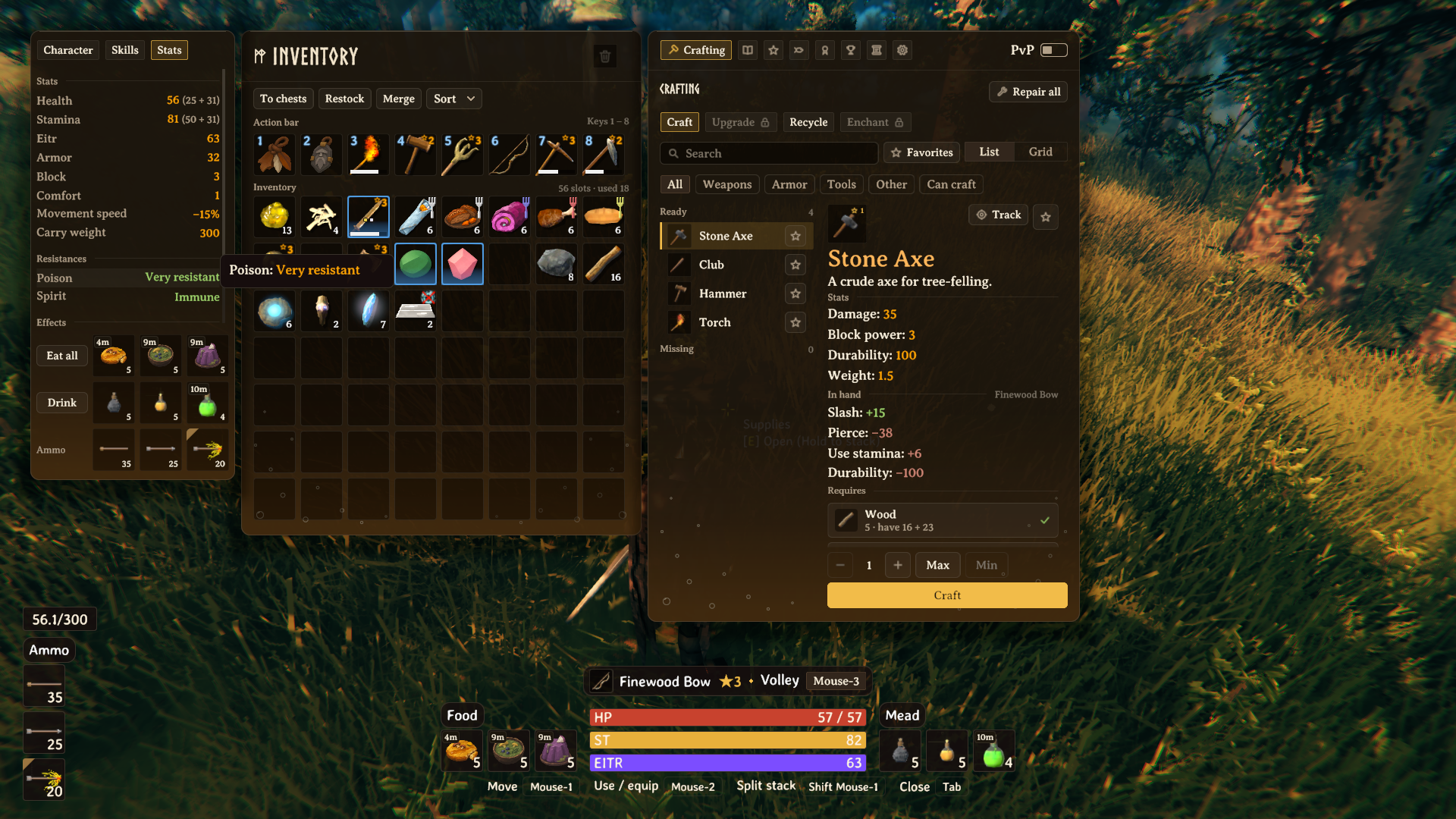
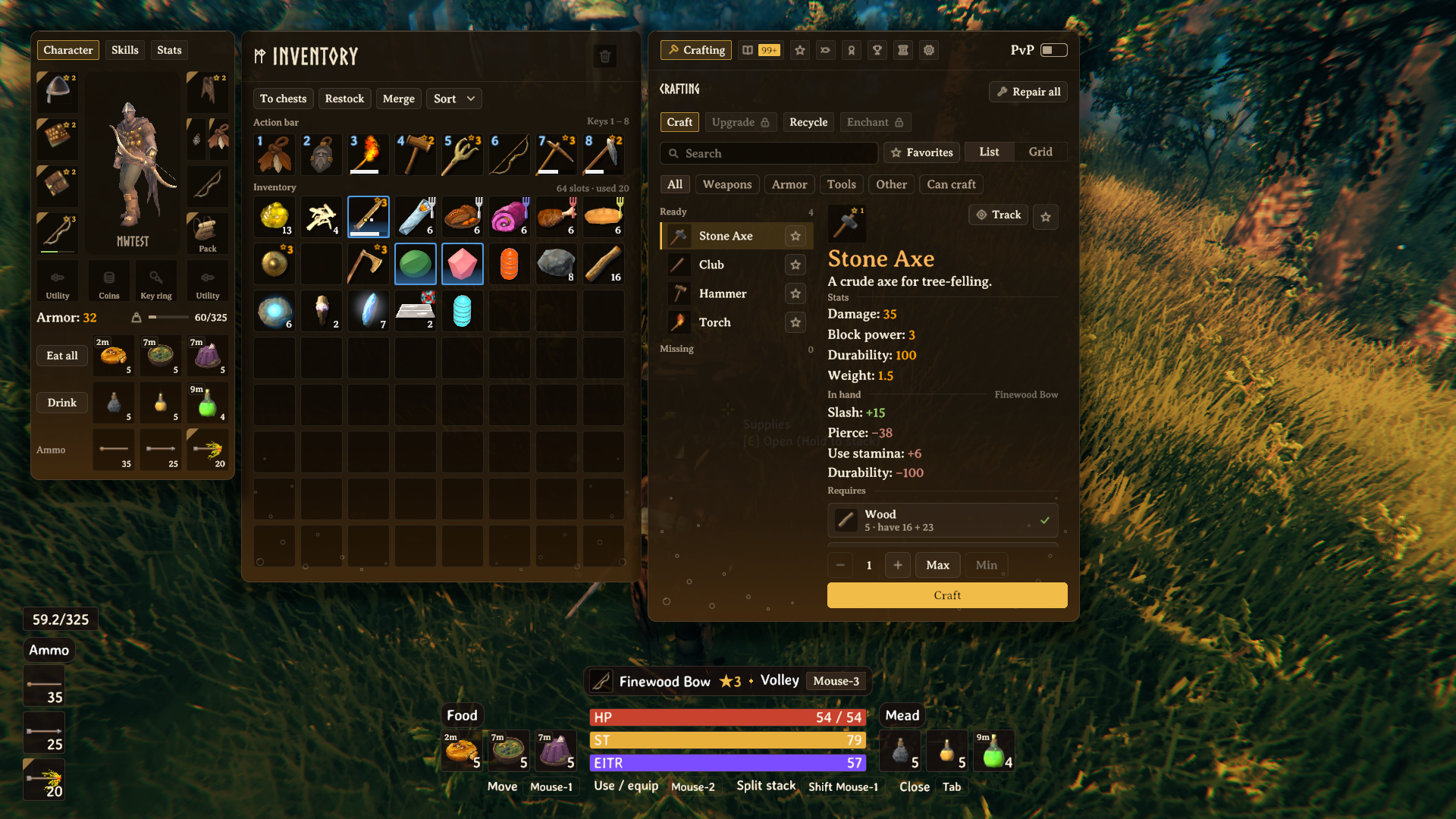
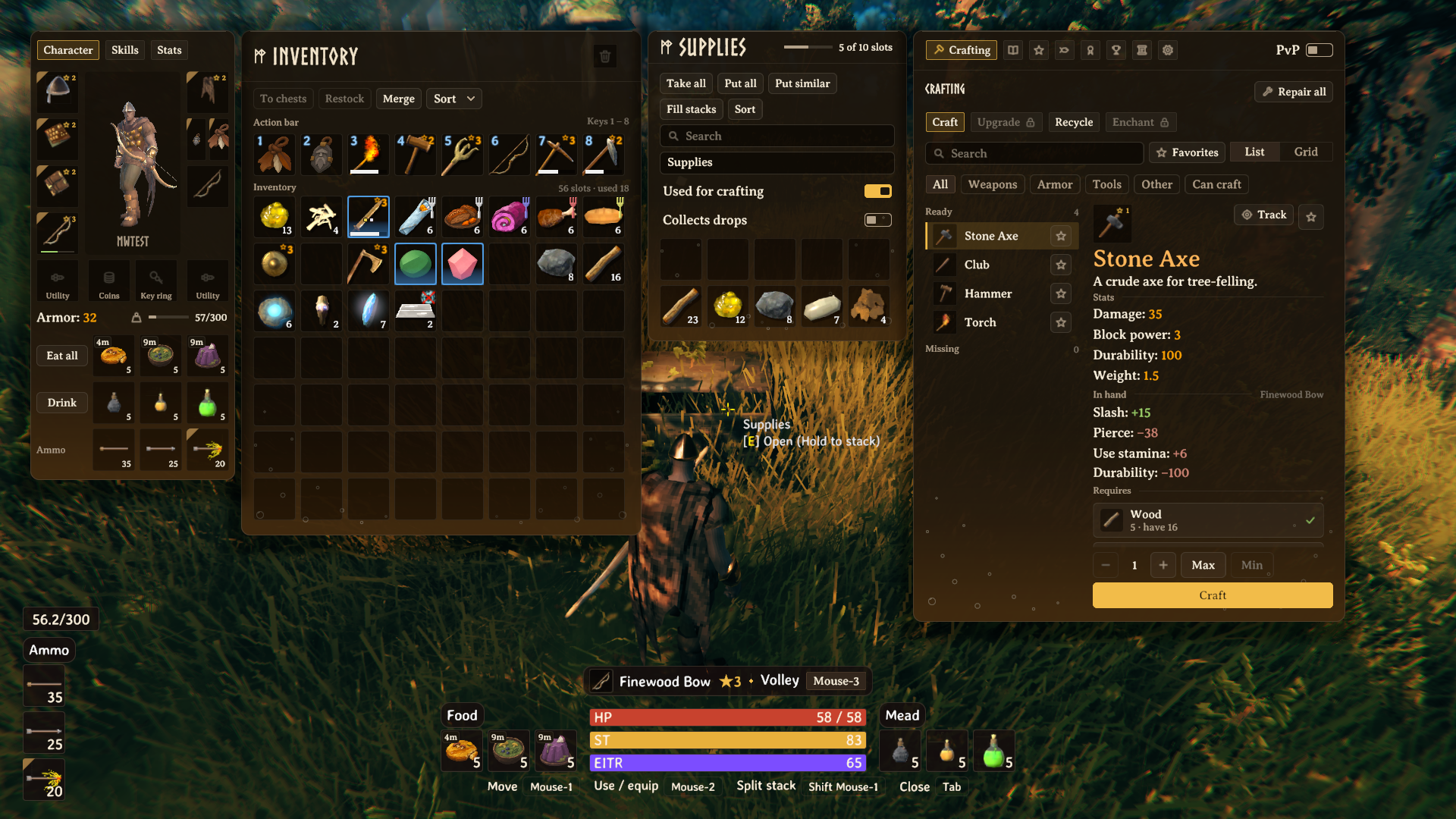
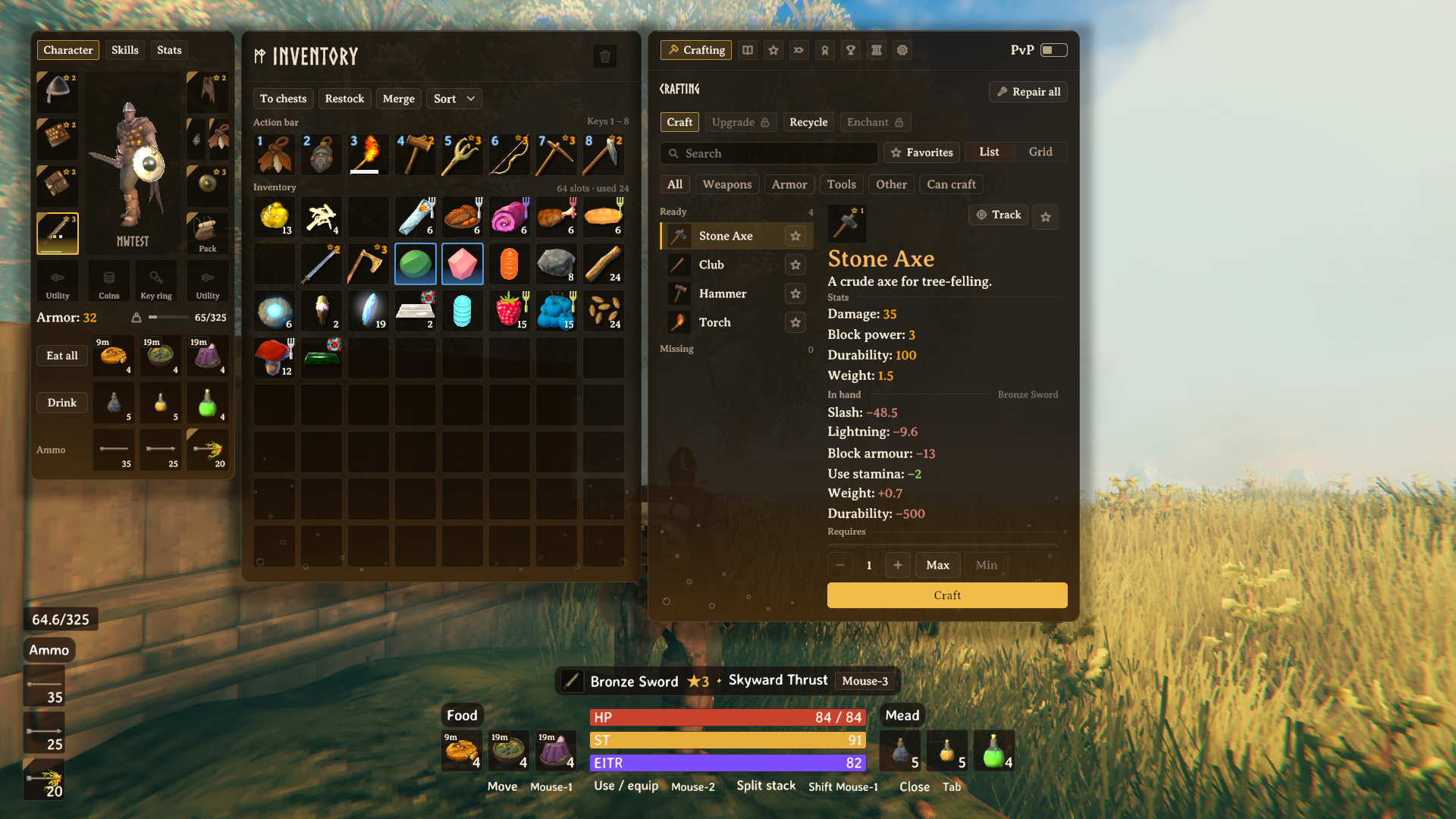
The inventory screen is three windows side by side: equipment at the left, the bag beside it and crafting at the right. With a chest open it is four: equipment, bag, chest and crafting, so gear can be worn and moved between the chest, the bag and the equipment cells.
- Bag. The title row has a 32-pixel trash slot at its right end, drawn like the other slots with a trash glyph. It stays outside the storage cells so sorting and extra rows never move it. The action bar and bag sit directly below the title row; a four-row bag window is 12 pixels shorter. New items and sorts fill the bag from the top. Trash takes any dragged item from your inventory, the action bar included, except worn and quest items. With Trash anything on in Cheats, a solo player, host or admin can destroy those too; worn gear comes off first. Clicking it or dropping an item on it opens one confirmation before destroying that stack; with Confirm trash off the stack is destroyed at once. Pressing Delete trashes the item picked up on the pointer, or the whole stack under the pointer in the bag or action bar, the same way. The slot uses the kit's radius-6 fill and outline at the native canvas pixel scale.
- Buttons. One row of labeled buttons under the title, in the chest window's style: To chests, Restock, Merge and Sort. The trash stays in the title row. Sort opens a list of orders (Category, Name, Weight); choosing one merges compatible stacks and sorts by it at once, and the list marks the last order used. To chests, Ctrl+Q, Restock and Merge report moved item counts and destinations. Shared-chest requests show progress until confirmed. Sort, storage and Merge leave worn, quest and action bar items alone. Restock tops up existing bag stacks, action bar stacks and assigned Food, Mead and Ammo stacks, using the current slot counts.
- Equipment window. Three tabs over three rows of Food, Mead and Ammo, which stay in view on every tab. Food and mead countdowns sit in the upper-left badge, with item counts at the bottom right. Character opens with your model standing between the worn equipment cells, with COINS and KEY RING beneath the model and the Armor row under them. The weight meter sits to the right of Armor, keeping its weight glyph and overweight color. Its track shortens when the numbers need more room. A worn item shows a bronze corner triangle and its durability line. With Equipment installed, rarity frames also show in the dedicated cells. Right-clicking worn gear unequips it, and clicking a slot with a picked-up item equips it. Stats lists health, stamina, eitr, armor, block, comfort, movement speed and carry weight, then resistances and effects, and hovering a stat shows what it is made of. With Equipment installed, Gear effects lists the combined inscription and gem effects of gear you wear or hold. Skills shows each level out of 100 with a gold progress bar and a dim bar for progress to the next level. Sort the list by level or name.
- Character card. While Restyle game windows is on, the buttons of the game's character card open the Texts, Trophies and Achievements tabs and the Skills tab of the equipment window. The inventory screen hides the card once every button has a tab. With the restyle off, or without a tab, the card and the game's windows are unchanged.
- Dedicated slots. On by default. Food, mead and ammo use the labeled cells of the equipment window; with the switch off those rows show what the bag carries of each. Worn gear, PACK, COINS and KEY RING are part of the equipment panel regardless of this switch. Dragging food, mead or ammo of the same kind onto its cell merges the two stacks. Items remain in the player inventory for weight, crafting, traders, doors and death. Explicitly moving coins or keys back to the bag keeps them there. Equipping ammo from the bag merges matching dedicated stacks first, then uses the first free Ammo cell. Full slots leave the remainder in the bag. Hotbar and held stacks stay in place.
- Slot keys. Every Food, Mead and Ammo cell has a key that uses what is in it: it eats the food, drinks the mead or readies the ammo. Foods 1 to 3 start on Z, X and C, meads 1 to 3 on Alt+Z, Alt+X and Alt+C, ammo 1 to 3 on Alt+1, Alt+2 and Alt+3, and cells 4 and 5 start unbound. X and C are also the game's Sit and Walk keys, and a press does both. All of them are on the Keys page. Each bound key appears in the upper-left corner of its HUD cell and updates when you rebind it.
- Food. With Dedicated slots on, an empty stomach slot is filled from the first eligible Food cell, checked once per second. Active foods are never replaced or duplicated. Eating waits while dead, teleporting, in a cutscene, or holding that item on the drag pointer. Food, mead and ammo cells use the same item hover card as the bag; empty cells have no card. With Equipment installed, manually refreshing an active food keeps its native effect without replaying the eat animation.
- Eat all and Drink. With dedicated slots on, the Food row has an Eat all button and the Mead row a Drink button. Eat all eats every food in your food cells that you can eat now: a free place is filled, a food that can be eaten again is topped up, and no food that is still good is replaced. Drink uses the first mead in your mead cells that is ready. Neither binds a key.
- Food and mead countdowns. The HUD and equipment window show the countdown at the top left and the stack count at the bottom right. Food timers follow the HUD setting. In the last minute, food switches to minutes:seconds with a red exclamation mark. The countdown stays visible after the last item in a food stack is eaten and briefly shows 0:00 when the buff ends. Active mead cooldowns and durations appear on their mead cells.
- HUD mead and ammo follow the slots. With Dedicated slots on, these boxes show what sits in those slots. The one Ammo box shows the ammo your bow takes, or the first filled Ammo slot.
- Packs. Enable Backpacks on the Inventory page (Off by default) to craft and wear packs. A worn pack from Equipment adds one to three rows to the bag. It always uses PACK, at the bottom of the left column. It stays on while the items in its rows have no room in the rest of the bag.
- Utility slots. With the server's Utility slots setting at 2, a second utility item is worn beside the first.
- Trinkets. The Character tab has two trinket slots. A trinket goes into the first empty one, and a third replaces the first. Dropping one worn trinket on the other slot swaps them, and the same trinket cannot fill both. The second trinket stays in the bag, marked, so a game without MeadWorks still loads it.
- Quality stars. A cell with an upgradable item shows a gold star and its quality level, ★1 to ★4, in the bag, the equipment window, the chest and on the action bar. Items that cannot be upgraded show none.
- Equipment panel. The Character tab shows what you wear.
- With Equipment's Dual wield on, dropping a supported one-handed weapon from the bag onto either hand slot follows equip order: first main, then off, with later weapons replacing the off hand. Shields keep their native left-hand placement. Unequipping the main does not move an off-hand weapon to it.
Chests
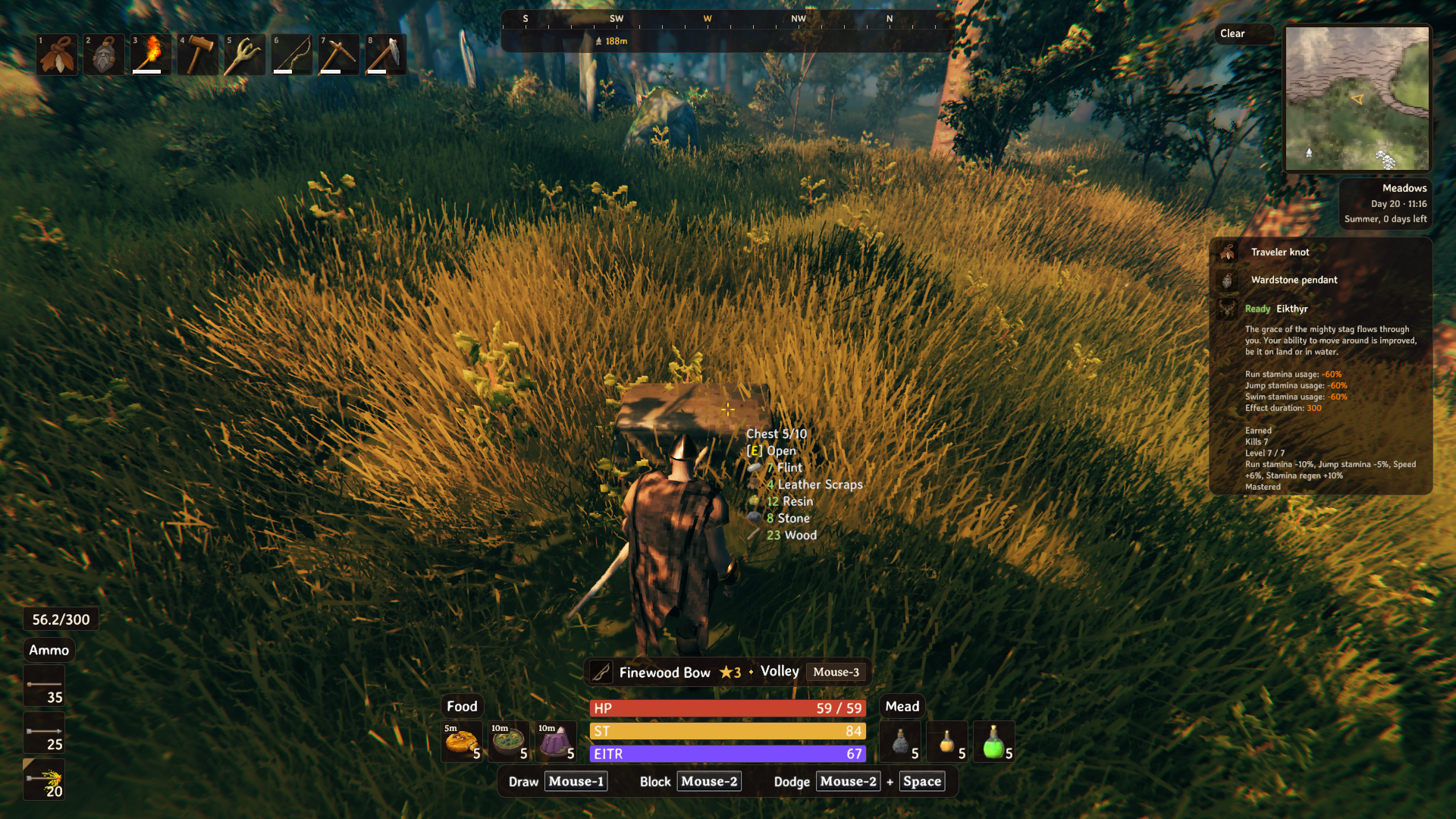
- Container preview. Hover a chest, cart or ship storage that a player built to see its name, used and total slots and the item totals, sorted by name, with each item's icon. World loot chests and graves show no preview. The preview hides while a menu is open. The contents refresh when the inventory changes or the game loads updated chest data.
- Chest panel. On the inventory screen, a chest, cart, ship or grave opens beside the bag, between it and crafting; the equipment window stays. When the four windows do not fit, the side margins and the bag's and chest's padding narrow first; if that is not enough, all four windows are drawn smaller together, text included, so an 8 by 8 chest keeps full-size slots at 1920 x 1080 and nothing scrolls. A chest scrolls only past the smallest size. A container no player built, such as a dungeon or camp loot chest, opens in the same window, sized to its own grid, with its title, slot count and the game's Take all; it has no search, label, switches or other buttons. Chest titles stay on one line beside the capacity readout. Take all, Put all, Put similar, Fill stacks and Sort preserve protected items. Graves use native Take all. Search dims nonmatching cells. Typed labels persist with the container. Unlabeled chests show their game name. Used for crafting excludes disabled chests from crafting, building, feeding, To chests and Restock.
- Collects drops. A switch on a player-built chest's panel makes it take in loose items lying within 4 meters. An item has to lie 5 seconds first, so you can still pick up what you just dropped, and only whole stacks that fit move. Pieces, quest items, items in tar and items the game does not pick up on its own are left. Carts, ships and graves never collect.
- Safe item move. Off by default. With it on, an item is dropped on the ground only while the Drop key is held (Ctrl and a click by default), so a slip drops nothing. A drop without the key returns the item to where it came from. With it on, a delivery that does not fit waits for a free bag slot and says so once.
- Tidy on close. Closing a storage chest you opened directly moves eligible stacks to nearby chests that already hold more of the same item. The destination must be accessible, directly editable and enabled for crafting. Protected stacks and items that do not fit stay in the chest. Private chests, shared views, carts, ships and graves skip this step.
- Sort chests on close. Merges and sorts a chest when you close it. Starts at Everyone and Off. The old server-controlled key is retired; each player opts in again.
- Store nearby. Ctrl+Q puts what you carry into nearby chests that already hold the same item. Worn and hotbar items stay with you.
- Shared chests. More than one player can use the same chest at the same time. On by default; it works on host worlds and dedicated servers. Players with access can open and use a newly placed shared chest right away, before the next world save. The host is the sequencer in a hosted world and keeps direct access to its own chests. A put or take is final only once the chest itself shows it, and until then the items are held safe and come back if the request fails. A chest is never left locked to another player: To chests, Restock, Store nearby, collecting drops and tidying ask the chest's owner for it and wait, and say so when the chest is in use or busy. Switching Shared chests on while a server is running shares chests that are already loaded once they are closed (see Known limits); a server that starts with the setting on shares each chest when it first loads. With Shared chests off, and for a chest that is not shared yet, a chest one player has open belongs to that player until it is closed: crafting, building and station feeding by other players leave it out and do not count it.
- Dungeon and camp loot chests are not shared, and they open in the game's own window, with its own Take all and none of this mod's buttons, search, label or switches. They are never used for crafting, To chests, Restock, collecting or tidying.
- One Chest range governs To chests, Restock and, with Crafting installed, crafting and building from chests, including on shared clients.
Chest size
Two numeric settings, fixed to Admins, change player-built stationary storage. The host, solo player or server admin can change them.
Chest width (3 to 8) and Chest height (2 to 8) are slot counts for every player-built chest. Each dimension keeps at least its native size, up to 8, so the defaults 3 and 2 keep every chest native. A change applies at once to every loaded chest, the one you have open included, and to every other chest when it loads. A chest nobody has opened never loses a slot that holds an item. When a player opens a chest that is larger than the setting, or the setting is lowered while the chest is open, it shrinks at once: items outside the new grid move into its free cells, and what still does not fit drops at that player's feet. Old width settings above the default migrate to wood-chest widths 6 and 7; old row settings stay 2 to 6. Owners publish dimensions for viewers and ownership changes.
The inventory keeps the game's 8 columns; a character saved with wider rows by an earlier version keeps every item. Inventory height is 4 to 8 total rows, including the action bar. Saved bag-row settings migrate by adding the action bar once. Solo players, hosts and admins retain control of all three settings.
World loot chests, pots, gifts, carts, Karve, longship and Drakkar storage keep their native sizes. Chest settings are not applied on servers without MeadWorks.
Pick things up
Auto pickup makes loose items near you glide to you and be picked up when they fit in your inventory and under your carry weight. Fish still swimming are left for the rod. Shift+V turns it on and off. Pickups per frame is how many are taken in one frame (8 by default), and each plays the pickup effect and shows a message. Pickup radius is a setting. Collected items glide at 15 meters per second. On a server, Pickup radius and Pickups per frame are the server's values, and only the host or an admin changes them.
Wear things on pickup
Auto equip puts on armor (helmet, chest, legs, cape), a utility item or a pack you pick up when its own slot is empty. A filled slot is left alone. On by default.
Coins and keys
- COINS. The purse holds up to 9,999 coins at 1% of their normal weight. Coins stack to 999 everywhere else, at normal weight. New coins fill the purse first, trader proceeds included, and coins taken from a chest are added to it. The same inventory still counts and spends them. There is no setting for the capacity or the weight.
- KEY RING. Every door key you pick up or take goes on the ring, and doors still find them. The first opening of a locked door uses one key and the door stays unlocked for everyone. Keys stack up to 10 of a kind, in the ring, the bag and chests alike, whatever the stack multiplier. The cell shows a held key's icon and how many keys are on the ring; its tooltip lists them. A kind of key found for the first time marks the cell in gold until you open the ring. Click it to open the ring beside the cell: one cell for every kind of key you have found, with a count, and a dimmed cell for a kind you no longer carry. Click or drag a key to take it to the bag; drop a key on KEY RING to put it back. Keys you marked KEY 1 to 3 before carry over without being copied.
PACK, COINS and KEY RING sit on the Character tab of the equipment window. Ammo uses the equipment window's Ammo row.
Keys
| Key | What it does |
|---|---|
| Shift+V | Turns auto pickup on and off. |
| Ctrl+Q | Puts what you carry into nearby chests that already hold the same item. |
| Ctrl and click | With Safe item move on, drops the item you click out of the inventory. |
| Z, X, C | Uses Food 1, 2 and 3. |
| Alt+Z, Alt+X, Alt+C | Uses Mead 1, 2 and 3. |
| Alt+1, Alt+2, Alt+3 | Uses Ammo 1, 2 and 3. |
Every key can be changed on the Keys page. Food, mead and ammo cells 4 and 5 have a key row too, unbound at first.
Settings
Press F8 and open the Inventory page. Every setting row has a hover tip describing its effect. A setting marked Advanced is under the Advanced row of the page. The last column is the permission a setting starts with; the host or an admin can change it in game (see MeadWorks Core). Admins settings take the server's value for every player. Admins (fixed) settings cannot be switched to Everyone. Solo players, hosts and admins can edit every setting.
| Name | Default | Who can change | What it does |
|---|---|---|---|
| Inventory height | 4 | Admins (fixed) | Total rows including the action bar, 4 to 8. Occupied rows are kept when shrinking. |
| Food slots | 3 | Everyone | 1 to 5 cells. Removed items return to the bag or remain reachable until space is free. Advanced. |
| Mead slots | 3 | Everyone | 1 to 5 cells. Removed items return to the bag or remain reachable until space is free. Advanced. |
| Ammo slots | 3 | Everyone | 1 to 5 cells. Removed items return to the bag or remain reachable until space is free. Advanced. |
| Stack multiplier | 2 | Admins (fixed) | Multiplies how many of an item fit in one stack (1 to 10). |
| Base carry weight | 300 | Admins | How much you can carry before worn gear and effects add to it, from 100 to 1000 (300 is the game's own value). |
| Portals take all items | Off | Admins | Ore, metal and the other items the game keeps out of portals go through them. Advanced. |
| Keep on death | Nothing | Admins (fixed) | Nothing, Worn and action bar, or Everything. Hover for what each choice keeps. |
| Dedicated slots | On | Everyone | On the inventory screen, food, mead and ammo use the cells of the equipment window. Equipment, PACK, COINS and KEY RING work regardless. |
| Utility slots | 1 | Admins (fixed) | How many utility items you can wear at once, 1 or 2. Each one counts as worn. |
| Equipment panel | On | Everyone | Shows what you wear in a panel of its own, one slot per kind of gear. |
| Backpacks | Off | Admins (fixed) | Enables pack recipes and wear; turning Off is refused if the worn pack and its row contents cannot fit in the ordinary bag. |
| Auto equip | On | Everyone | Armor, a utility item or a pack you pick up is put on when its own slot is empty. |
| Container preview | On | Everyone | Pointing at a chest shows what is inside it without opening it. |
| Chest range | 30 | Admins | How far from you a chest can be and still be used for crafting, building, To chests and Restock, in meters (5 to 64). |
| Chest width | 3 | Admins (fixed) | Columns of every player-built chest, 3 to 8; a chest never gets fewer than its native columns. Applies to every chest at once; a larger chest shrinks when it is next opened, and what no longer fits drops at the opener's feet. |
| Chest height | 2 | Admins (fixed) | Rows of every player-built chest, 2 to 8; a chest never gets fewer than its native rows. Applies to every chest at once; a larger chest shrinks when it is next opened, and what no longer fits drops at the opener's feet. |
| Shared chests | On | Admins (fixed) | More than one player can use the same chest at the same time. |
| Sort chests on close | Off | Everyone | Merges and sorts chests you close. |
| Safe item move | Off | Everyone | An item is dropped on the ground only while the drop key is held, so a slip of the mouse drops nothing. |
| Drop key | Ctrl+Mouse0 | Everyone | Hold it while you move an item out of the inventory to drop it. Used while Safe item move is on. Advanced. |
| Confirm trash | On | Everyone | Asks before the trash destroys an item. Off destroys a dropped item at once. |
| Trash key | Delete | Everyone | Destroys the item picked up on the pointer, or the whole stack under it in your bag or action bar, as the trash does. Worn and quest items are kept. Advanced. |
| Store nearby | Ctrl+Q | Everyone | Puts what you carry into nearby chests that already hold the same item. Worn and hotbar items stay with you. |
| Auto pickup | On | Everyone | Loose items near you glide to you and are picked up when they fit in your inventory. |
| Pickup radius | 4 | Admins | How near a loose item must be to be picked up, in meters (1 to 10). |
| Pickups per frame | 8 | Admins | The most items taken in one frame (1 to 20). Advanced. |
| Pickup key | Shift+V | Everyone | Turns auto pickup on and off. Advanced. |
| Food 1 to Food 5 | Z, X, C, None, None | Everyone | The keys that eat the food in each Food cell. Advanced. |
| Mead 1 to Mead 5 | Alt+Z, Alt+X, Alt+C, None, None | Everyone | The keys that drink the mead in each Mead cell. Advanced. |
| Ammo 1 to Ammo 5 | Alt+1, Alt+2, Alt+3, None, None | Everyone | The keys that ready the ammo in each Ammo cell. Advanced. |
Known limits
-
Restore Chest width to 3 and Chest height to 2, then open each enlarged chest before removing Inventory: what no longer fits drops at your feet. The native chest loader cannot read items in added columns.
-
Shared chests are on by default. They need the server and the players who use the chest to run the same chest protocol, which comes with the same MeadWorks version. This does not change who can join.
-
Switching Shared chests on while a server is running can share eligible chests that are already loaded once they are closed and every ready peer can share. A chest with an observed native take-all grant stays native until the world session ends.
-
The food, mead and ammo dedicated cells are on by default on the inventory screen. An empty PACK cell is hidden while Backpacks is Off. COINS and KEY RING stay on the equipment panel.
-
A worn pack cannot be taken off, replaced, dropped, moved to a chest or destroyed while the items in its rows have no room in the rest of the bag. Free the cells first.
-
A second utility item is not drawn on your character.
-
A worn pack adds up to three rows below the action bar. On the inventory screen the slots fit the available height, and past that the rows scroll.
-
Items in dedicated slots, backpack rows, the coin purse and bag stacks above the game's normal sizes are saved in the character's own item list, below the game's bag rows and split to the game's normal stack size. With MeadWorks they go back to their slots, rows and purse when the character loads. Without MeadWorks they drop at your feet the first time the character loads, and you decide what to keep. An item only MeadWorks adds, such as a backpack, cannot exist in a game without it: it stays in the character file and returns when MeadWorks is installed again. A quest item the game will not drop is saved in a free bag cell instead; with a full bag it stays in the character file until MeadWorks is installed again.
-
Chests and graves are saved in the game's own format: stacks are split to the game's normal size and wide chests use extra rows, so a game without MeadWorks loads them with nothing cut. Items that format cannot hold, such as items only MeadWorks adds, are kept with the world and come back into the chest, or into a wooden chest at its spot, when MeadWorks is installed again. Save the world with MeadWorks before removing it, and let shared-chest moves finish first.
-
A put to a chest that broke stays held if no result was recorded. It is not refunded without proof.
-
After a server crash, shared-chest moves made since the last completed world save are undone when you rejoin, within about a second: what you put comes back and what you took is removed. Taken items you already used, dropped or stored elsewhere are not taken back.
-
Used for crafting changes how Crafting uses a chest. Crafting is a separate mod.
Compatibility
Needs Core at exactly the same suite version. MeadWorks clients can join servers without MeadWorks and use other mods. A MeadWorks server refuses only a missing, wrong-version or mismatched MeadWorks install. Solo players, hosts and admins retain control of every setting; settings at Everyone stay each player's own.
Install
Install with a mod manager, or put meadworks.inventory.dll in BepInEx/plugins. Install Core as well. Install on the server and every player.
License
MIT. Copyright (c) 2026 expDARE.
CHANGELOG
Changelog
1.0.1
Inventory
- Version 1.0.1 to match the suite.
1.0.0
Inventory
- Equip gear, food, mead, ammo and two trinkets in dedicated slots, with keys and stack merging.
- Expand bags and player-built chests up to eight rows and columns, with stack and carry weight settings.
- Search, label, sort and share chests, collect drops, restock and store with a single action.
- Carry up to 9,999 coins and every door key in dedicated spaces, with optional backpack rows.
- Keep what matters on death, recover graves, and see quality stars on upgradable items.
