
Please disclose if any significant portion of your mod was created using AI tools by adding the 'AI Generated' category. Failing to do so may result in the mod being removed from Thunderstore.

DraggableUI
Move and scale every HUD piece and window with the mouse, keep named layouts, plus quality stars, bigger enemy bars with numbers, two clocks and equipment, arrow, consumable and food slots with hotkeys. Client-side.
By Rhenn
| Date uploaded | 15 hours ago |
| Version | 1.1.1 |
| Download link | Rhenn-DraggableUI-1.1.1.zip |
| Downloads | 39 |
| Dependency string | Rhenn-DraggableUI-1.1.1 |
This mod requires the following mods to function

denikson-BepInExPack_Valheim
BepInEx pack for Valheim. Preconfigured with the correct entry point for mods and preferred defaults for the community.
Preferred version: 5.4.2351README
DraggableUI
Move and resize Valheim's interface with the mouse: the health bar, the minimap, the hotkey bar, the status effects, the chat, the inventory panels, the trader, the skills window, everything. Nothing can be dragged off screen, and wherever you leave something is where it stays. Keep several named layouts and switch between them in edit mode. Items keep dragging exactly as before. Item slots show an item's quality as stars and colour its durability bar, the health bars over creatures are a little bigger and carry their health in numbers, two clocks on the HUD show the in-game time and your own, six equipment slots, three arrow slots, three consumable slots and three food slots sit outside the inventory grid with hotkeys, and every setting can be changed in game through the ModSettings mod's window (see Settings in game below).
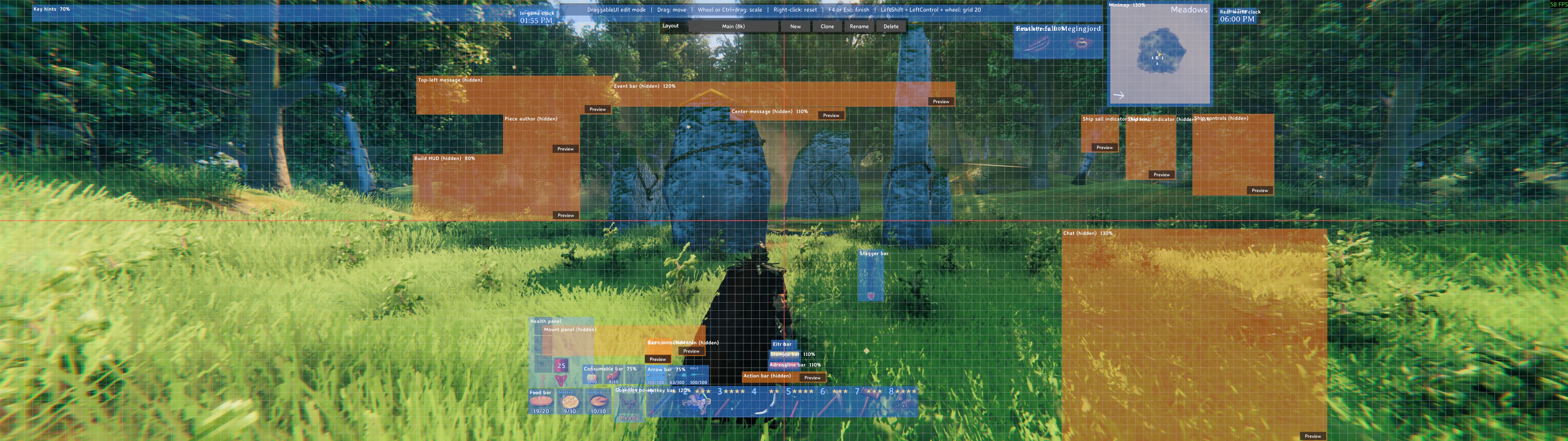
Edit mode on an ultrawide screen, with a layout of 44 placed pieces. Blue boxes are pieces the game is showing, orange ones are pieces it is hiding right now.
Two ways to move things
In-game HUD: edit mode. Press F4 (changeable, see Config) while playing. The cursor appears, your character stops listening to the mouse and keyboard, and every piece of the HUD gets a labelled blue box. Drag a box to move that piece. Roll the mouse wheel over it, or hold Ctrl and drag up or down, to scale it. Right-click a box to put that piece back where the game had it. Press F4 again, or Escape, to finish: the layout is saved and the game takes the controls back. A line at the top of the screen repeats these controls while you edit, and the bar under it shows which layout you are editing (see Layouts below). Behind the boxes, a faint grid and a red line through the middle of the screen, one horizontal and one vertical, help you line pieces up and centre them. Hold Ctrl+Shift and roll the mouse wheel for a coarser (up) or finer (down) grid: 10, 20, 25, 50, 100, 200, 250, 500 or 1000 units; the banner shows the current size, and it is remembered. The Grid settings change the keys to hold or turn the lines off.
Pieces the game is not showing at that moment (the event bar outside a raid, the mount panel when you are on foot, the ship wind indicator on land, the guardian power before you have one, the chat after it has faded) get an orange box instead, in the place they would appear. Drag and scale it like any other. Its Preview button shows the real thing for three seconds so you can judge the spot, and while it shows it follows the box as you drag or scale it. Hidden bars that fade when full (stamina, eitr, adrenaline, stagger) are simply kept visible while you edit.
You can open the inventory while in edit mode to arrange the HUD and the inventory panels together.
Windows: just drag them. The inventory, crafting and container panels, the character info panel, the trader, the skills window, the compendium, the trophies, the achievements, the build menu and the split-stack and variant dialogs can be dragged whenever they are open, no edit mode needed. Press on any part of the window that is not an item slot, button, scrollbar or text field, and drag. Items, buttons and scrolling work as before because Unity gives a drag to the item slot or scroll view under the pointer before it ever reaches the window. If you would rather these windows only move in edit mode, set WindowsDraggableWhenOpen to false.
What can be moved
| Piece | Where it is placed |
|---|---|
| Health panel (health and food), stamina bar, eitr bar, adrenaline bar, stagger bar | Edit mode |
| Guardian power, status effects, action bar, event bar, mount panel, ship wind indicator, ship steering controls, ship sail indicator, build HUD, save icon, bad connection icon, piece author window | Edit mode |
| Hotkey bar, minimap, key hints, top-left message, centre message, chat | Edit mode |
| In-game clock, real-world clock, arrow bar, consumable bar, food bar (this mod's own, see Clocks and Slots) | Edit mode |
| Inventory, crafting, character info and container panels, split-stack dialog, variant picker, skills, compendium, trophies, achievements, trader, build menu | While open, or in edit mode |
| Equipment, arrows, consumables and food panels (this mod's own, see Slots), the F2 connection panel (dragged while the inventory or another window shows the cursor) | While open, or in edit mode |
| Quiver bar (BetterArchery) | Edit mode, when that mod is installed and ExtraSlots.UseBetterArcheryQuiver is on; it is not required |
Not movable, on purpose: the crosshair and everything glued to it (hover name, stealth indicators, piece health bar), the damage flash and loading screens, enemy health bars and damage numbers (they follow things in the world), unlock and biome pop-ups, the pause menu, the large map, and modal popups.
The stamina, eitr and adrenaline bars move up while the build menu or the ship HUD is showing, as in the unmodded game. That shift is kept, relative to wherever you put the bar.
The ship's steering controls stay at one spot on the screen: where you put them in edit mode or, until then, where the helm was when you first took it. In the unmodded game they sit at the helm and sway with the ship; ShipControls.FollowHelm = true brings that back, and what you set in edit mode is then an offset from the helm.
Quality stars and durability colours
Two touches on the item slots:
- Quality stars. An item's quality shows as yellow stars on its slot (★★ for a level-two item) in the inventory, the container panel and the equipment slots, instead of the game's plain number, and in the top-right corner of each hotkey bar slot, where the game shows nothing; on the equipment slots the stars are a little smaller so they stay clear of the slot's name. From level five a slot reads
5x★.ItemSlots.QualityStarSizesets the size,HotbarQualityStarsturns the hotkey bar's off. - Durability colours. The bar the game shows under an item that has lost durability is green while three quarters or more are left, yellow above half, orange above a quarter and red below; at zero it blinks red, as in the unmodded game.
Both are on by default; ItemSlots.QualityStars and ItemSlots.DurabilityColors turn them off.
Enemy health bars
The health bar the game shows over a creature is small and says nothing in numbers. With this mod:
- Bigger bars. A creature's bar is a little wider and half again as thick (
EnemyBars.HealthBarScale1.1 andHealthBarHeightScale1.5; set both to 1 for the game's size), and its name sits a touch higher to make room. Boss bars keep their size. - Health in numbers. Every creature's bar, and the boss bar, reads
45/60: current and total health, rounded up.HealthNumberSizeandBossHealthNumberSizeset the text size,HealthNumbers = falseturns it off. - No dark backing. The dark box behind the bar is hidden.
HideBarBackground = falsekeeps the game's.
Tamed creatures get the same. Other players' bars are left as the game has them, and when and from how far a bar shows is still the game's rule: close by, and only for a while after you last aimed at the creature.
Clocks
Two clocks sit at the top centre of the screen, one under the other, in the HUD's own font, each with a small caption above it, "Game Time" or "Real Time", so you can tell them apart (Clocks.Captions = false leaves just the times):
- In-game clock. The world's time of day,
06:30 PMstyle. Midnight is 12:00 AM, sunrise about 06:00 AM, noon 12:00 PM, sunset about 06:00 PM. It follows the sun, so after a night's sleep it sweeps forward to the morning as the sky does. - Real-world clock. Your computer's time, the same way.
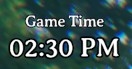
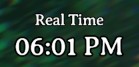
Each is a piece like any other: in edit mode drag it where you want it, scale it, right-click to put it back, and it is saved in the layout. Both hide with the HUD (Ctrl+F3, cutscenes). Clocks.TwentyFourHour = true makes them read 18:30; Clocks.FontSize sets their size; Clocks.GameClock = false or Clocks.RealClock = false removes one. If you ran the Clock mod for the time, it is no longer needed.
Equipment, arrow, consumable and food slots
Fifteen slots outside the inventory grid, so armour, arrows, mead and food do not take up grid space:
- Equipment slots. Head, chest, legs, cape, utility (belt, wishbone, circlet) and trinket. Whatever you wear moves into its slot by itself, and comes back out to the grid when you take it off. Drop a piece on its slot to wear it; drop a worn piece on another piece of the same kind to swap; drag a worn piece out of its slot onto the grid to take it off. Right-click works as in the grid.
- Arrow slots. Three slots for arrows and bolts. Alt+1, Alt+2 and Alt+3 select that slot's arrows for your bow or crossbow, exactly as clicking them in the inventory does; the same key again puts them away. Arrows you pick up stack onto the ones in a slot. The bow shoots whatever is selected and, with nothing selected, the first matching arrows it finds, as always.
- Consumable slots. Three slots for mead, potions and other consumables that are not food. Ctrl+1, Ctrl+2 and Ctrl+3 drink or use what is in that slot.
- Food slots. Three slots for food: anything eaten for health, stamina or eitr. Shift+1, Shift+2 and Shift+3 eat what is in that slot.
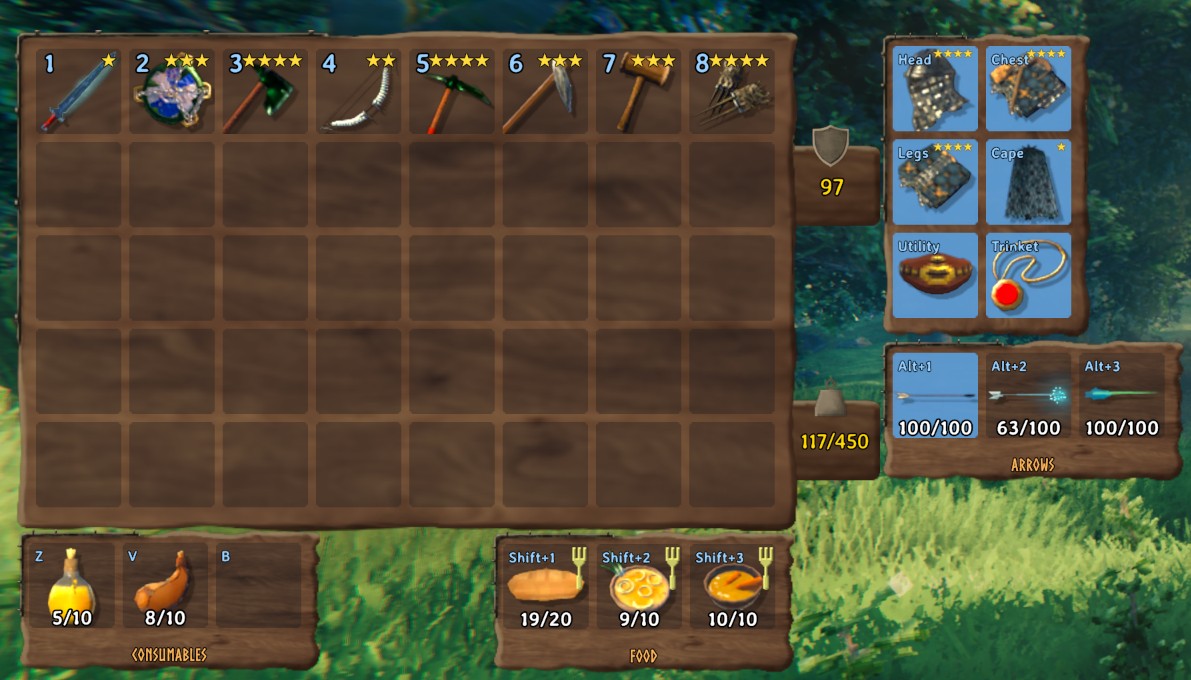
The four panels beside the inventory. The hotkeys in this screenshot were changed in the settings; the defaults are Alt, Ctrl and Shift with 1 to 3.
The slots show in four small panels beside the inventory when it is open, attached to the inventory panel: they start to its right, move with it when you drag it and slide in and out with it, and each can also be dragged on its own to another spot beside the inventory (move the crafting panel, or them, if they overlap on your screen), and the arrow, consumable and food slots also show as three small bars on the HUD, under the hotkey bar to begin with and movable in edit mode. In the inventory, each arrow, consumable and food slot carries its hotkey in its top-left corner, and each of those three panels says "Arrows", "Consumables" or "Food" along its bottom, so you can see what goes where. The keys are in the settings (ExtraSlots.ArrowSlot1 to 3, ConsumableSlot1 to 3, FoodSlot1 to 3); a key the game uses on its own, such as the hotbar digits, needs a modifier, and while the modifier is held the game's own key is skipped. The game's crouch key is also Ctrl and its run key is also Shift, so a consumable key crouches you and a food key starts a run; change either if that bothers you.
The slots are rows of your own inventory that the grid does not draw. That has two consequences. First, the slots exist only while this mod is loaded with ExtraSlots.Enabled on: without it, the game drops their contents on the ground at your next login, as it does for any mod's extra rows. Empty them first if you remove the mod or turn the slots off. Second, the slots and another mod's slots cannot share the inventory. EquipmentAndQuickSlots is not supported: it keeps its items in the same rows, and this mod neither runs next to it nor takes its items over. BetterArchery is supported: its archery changes work beside this mod, and its quiver is switched off so that the arrow slots here take its place, unless you choose its quiver with ExtraSlots.UseBetterArcheryQuiver (see Compatibility below). If you come from EquipmentAndQuickSlots, empty its slots into your grid or a chest before you remove it; anything left in its rows is dropped by the game at your feet on the next login, as happens whenever such a mod is removed. Chests' "stack all" leaves the slots alone. Your grave holds them with everything else, and taking it all back (by interacting with it, or with the "Take all" button when it opens as a window) puts each arrow, consumable and food stack back in the slot it was in, as long as that slot is still free, and puts your armour back on, piece by piece, wherever you wear nothing of that kind yet; anything whose slot is taken goes to the grid.
Settings in game
With the ModSettings mod installed (a separate mod by the same author), a gear button beside Skills and Compendium in the inventory screen lists every mod's settings, this one's included, by section with their descriptions: On/Off switches, numbers with minus and plus and a typed value, keys you set by pressing them, and text. Every change is saved to the config file and applied at once, apart from the few settings marked "read when the game starts". This mod adds no button of its own.
Compatibility
DraggableUI runs with BepInEx alone and needs no other mod. It is meant to be the only mod that rearranges the interface, draws on the item slots or adds slots. Mods that do the same job are not supported next to it: BetterUI in either of its versions or any other HUD editor would move the same pieces and draw the same stars and numbers, and EquipmentAndQuickSlots would keep its own slots in the same rows of your inventory. Remove them, with their slots emptied first (see Slots above).
One exception: BetterArchery (ishid4), which is optional. Its archery changes (bow zoom, retrievable arrows, arrow speed and gravity, the rest) have nothing to do with the interface and work beside this mod as they are. Its quiver is the one thing both mods offer, and ExtraSlots.UseBetterArcheryQuiver decides which one you get:
false(the default): this mod's arrow slots. When the game starts, this mod switches BetterArchery's quiver off for that session (Enable Quiverin its settings; the value in its config file is not changed, so removing this mod gives the quiver back), and the log says so. BetterArchery's quiver bar and its quiver slots in the inventory do not exist then. Arrows that were in its quiver land in the arrow slots here, since both keep them in the same cells; the quiver item itself (the one you wear) is lost at that login, exactly as BetterArchery's ownEnable Quiversetting warns, so take it off and keep it in a chest if you may want it back. In the ModSettings window BetterArchery'sEnable Quiverreads off while this is in force; leave it.true: BetterArchery's quiver. Its quiver and quiver bar work as that mod has them, and this mod's equipment, arrow, consumable and food slots stay off for that session, with a line in the log (empty them first, or the game drops their contents at your feet). The quiver bar it draws above the health panel becomes a piece you place in edit mode: BetterArchery builds it inside the health panel, and this mod moves it out to the HUD root so it is a piece of its own and moving the health panel no longer drags it along. That mod'sQuiver Hud ScaleandQuiver Hud Position Offsetsettings decide where it starts, and 100 % is the size that mod gives it. Without a quiver equipped it gets an orange box; its Preview is empty until a quiver has been worn once in the session. If you change those BetterArchery settings while playing, the bar can jump; right-click its box to put it back.
With BetterArchery's quiver already off in its own settings, nothing changes either way.
One more thing BetterArchery does, quiver on or off: after every grave pickup it checks your inventory and treats anything below the game's rows as outside the grid, which with this mod's slots on is everything in them. Left alone it moved the arrows, consumables and food into the grid, or dropped them at your feet when the grid was full. While this mod's slots are on, that check is skipped, and the log says so at start. With UseBetterArcheryQuiver on it runs as that mod has it.
A layout can hold entries for pieces that no longer exist (another mod's piece after that mod is removed). They are skipped and stay in the file.
Buttons that mods add inside a window (QuickStackStore's sort and store buttons, for instance) move with the window. Mods that draw with Unity's old immediate-mode GUI (the Clock mod, for one) have no interface objects to move; this mod's own clocks do.
For modders
Other mods can hand their own interface pieces to DraggableUI and get everything the game's pieces get: a box in edit mode, drag, wheel scaling, right-click reset, the on-screen clamp, and a place in every named layout under the mod's own key. The surface is DraggableUI.DraggableApi, a static class in DraggableUI.dll:
DraggableApi.RegisterHudPiece(PluginGUID, "StatusPanel", "My status panel", panelRect, options);
DraggableApi.RegisterWindow(PluginGUID, "Settings", "My settings", frameRect);
DraggableApi.IsRegistered(PluginGUID, "StatusPanel");
DraggableApi.Unregister(PluginGUID, "StatusPanel");
DraggableApi.Reset(PluginGUID, "StatusPanel");
DraggableApi.TryGetPlacement(PluginGUID, "StatusPanel", out position, out scale);
DraggableApi.PlacementApplied += fullKey => { ... };   // "<guid>:<key>"
DraggableApi.ExtraSlotsActive;                         // the Extra slots are on this session
DraggableApi.ExtraSlotKindAt(x, y);                    // "Visible", "Equipment", "Arrow", "Consumable", "Food", "Unused", or null
The last two (ApiVersion 2, since 1.1.1) tell a mod what a cell of the player's inventory is for, so it can treat the arrow, consumable and food slots differently from the grid. WeenieHutJrDifficultyManager, by the same author, asks this on death to keep those slots out of the grave.
Two ways to call it. Reference DraggableUI.dll and add [BepInDependency("rhenn.draggableui", BepInDependency.DependencyFlags.SoftDependency)] to your plugin, keeping the calls in a method of their own so a missing DLL never fails to load your type; that way gives you PieceOptions (a hidden-check, a Preview action, a visibility object, and the measuring switches). Or copy DraggableUIShim.cs, shipped in this mod's package zip, into your mod: it reaches the API through reflection on the loaded plugin, needs no reference, and every call returns false when DraggableUI is not installed.
The rules for a piece:
- Register right after you have placed it, with its anchors and pivot final. The position and scale it has at that moment are its default, what right-click reset returns it to.
- Do not write its position or scale yourself afterwards. A piece whose own mod moves it every frame cannot be placed by anyone. Read
TryGetPlacementorPlacementAppliedif you need to know where it is. - A window's root is its frame, never a stretched object holding the darkening backdrop; the backdrop must stay over the whole screen while the frame moves. A HUD piece's root must have a RectTransform parent and must not be a canvas of its own.
- A registration lives as long as its root. At logout the game destroys its interface and DraggableUI clears its list; a piece on a canvas of your own that survives that is registered again by DraggableUI at once, while one that died with the HUD is yours to register again when you build it again (an
Awakepostfix on the game class that holds it is the usual place). Registering a key again replaces the earlier registration. - Keys are permanent. The piece is saved in the player's layouts as
<your GUID>:<key>; renaming the key loses every player's placement of it. The API itself is frozen the same way:ApiVersioncounts additions, and nothing is removed or changed after a release.
ChangeActivePowerOnTheGo, by the same author, is the first mod to use it: its Powers window registers through the shim and can be dragged while open.
Layouts
A layout is a named set of positions and sizes, and exactly one is in use. In edit mode, the bar under the controls line shows its name:
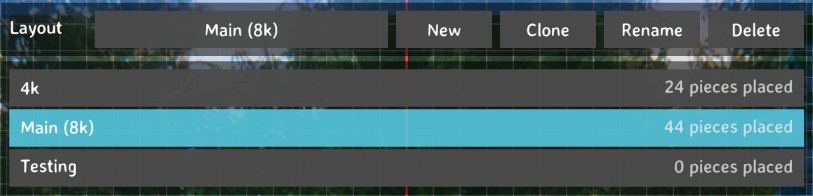
- Click the name to see every layout, with how many pieces each one has placed, and click another to switch to it. Everything moves at once.
- New asks for a name and starts a layout with every piece where the game puts it.
- Clone asks for a name (it suggests "... copy") and starts from a copy of the active layout, so you can try something without losing what you have.
- Rename asks for a new name for the active layout; everything you placed in it stays as it is. Changing only the capitalisation is fine.
- Delete asks first, then removes the active layout and switches to another. The last layout cannot be deleted.
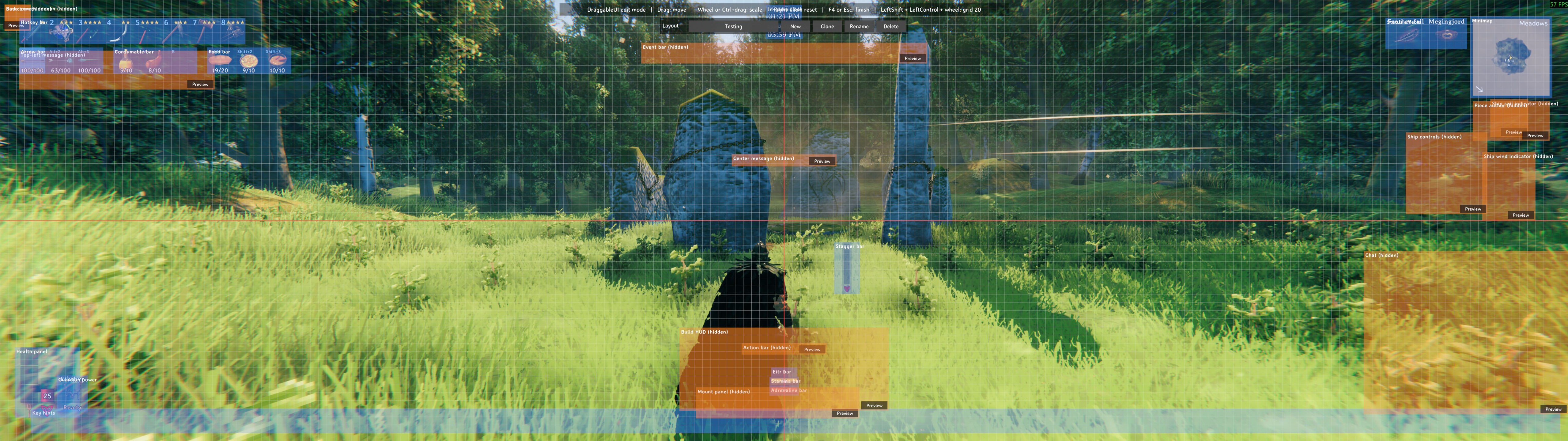
A new layout starts with every piece where the game puts it; this one has nothing placed yet.
Press Enter or OK to confirm a name, Escape or Cancel to back out. While the name box is open the game ignores your keys, so typing does not open the map or the inventory. Escape with the list or the delete question open closes it; the next Escape ends edit mode.
Your choice is remembered, and nothing switches by itself: a layout stays in use whatever the screen size. When a smaller screen or window cuts a piece off, it is shown pulled back onto the screen, but the layout still holds where you put it, so the piece returns there on a screen big enough for it. Dragging or scaling that piece on the small screen saves its new spot.
The same in the console (F5), where a name may contain spaces:
draggableui list            shows the layouts and which one is active
draggableui use NAME        switches to a layout
draggableui new NAME        creates a layout with every piece where the game puts it, and switches to it
draggableui clone NAME      copies the active layout under a new name, and switches to the copy
draggableui rename NAME     renames the active layout
draggableui delete NAME     deletes a layout
draggableui reset           puts every piece of the active layout back to the game's positions
draggableui where           lists where every piece is right now, its default and its layout entry (also in the log; handy for bug reports)
Layouts live in BepInEx\config\rhenn.draggableui.layouts.json, next to the config file. It is plain JSON: the active layout's name, then each layout by name, then each piece, with a position in the game's own interface units, a scale factor, and the anchors the piece had when you placed it. You can edit it with the game closed, or send the file to a friend:
{
  "version": 3,
  "active": "Default",
  "layouts": {
    "Default": {
      "Minimap": { "x": -30.0, "y": -30.0, "scale": 1.25, "anchors": { "minX": 1.0, "minY": 1.0, "maxX": 1.0, "maxY": 1.0, "pivotX": 1.0, "pivotY": 1.0 } },
      "HealthPanel": { "x": 260.0, "y": 40.0, "scale": 1.0 }
    }
  }
}
A piece that is not listed uses the game's own position, and this mod leaves it alone, so other mods can still place it. An entry without a scale uses the piece's normal size.
A position is measured from the piece's anchor point, so it only means something for the anchors the piece had when you placed it, which anchors records. If another mod later anchors the piece somewhere else, or that mod is removed, the entry is ignored: the piece stays where the game has it, its box in edit mode says saved placement ignored, the layout list counts it as ignored, and BepInEx\LogOutput.log has the details; place it again and it is saved afresh. An entry without anchors, from an older file or typed by hand, is used as it is. If the file cannot be read, it is copied to rhenn.draggableui.layouts.json.bak, the error is written to BepInEx\LogOutput.log, and the game starts with default positions.
Installation
With a mod manager (Thunderstore Mod Manager, r2modman, Gale): install it from the mod list, or click Install with App on this page. BepInExPack is installed alongside it. Install ModSettings too if you want to change the settings in game; it is optional.
By hand: install BepInExPack_Valheim first. Then unzip this package and put DraggableUI.dll in Valheim\BepInEx\plugins\DraggableUI\.
Config
BepInEx\config\rhenn.draggableui.cfg, created the first time the game starts with the mod. Edit it with the game closed, or in the mod manager's config editor.
| Key | Default | Meaning |
|---|---|---|
General.Enabled |
true |
Master switch, read at startup. false loads nothing. |
General.EditModeShortcut |
F4 |
Key that toggles edit mode, also while other keys are held, such as while walking. Modifiers allowed, e.g. H + LeftControl. |
General.WindowsDraggableWhenOpen |
true |
Drag open windows by their background outside edit mode. false: windows move only in edit mode. |
General.ShowBanner |
true |
Show the controls line at the top of the screen in edit mode. |
ShipControls.FollowHelm |
false |
true: the steering controls sway with the ship at the helm, as in the unmodded game. false: they stay where you put them. |
Scale.MinScale |
0.5 |
Smallest scale (50 % of the piece's normal size). |
Scale.MaxScale |
2 |
Largest scale (200 % of the piece's normal size). |
Scale.ScaleStep |
0.05 |
Scale change per mouse-wheel notch (5 %). |
Grid.ShowGrid |
true |
Faint grid behind the boxes in edit mode. |
Grid.GridSpacing |
50 |
Distance between grid lines, in the game's interface units (the units of the layouts file). Changed with Ctrl+Shift+wheel in edit mode and saved when edit mode ends. |
Grid.ShowCenterLines |
true |
Red horizontal and vertical line through the middle of the screen in edit mode. |
Grid.GridWheelModifier |
LeftShift + LeftControl |
Keys to hold while rolling the wheel in edit mode to change the grid size; the new spacing is saved to GridSpacing. |
ItemSlots.QualityStars |
true |
Yellow stars for an item's quality on the inventory and container slots instead of the game's number. |
ItemSlots.HotbarQualityStars |
true |
The stars on the hotkey bar slots too. |
ItemSlots.QualityStarSize |
11 |
Font size of the stars (6 to 24). |
ItemSlots.DurabilityColors |
true |
Green, yellow, orange or red durability bar by what is left, instead of the game's single colour. |
EnemyBars.HealthBarScale |
1.1 |
Size of the health bar over a creature, as a factor of the game's (0.5 to 3). Boss bars keep their size. |
EnemyBars.HealthBarHeightScale |
1.5 |
Extra factor for that bar's height alone (0.5 to 3). |
EnemyBars.HideBarBackground |
true |
Hide the dark backing behind creature and boss health bars. |
EnemyBars.HealthNumbers |
true |
Current/total health written on creature and boss health bars. |
EnemyBars.HealthNumberSize |
11 |
Font size of those numbers on creature bars (6 to 24). |
EnemyBars.BossHealthNumberSize |
18 |
Font size of those numbers on the boss bar (8 to 36). |
Clocks.GameClock |
true |
The in-game time of day on the HUD, e.g. 06:30 PM. |
Clocks.RealClock |
true |
Your computer's time on the HUD, under the in-game clock to begin with. |
Clocks.TwentyFourHour |
false |
Both clocks as 18:30 instead of 06:30 PM. |
Clocks.FontSize |
20 |
Font size of both clocks (8 to 48); scaling in edit mode comes on top. |
Clocks.Captions |
true |
"Game Time" and "Real Time" in smaller letters above each clock. |
ExtraSlots.Enabled |
true |
The equipment, arrow, consumable and food slots. Read at startup. Turn off only with every slot empty. |
ExtraSlots.ArrowSlot1 to ArrowSlot3 |
Alt+1 to Alt+3 |
Selects that arrow slot's arrows for the bow; again to put them away. |
ExtraSlots.ConsumableSlot1 to ConsumableSlot3 |
Ctrl+1 to Ctrl+3 |
Drinks or uses what is in that consumable slot (mead, potions). |
ExtraSlots.FoodSlot1 to FoodSlot3 |
Shift+1 to Shift+3 |
Eats what is in that food slot. |
ExtraSlots.HudBars |
true |
The arrow, consumable and food bars on the HUD. Read at startup. |
Multiplayer
Everything happens on your own screen. Nobody else needs the mod, and the server never sees it. The extra slots are part of your own inventory, which the game already keeps in your character file, so they work on any server and nobody else needs the mod for them; what you wear shows on your character as before.
Good to know
- Edit mode does not pause the game. Enemies keep coming. Use it somewhere safe.
- With a window open in edit mode, Escape closes the window first; the next Escape ends edit mode. F4 ends it at once either way.
- The layouts file is re-read when edit mode starts, so you can edit it by hand while the game runs and press F4 to see the result.
- Edit mode refuses to start, or ends by itself, while you are dead, teleporting, in a cutscene, typing in chat or the console, in the pause menu, with the HUD hidden (Ctrl+F3), in the free-fly camera, or when a gamepad is active. It is mouse-only.
- Pieces that a game update renames or removes are skipped with a warning in
BepInEx\LogOutput.log; nothing else breaks. - Worlds started with the "no map" option never show the minimap, so its box stays orange there.
- To see exactly which game objects the mod picked for each piece, add
DebugtoLogLevelsinBepInEx\config\BepInEx.cfgand look for lines likeMinimap -> ...after loading a world.
Something not working?
- F4 does nothing. The mod did not load, a gamepad is active, the HUD is hidden (Ctrl+F3), or you are typing in the chat or the console. Open
BepInEx\LogOutput.login the same profile and search forDraggableUI. If the name is not there, the mod is not installed in that profile. - A piece has an orange box, not a blue one. The game is not showing it right now (the event bar outside a raid, the mount panel on foot). Drag the orange box all the same, and press its Preview button to see the real thing.
- A piece jumped back to the game's place and its box says "saved placement ignored". Another mod changed how that piece is anchored, or was removed. Place the piece again and it is saved afresh.
- The equipment, arrow, consumable and food slots are empty after a login.
ExtraSlots.Enabledwas off, the mod was not loaded, orExtraSlots.UseBetterArcheryQuiverwas on with BetterArchery installed, at that login: the game drops what sits outside its grid, at your feet, with a line inBepInEx\LogOutput.log. Keep the slots empty before turning them off, removing the mod or choosing BetterArchery's quiver. - The slot panels and bars are missing, with BetterArchery installed.
ExtraSlots.UseBetterArcheryQuiveris on, so BetterArchery's quiver is in use and this mod's slots stay off (the log saysExtra slots: off this session). Set it to false, with that quiver emptied first, for this mod's slots. - BetterArchery's quiver is gone, and its
Enable Quiverreads off in the settings window. This mod switched it off for the session so its arrow slots take over (see Compatibility); the arrows are in the arrow slots. SetExtraSlots.UseBetterArcheryQuiverto true to keep BetterArchery's quiver instead. - Food will not go into a consumable slot, or a mead into a food slot. Food (anything that gives health, stamina or eitr) has its own three slots; the consumable slots take mead, potions and the rest.
- No gear button for the settings. The settings window is the ModSettings mod, installed separately.
- A piece is missing from edit mode after a game update. The log says which piece was "not found". Everything else keeps working until the mod is updated.
Bugs and feedback
Found a bug? Email a screenshot and the steps to reproduce it to [email protected], with the mod version and your BepInEx\LogOutput.log attached. I check that inbox once a week.
CHANGELOG
Changelog
1.1.1
- Your grave gives the slots back. Taking it all back (by interacting with it, or with the "Take all" button when it opens as a window) puts every arrow, consumable and food stack back in the slot it was in, as long as that slot is still free, and puts your armour back on, piece by piece, wherever you wear nothing of that kind yet. Anything whose slot is taken goes to the grid, as before. Interacting with your grave also loots it on the spot more often: the game counted the slot items as needing grid cells, so a well-filled grid opened the grave as a window instead.
- BetterArchery's own grave check no longer empties the slots. That mod checks your inventory after every grave pickup, with its quiver on or off, and treats everything in this mod's slots as outside the grid: it moved the arrows, consumables and food into the grid, or dropped them at your feet when the grid was full. The check is skipped while this mod's slots are on.
- For modders:
DraggableApi.ExtraSlotsActiveandDraggableApi.ExtraSlotKindAt(x, y)(ApiVersion2) say what a cell of the player's inventory is for, so another mod can tell the arrow, consumable and food slots from the grid.DraggableUIShim.cshas them too. WeenieHutJrDifficultyManager uses them to keep those slots out of the grave on death.
1.1.0
- BetterArchery works beside this mod. Its archery changes run as they are. For the quiver, the new
ExtraSlots.UseBetterArcheryQuiversetting picks this mod's arrow slots (the default: BetterArchery's quiver is switched off for the session, its config file untouched, and arrows from it land in the arrow slots) or BetterArchery's quiver and quiver bar, which is then a piece you place in edit mode while this mod's slots stay off for the session. - Boxes fit their pieces better: a text label counts for its words, not its often much wider rect (the mount panel's box was twice the panel), and the ship controls' box no longer includes the near-invisible backing behind the wheel (it was three times the controls).
- A public API for other mods:
DraggableUI.DraggableApiregisters a mod's own HUD piece or window and it gets a box in edit mode, drag, scaling, reset, the on-screen clamp and a place in every layout under that mod's key. Call it with a reference or throughDraggableUIShim.cs, shipped in this zip, with no reference at all. See "For modders" on the mod page.
1.0.1
- The mod page shows screenshots: a full layout in edit mode, a fresh layout, the layout list, the slot panels and the clocks. No change to the code.
1.0.0
- First release.
- Edit mode (F4): drag, scale and reset every HUD piece, with a grid and centre lines; windows are dragged by their background whenever they are open.
- Named layouts, switched in edit mode or from the console; one layouts file,
rhenn.draggableui.layouts.json. - Quality stars and durability colours on the item slots and the hotkey bar.
- Bigger creature health bars with the health in numbers; the boss bar gets the numbers too.
- Two HUD clocks: in-game time and real time, each a piece of its own.
- Six equipment slots, three arrow slots, three consumable slots (mead, potions) and three food slots outside the inventory grid, with hotkeys (Alt+1..3, Ctrl+1..3, Shift+1..3), panels beside the inventory and three HUD bars.
- The ship's steering controls stay put on screen;
ShipControls.FollowHelmbrings the game's sway back. - The F2 connection panel can be dragged while a window is open.
- Settings are edited in game through the ModSettings mod.
- Valheim 1.0, BepInExPack_Valheim 5.4.2351.
