
Please disclose if any significant portion of your mod was created using AI tools by adding the 'AI Generated' category. Failing to do so may result in the mod being removed from Thunderstore.
SmartBuild
Place floors, roofs, walls, smelters and more in a 3D grid. Hold X for width, Z for depth, or both for height, then press Up/Down or scroll, or press K to type exact values. Arcs, stagger, follow terrain, undo. Client-side.
By codepeople
| Date uploaded | a day ago |
| Version | 1.6.3 |
| Download link | codepeople-SmartBuild-1.6.3.zip |
| Downloads | 5 |
| Dependency string | codepeople-SmartBuild-1.6.3 |
This mod requires the following mods to function

denikson-BepInExPack_Valheim
BepInEx pack for Valheim. Preconfigured with the correct entry point for mods and preferred defaults for the community.
Preferred version: 5.4.2350
ValheimModding-Jotunn
Jötunn (/ˈjɔːtʊn/, 'giant'), the Valheim Library was created with the goal of making the lives of mod developers easier. It enables you to create mods for Valheim using an abstracted API so you can focus on the actual content creation.
Preferred version: 2.30.1README
Smart Build
One swing, a whole wall.
Smart Build places entire layouts in one go, using ordinary pieces at ordinary cost: grids on all three axes, gaps, stagger, arcs, blueprints of things you have already built, terrain following, and an undo that refunds every last nail.


The idea
Vanilla building is one piece, one click, forever. That is fine for a hut and punishing for a longhouse. Smart Build takes the repetitive half off your hands:
- Lay a 10 x 10 longhouse floor in one go instead of a hundred aims and a hundred clicks.
- Run a palisade the length of your border with the spacing set once, not fifty times.
- Bend a wall into an arc, or a full circle, without lining up a single piece by eye.
- Save a section you already built and stamp it down the whole coastline.
- Build across a hillside and let every piece settle onto the ground beneath it.
- Get it wrong, press Ctrl + Z, and walk away with every resource back in your pockets.
It adds no new pieces and makes nothing free. It just swings your hammer faster.
What it will and won't do
Smart Build will not build anything you could not have built yourself. Every piece costs full price, wards and no-build zones and biome rules all still apply, and if one spot in a grid is blocked the whole placement is refused rather than quietly skipping past it. There is no creative mode hiding in here.
It also stays in its own lane. Everything rides on a separate tool you craft, the Smart Hammer, so your plain hammer keeps behaving exactly as it always has. It is client-side, so nobody else on the server needs it, and everything it puts down is an ordinary piece that stays standing if you ever uninstall.
You will probably like it if you are putting up longhouses, curtain walls, docks, terraced farms, or anything else that has ever had you clicking the same piece fifty times in a row.
You probably want something else if you are after free materials, a creative mode, or anything that reaches the other players on your server.
The time it saves
| What you are building | One piece at a time | With Smart Build |
|---|---|---|
| A 10 x 10 longhouse floor (100 pieces) | 100 aims and 100 clicks | a few seconds |
| A row of 20 stone foundations | 20 | a few seconds |
| A 12 x 2 x 2 curved wall (48 pieces) | 48 pieces, each turned by hand | a few seconds, the curve set once |
| A 30 x 10 palisade (300 pieces) | 300 | a few seconds |
| A 1,000-piece build | 1,000 | a few seconds |
Dialling in a size really is just holding X and scrolling. It stays safe at that scale, too: materials are counted before anything spawns, a blocked spot refuses the whole grid, and Ctrl + Z hands it all back.
Core features
Grid on three axes
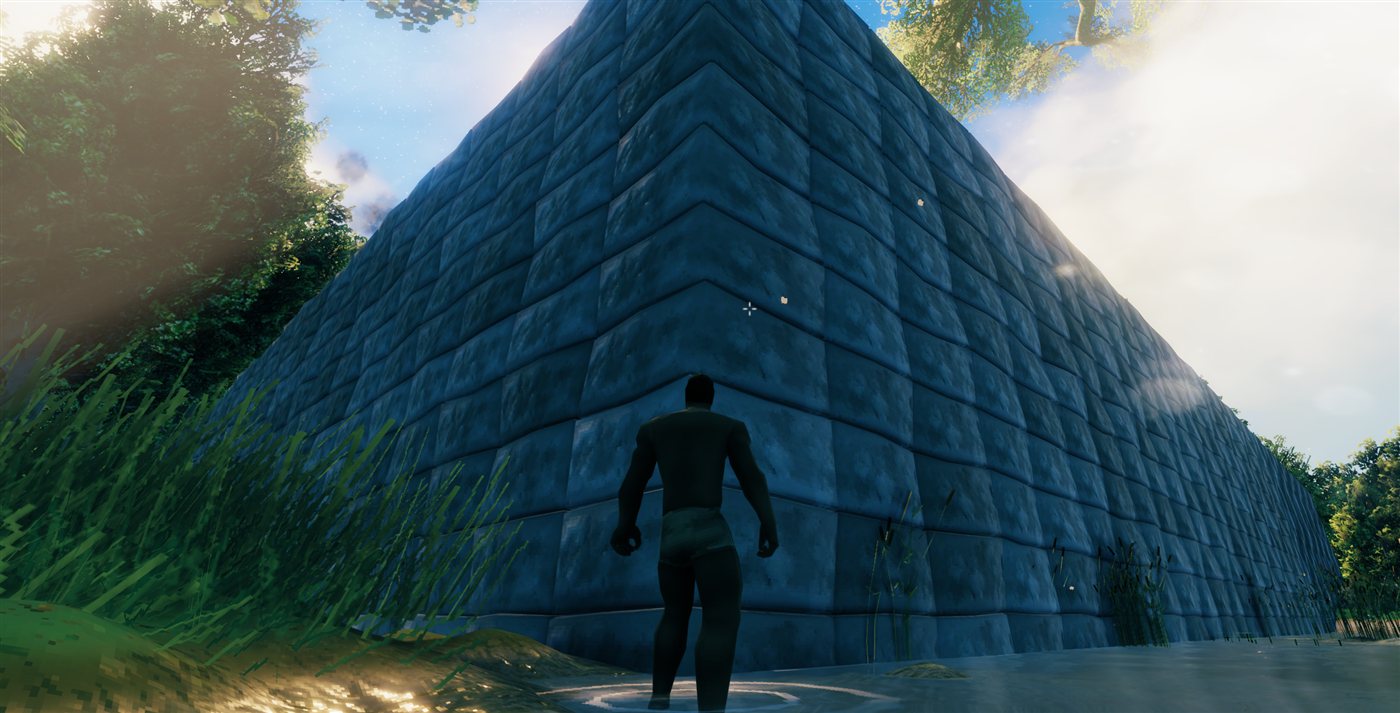
This is the heart of it. Instead of placing one piece, you place a grid of them: a longhouse floor, a curtain wall, a tower of stacked layers.
- Hold X and scroll (or press Up/Down) for width, Z for depth, X + Z together for height.
- Hold Shift to move in steps of 10.
- Press Down past 1 and the axis flips, growing the other way from the piece you are aiming at.
- Size, gap, piece count, and blocked count all show on screen while you set it up.
Directional arrows
Three short arrows float just above the ghost whenever a grid or blueprint is dialled in: red for X, green for Y, blue for Z. They point the way each axis grows, so a rotated, staggered, or flipped layout is never a guess. Glance at the arrows, then click.
Gap
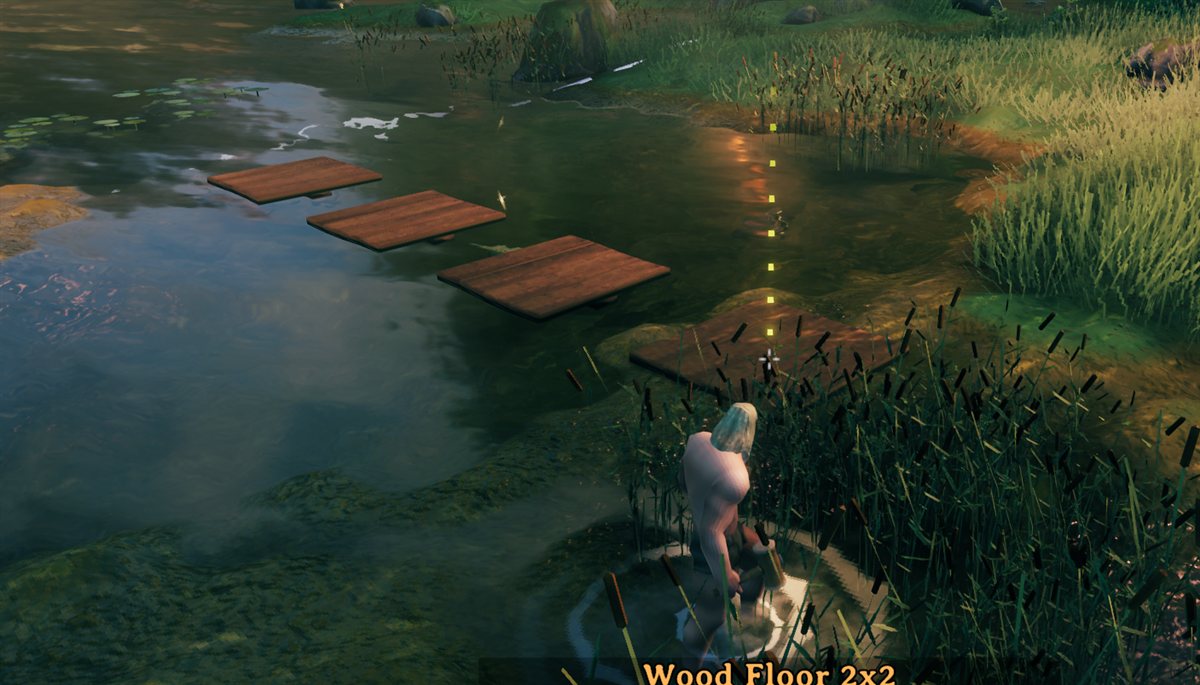
Every axis gets its own gap, so you can spread a row out one way and keep it tight the other. Negative values overlap pieces on purpose.
Stagger
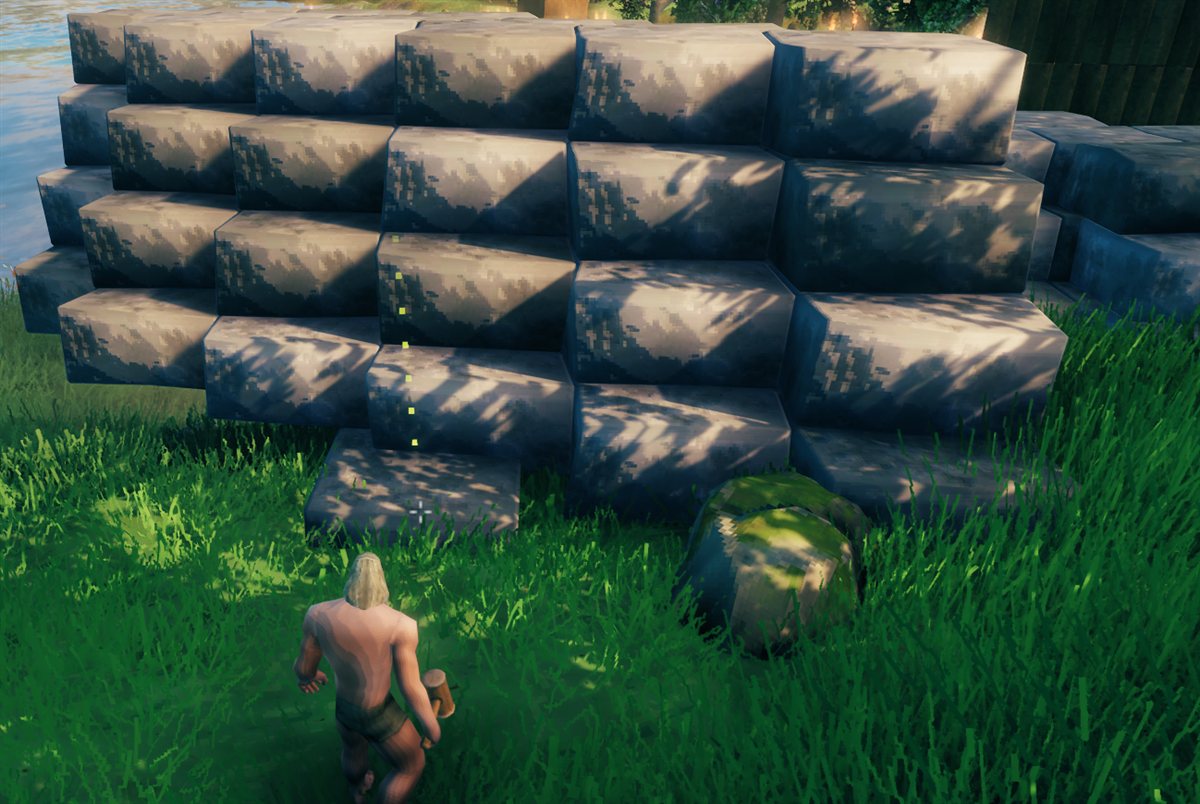
Three settings, one per axis. X shifts each row sideways, Z shifts each column forward or back, and Y leans each layer over so a stack tilts as it climbs.
Rotation
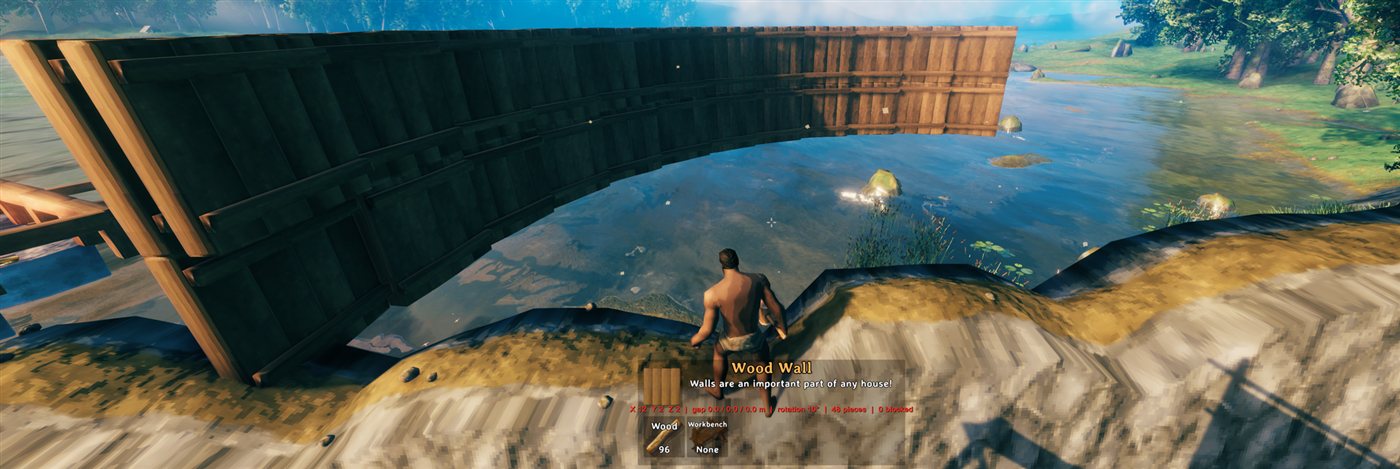
Each piece turns a little more than the one before it, so a straight row bends into an arc, and a longer one closes into a circle.
Blueprints
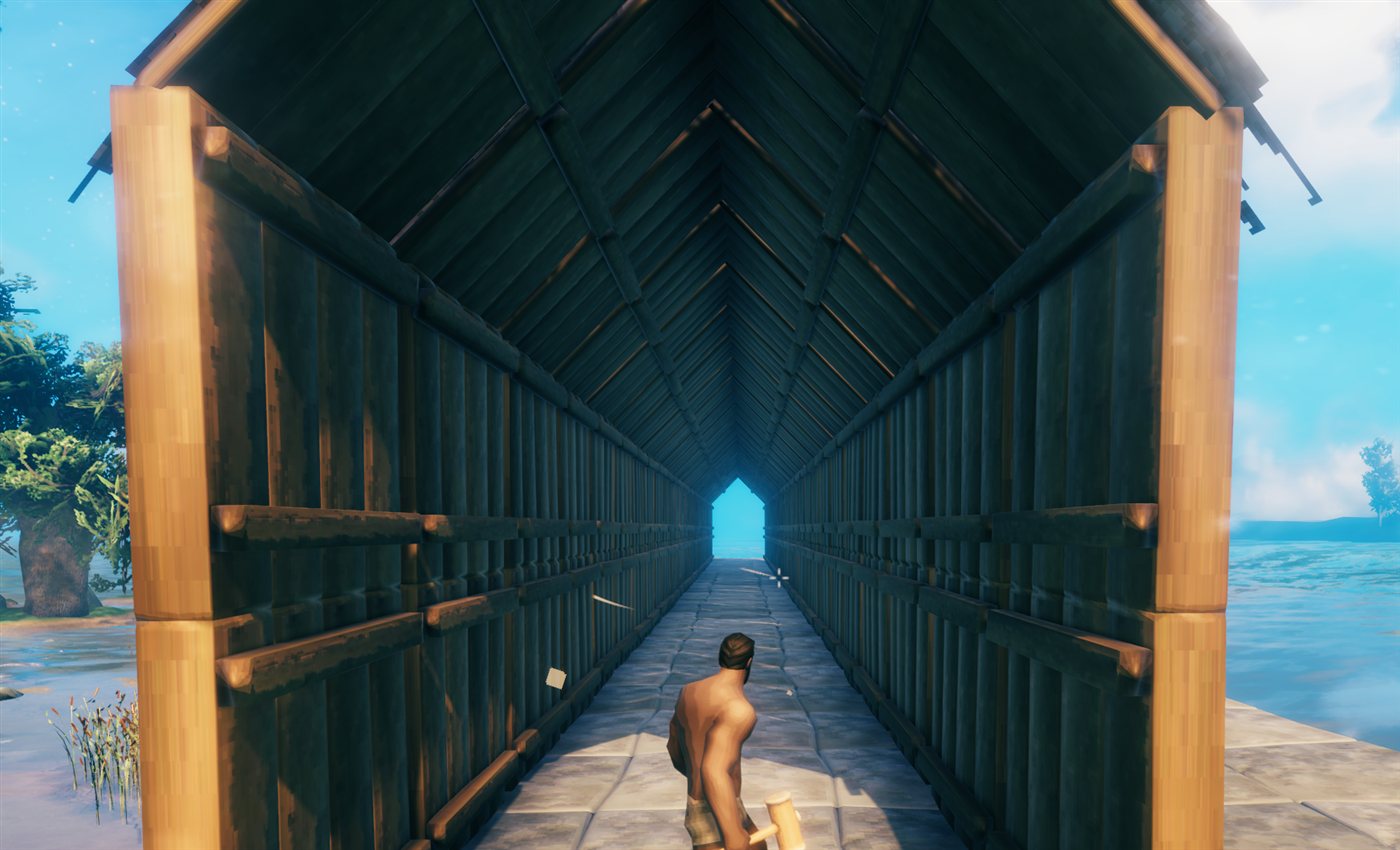
Point at pieces you have already built, press F, and save the lot as a blueprint. It then lives in the build menu like any other piece, and repeats through the same grid controls. That whole tunnel is one blueprint (a floor, walls, and a roof) stamped down a line.
Hold, follow terrain, and undo
- Hold (H) freezes a grid or blueprint where it is, so you can walk back and place it from a distance.
- Nudge it once it is held, the way Smart! does: the arrow keys slide it forward, back, left and right (relative to where you are looking, but always square to the piece), and PgUp / PgDn raise and lower it. Each press moves it 0.1 m, or 1 m with Shift. Nudging a grid you have not held yet holds it for you.
- Follow terrain (L) drops each piece onto the ground beneath it, so a grid across a slope hugs the land.
- Undo (Ctrl + Z) takes back the last grid or blueprint stamp and refunds every material.
Quick start
- Craft the Smart Hammer (1 Wood, no crafting station) and equip it.
- Pick any piece from the build menu so its ghost is showing.
- Hold X and scroll to set the width. Z does depth, X + Z together does height.
- Check the arrows above the ghost, aim, and click. The whole grid goes down at once, cost and blocking checked first.
- Changed your mind? Ctrl + Z.
Every key is rebindable in the Jotunn config.
Controls
Every key below works only while the Smart Hammer is equipped with a piece ghost showing. The plain hammer is untouched.
| Keys | Action |
|---|---|
| X + Up / Down / scroll | Width (X) +/- (hold Shift for steps of 10). Down from 1 goes to -2 and grows the other way from the piece you aim at (sizes run -2, 1, 2: a single piece is just 1) |
| Z + Up / Down / scroll | Depth (Z) +/- |
| X + Z + Up / Down / scroll | Height (Y) +/-: stacks layers upward, e.g. wall on wall |
| G + the size keys above | Gap on that axis instead of the size (0.1 m per step, Shift: 0.5 m; negative overlaps) |
| B + the size keys above | Stagger: X shifts each row sideways, Z shifts each column forward/back, Y leans each layer sideways (0.25 m per press, accumulates) |
| R + Up / Down / scroll | Rotate each piece a bit more than the last (0.5 degrees per press, Shift: 5 degrees; both configurable): bends the grid into an arc |
| H | Hold: freeze the grid or blueprint in place (press again to release); place it from up to about 10 m away |
| Arrows, PgUp / PgDn | Nudge the held grid or blueprint 0.1 m (Shift: 1 m) forward/back/left/right relative to the camera, or up/down; holds it first if it is not held |
| L | Follow terrain on / off: each piece rises and falls with the ground under it. Stays on until you turn it off or switch pieces |
| K | Open the control panel: type exact sizes, gaps, stagger and rotation, or use its - / + buttons; also Reset, Hold, Nudge buttons, Undo, Save/Clear for the current blueprint selection, and a full list of every shortcut. The mouse is freed while it is open |
| F | Add or remove the built piece you are aiming at from the blueprint you are putting together (Shift + F: its whole group, Alt + F: it and every piece connected to it, no limit) |
| Ctrl + S | Save the current blueprint selection, with a name typed into the game's own naming box |
| Delete | With a saved blueprint selected in the build menu (its ghost showing), delete it |
| Mouse wheel | Rotate the whole grid, as for a single piece (when none of the keys above is held) |
| Ctrl + Z | Undo the last grid or blueprint stamp (refunds materials) |
Scroll works like Up / Down: hold the key, then scroll (up = Up). While one of those keys is held, the wheel stops rotating the piece and stops zooming the camera.
Other mods binding the same keys (a quick slot on Z, say) will not break these controls. Smart Build reads the keyboard directly, blocks item use while its keys are held, and logs a Key clash warning at start-up naming any mod that shares one. Vanilla's Sit key is X, its holster key is R, and its Guardian Power key is F, so those are held back while you hold the matching key with a piece showing. A key legend sits at the left of the screen and a settings readout at the bottom (hide them with ShowHud in the K panel or config, or ShowControlsHint for just the legend).
The Smart Hammer
Smart Build lives in its own tool. Craft one for 1 Wood, no crafting station needed. It has the same durability and repair as the plain hammer and builds every piece the plain hammer does, including anything another mod adds.
Equip it and you get everything above. Equip the plain hammer (or anything else) and building is exactly vanilla again: no grid, no keys held back, nothing changed.
Blueprints in detail
Aim at a built piece and press F to add it to the blueprint you are putting together. Press F again to drop it, Shift + F to take the whole group it was placed with, or Alt + F to take it and everything connected to it, however far that reaches. Selected pieces glow, and the first one glows gold: that is the origin everything else is measured from.
A selection on its own cannot be gridded, moved, or rotated. It has two exits: press Ctrl + S (or Save... in the K panel) and name it, or hit Clear in the K panel to walk away from it.
Once saved, it appears as its own piece in the build menu under a Blueprints category on the Smart Hammer, showing the icon of whichever piece it uses most so it is easy to pick out. Select it and aim like any other piece. The ghost shows every piece in place and snaps onto nearby builds the same way a single piece does. With it selected, Delete removes it for good.
From there it repeats exactly like a single piece: set a grid size and one click stamps that many copies, with gap, stagger, and rotation all working the same way. That is how the tunnel above gets built. The nearest copies render as real pieces so you can see precisely what you are about to place and which way it faces, while further copies (or a very large blueprint) fall back to a wireframe box. The whole stamp is checked for cost and blocking, then placed at once, and Ctrl + Z refunds it like anything else. The blueprint stays selected afterwards, so the next click drops another one, with the grid dial reset to a single copy so you never repeat a big stamp by accident.
Blueprints are saved as small text files under BepInEx/config/SmartBuild/Blueprints and reload automatically.
Compatibility and save safety
Smart Build is client-side. Servers and other players do not need it.
It places ordinary Valheim pieces and charges ordinary costs, so a save built with it keeps working without it. The one exception is the Smart Hammer itself: a client without the mod cannot load that item, so it is skipped (and lost) the next time that client's inventory saves, and it is invisible to them on the ground. Nothing crashes either way.
Build-from-chest mods (Valheim Plus CraftFromChest, Craft From Containers, AzuCraftyBoxes, and friends) are supported: materials in the chests they can reach count toward a grid, and are spent from them as pieces spawn. Undo always refunds to your inventory.
Rules and limits
- The whole grid must be affordable the moment you click, or it is refused outright.
- If any cell is blocked (terrain or another piece in the way, a ward you lack access to, a no-build zone, the wrong biome), the whole grid is refused.
- Size, gap, rotation, and stagger reset after each placement, when you switch pieces, and when you put the Smart Hammer away. Follow terrain survives placements but clears with the other two.
- A grid is limited to 100 per axis and 100,000 pieces by default. Both are settings, raisable to 1,000 per axis and 1,000,000 pieces. A placement that large takes minutes, runs in the background so you can keep playing, cannot be cancelled, and makes a world heavy, so raise them only if you mean it.
- Pieces spawn over several frames (25 per frame by default), and materials are charged as they spawn.
- Grids over 400 cells preview as an outline instead of ghosts, and are checked when you place.
- Spacing comes from each piece's snap points (its mesh size if it has none), so gap 0 can leave a hair of a seam or overlap on some pieces.
- Pieces that only touch, rather than snap, may end up with less structural support than hand-placed ones.
- Undo removes only pieces you created that still exist, and refunds their materials.
- Cultivated-ground and ground-only rules are not re-checked per cell.
Support development
Smart Build is built for the fun of it. If it has saved you an afternoon of clicking and you feel like buying a round, a PayPal contribution is very welcome and entirely optional.
CHANGELOG
Changelog
1.13.2
- README: screenshots of a 1,500-piece stone tunnel and an arched stone bridge, both made with rotation.
1.13.1
- Changed: the whole-grid tilt is now switched on and off with a tap of Ctrl (as intended), instead of holding Ctrl with R. Tap Ctrl and R (+ X or Z) tilts the whole grid; tap again and R turns each piece. The mode stays on across placements and clears when you switch pieces. Ctrl + Z and Ctrl + S still work as before and never switch it. Each tap says on screen which mode you switched to and how to use it; the readout says "TILT MODE" while it is on, and the K panel has a checkbox for it.
1.13.0
- Tilt the whole grid: hold Ctrl + R (add X or Z to tilt about those axes) and press Up / Down or scroll. Every piece, the first one included, and the direction the grid runs in tip by the same angle, so a stack that went straight up can climb at 45 degrees instead. Per-piece rotation (R without Ctrl) still builds on top, and pieces still meet flush. Works with Hold and with blueprints, and the K panel has a "Whole grid (tilt)" row.
- Ctrl + Z (undo) no longer fires while R is held, so Ctrl + R + Z tilts instead of undoing.
1.12.1
- Fixed: a blueprint made of several piece types listed a shared material once per piece type ("Wood 48" and "Wood 96"). It now shows each material once, with the total (one "Wood 144").
- Fixed: the "can you afford the whole blueprint" check at the click also checked each piece type on its own, so with 100 wood a blueprint needing 48 + 96 passed, started placing and stopped partway. It now checks the combined totals first (build-from-chest mods still count).
1.12.0
- Rotate in all three directions: yaw, pitch and roll. Hold R and press Up / Down (or scroll) to turn each piece about the vertical as before; add X to tip each piece about the red X axis (pitch) or Z about the blue Z axis (roll). Pieces still meet flush end to end, so a row of walls can curve up into a dome rib, a stack gridded straight up can twist into a tower or curve over, and turns combine into a helix. It applies along whichever way your grid runs, and now works on stacks (layers) too.
- The K panel lists all nine turns: yaw, pitch and roll for each column, row and layer. The readout names every one that is set.
- Changed: R + Z used to turn each row about the vertical; it now rolls. A staircase gridded along its depth still spirals with R alone.
1.11.0
- Stagger works in every direction, whichever way the grid runs. Hold B with X to stagger along X, with Z along Z, or with both to step up, and each piece shifts a little further than the one before, along whichever way your grid actually runs. A stack gridded straight up can now step forward into a staircase (B + Z), and a row of walls can step up into a stair of walls (B + X + Z). Before, a grid running only one way could stagger in at most one other direction, and often not at all. B + X + Z used to lean a stack sideways; a stack now does that with B + X.
- The K panel lists all six staggers (each row, column and layer, along its two other directions), and has a colour key for the direction arrows: red X, green Y, blue Z.
1.10.1
- Fixed: R alone did nothing on a grid one piece wide, such as a staircase gridded along its depth, because it only ever turned pieces along the width. R now turns whichever way the grid actually runs, so R alone winds a staircase into a spiral. With both width and depth, R still turns along the width and R + Z turns each row.
1.10.0
- Flush arcs and circles. Rotating a row of pieces used to leave a wedge-shaped gap between every pair on the outside of the curve (and an overlap on the inside). Pieces now meet end to end, so a ring of walls closes flush like the sides of a polygon. Straight grids are unchanged.
- Spiral staircases: hold R + Z and press Up / Down (or scroll) to turn each row a little more than the one before. Grid a staircase along its depth and it winds up into a spiral. The K panel has a second rotation field for it ("Per row (spiral)"). R alone still turns each piece along the row.
1.9.0
- Hold F and sweep to select many pieces at once. Press F as usual, keep it held and move the crosshair: every piece it passes over is added too. Start on a piece that is already selected and the sweep removes instead, so one sweep never flips pieces back and forth. One message when you let go says how many changed. Tapping F, Shift + F and Alt + F work as before.
1.8.0
- The red / green / blue direction arrows now also show while you hold X or Z on a single piece, before you have sized a grid, so you can see which way each axis will grow before the first Up / Down.
1.7.3
- Fixed: a blocked piece is now shown red before you click, including the one you are aiming at. Only the extra pieces of a grid were checked while aiming, so a grid could be refused ("Grid blocked: 1 of 3 cells") with nothing red on screen when the aimed piece itself was the blocked one. The blocked count on screen now includes it too.
- The gap can only be set on an axis with more than one piece (a single piece has no neighbour to be spaced from). Shrinking an axis back to 1 clears its gap, and pressing the gap keys on a 1-piece axis says why nothing changed.
1.7.2
- Fixed: being overencumbered stopped you building with the Smart Hammer after a few pieces. The game stops your stamina coming back while you carry too much, and building needs stamina; with the Smart Hammer that no longer locks you out. Building still uses stamina as normal, and running, dodging and fighting while overencumbered work exactly as before. The plain hammer is unchanged.
1.7.1
- Fixed: the highlight on the piece you aim at (and its health bar) still stopped at the normal build reach, so it did not show the Smart Hammer's longer reach for selecting and removing. It now matches (SelectReach).
1.7.0
- Long reach for middle-click remove too: with the Smart Hammer, middle-clicking a single piece to remove it now reaches as far as selecting does (SelectReach, up to about 50 m; the game's own aiming ray stops there). The plain hammer is unchanged.
- K panel: the Controls column now reads action first, key second, with faint divider lines between the shortcuts so each action lines up with its key.
- K panel and README now say plainly that Up / Down means the Up / Down arrow keys or the mouse wheel, and that nudging uses the arrow keys.
- README: a screenshot of the K panel.
1.6.11
- K panel fits on screen: the Controls list is now its own column to the right of the settings, each shortcut split into the key and what it does, wrapping instead of running off the edge of the panel. The Nudge heading no longer gets cut off, and modifier keys read "Shift" instead of "LeftShift".
- The camera no longer turns with the mouse while the K panel is open, the same as with the game's own menus. You can still walk and click in the world.
- README: a screenshot of a blueprint selection.
1.6.10
- Select pieces from much further away: F, Shift + F and Alt + F now reach up to 50 m (was the few metres vanilla lets you hover a piece from), and so does middle-clicking a selection to delete it. Set it with Blueprints / SelectReach (up to 200 m). Placing pieces keeps the normal build reach.
1.6.9
- Removed the structural support logging added in 1.6.6: it found the cause of the breaking pieces (fixed in 1.6.8) and is no longer needed.
- README: a follow-terrain screenshot, and follow terrain now has its own section.
- A held grid or blueprint can be placed from much further away: up to 100 m by default (was about 16 m), set with Hold / HoldReach (up to 1000). It still has to be inside the area the game has loaded around you; if it is not, the message says to move closer.
1.6.8
- Fixed: follow terrain pulled blueprints apart on a slope. With follow terrain on (L), every piece of a blueprint moved by the ground under that one piece, so, for example, torches that sit on top of a wall ended up floating above it or sunk into it, lost their support and broke straight away. Each copy of a blueprint now moves as one piece, by the ground under the copy, so it stays exactly as it was saved. Grids of a single piece are unchanged.
1.6.7
- Fixed: the two features from 1.6.5 and 1.6.6 never actually ran. Middle-clicking a selected piece to delete the whole selection (1.6.5) just removed the one piece, and the structural support logging (1.6.6) never wrote anything, because their game hooks were never switched on. Every hook is now switched on automatically, and the log lists them at start-up.
1.6.6
- Structural support logging (for tracking down pieces that break as if unsupported). Whenever a building piece loses its support, a warning goes to the BepInEx log (LogOutput.log) naming the piece, its support against what its material needs, whether SmartBuild placed it, and everything it was touching with each neighbour's own support and distance - or, if it touches nothing, the nearest piece and how far away it is. One line per piece. Turn it off with Debug / LogStructuralSupport.
1.6.5
- Delete a whole selection. Select a structure (F, Shift + F or Alt + F), then middle-click one of the selected pieces: a confirmation asks "You are about to delete N pieces" (Confirm / Cancel), and Confirm removes them all. Each piece goes the way the hammer removes one: wards, no-build zones, a needed workbench and non-empty chests are all respected (those pieces are skipped and the message says how many), and materials drop where each piece stood. Middle-clicking a piece that is not selected removes just that piece, as normal. Not undoable yet.
1.6.4
- Settings are grouped by action. The config (and a config manager's navigation) now has one section per thing you do: Size, Gap, Stagger, Rotation, Nudge, Hold, Follow terrain, Undo, Blueprints, Control panel, plus Modifiers for the shared Ctrl / Shift keys, Display and Performance - each with its key and its step sizes together, instead of everything under Controls and Grid. Any key or value you had already changed is carried over automatically.
- Nudge forward / back have their own keys now (KeyNudgeForward, KeyNudgeBack, default Up / Down), so they can be rebound without also changing the resize keys.
1.6.3
- Finer gap and rotation. The gap now moves 0.1 m a press (was 0.5 m) and rotation 0.5 degrees a press; hold Shift for the old coarse steps (0.5 m, 5 degrees). These are new config entries (GapIncrement, GapBigStep, RotationIncrement, RotationBigStep), so they take effect even if your config file still has an old GapStep / RotationStep saved (the old rotation default of 5 degrees had been sticking around in existing configs). The readout now shows gap and rotation to two decimals.
- The K panel has a Nudge section (Left / Forward / Back / Right, Up / Down buttons) doing the same as the nudge keys, holding the grid first if needed. Shift+click for the big step.
1.6.2
- Nudge, like Smart!: once a grid or blueprint is held (H), the arrow keys slide it forward, back, left and right relative to where you are looking (always square to the piece, never diagonal), and PgUp / PgDn raise and lower it. 0.1 m a press, 1 m with Shift (both configurable: NudgeStep, NudgeBigStep). Nudging something not held yet holds it first.
- Fixed: the Smart Hammer could not be repaired. It now repairs at a workbench, the same as the plain hammer.
1.6.1
- Fixed: with a blueprint selected, the build panel showed the blueprint's name for every piece you hovered in the build menu (hovering "1 x 1 floor" still read as the blueprint). Hovering now shows the piece you're actually hovering; the blueprint's own name and combined cost show when the blueprint itself is what the panel is describing. Its build-menu icon shows there now too, instead of being blanked out.
- Fixed: a freshly saved blueprint still didn't show up in the build menu until you moved something in your inventory, even after an earlier attempt at this same fix. The menu wasn't refusing to refresh — it was correctly hiding a piece it didn't yet consider "known", the same way vanilla treats anything just added to a tool's piece list; saving a blueprint now marks it known immediately, the same way picking it up would.
- Fixed: re-saving a blueprint under a name you'd already used could still corrupt the build menu and crash it on every open afterwards, even after an earlier fix for this exact symptom. Re-saving under a used name now reuses and updates the existing build-menu entry instead of trying to recreate one, which was the actual source of the corruption.
- Removed: gridding or moving an unsaved blueprint selection before saving it. Select pieces, then either Save them (Ctrl+S) or Clear the selection - grid controls only work on a saved, placed blueprint now.
- Fixed: cycling snap points on a blueprint (Q) always said "Snapping: _snappoint" no matter which point you were on. Each point now says roughly where it is (top, bottom, left, right, front, back, or a corner combination like "top-front-left").
- The K panel is now a real in-game window (built the same way vanilla's own menus are) instead of a plain overlay, and now has a Controls section listing every shortcut, so it doubles as a quick reference for the keyboard controls. The on-screen hint while building is now just a one-line pointer to it ("Press K to view build panel + controls") instead of the full list floating over the game.
- Saving a blueprint now pops up the game's own naming box (the same one used for signs, ship names and map pins) instead of typing into a field in the SmartBuild panel - click "Save..." in the panel, or press Ctrl+S any time you have pieces selected.
- Fixed: an unsaved selection (2+ pieces F-selected and gridded, not yet saved as a blueprint) would spin or swing around on screen from an incidental mouse-wheel scroll, since vanilla itself reads the wheel to rotate any placement ghost. It's not meant to be oriented at that stage, just sized and optionally saved, so scrolling no longer rotates it. A blueprint picked from the build menu still rotates normally with scroll, same as any piece.
- Pressing F or Shift+F to select a new piece now clears whatever blueprint ghost is currently armed first (a build-menu pick or an auto-armed selection), instead of leaving it filling much of the screen while you try to aim at the next piece. Only when one was actually armed.
- Fixed: a freshly saved blueprint didn't show up in the build menu right away. The menu only refreshed when the vanilla hammer's own piece count changed, which a blueprint save never affects, so it could sit missing until something unrelated happened to trigger a refresh.
- Fixed: an unsaved, gridded selection (2+ pieces F-selected, not saved as a blueprint) could fly around the screen wildly with the mouse not moving at all. Introduced by the "don't take over the ghost until you size a grid" change just below; saved blueprints were never affected.
- Fixed: with "auto" snapping, an aimed blueprint or grouped selection dragged noticeably toward you instead of sitting where you aimed. Its placement collider now matches the whole assembly's real size instead of a tiny placeholder point; other snapping modes weren't affected.
- Fixed: the build-menu crash from re-saving a blueprint under a used name (further down this list) could still recur even after that fix, if the name was left registered from an earlier session or a failed save. Freeing the name before a save is now unconditional, not dependent on this session's own bookkeeping still agreeing with it.
- Fixed: clicking a K panel button (Save was the reported one) could also place whatever blueprint or grid was armed underneath it, since a click landing on the panel wasn't blocked from also reaching the game. It's now blocked whenever the cursor is over the panel, not just while typing in a field.
- Fixed: repeating a multi-piece blueprint could drift sideways or lean more with each copy instead of running straight, or (if it was taller or wider than its first piece alone) overlap itself instead of sitting flush. The spacing between copies now always runs along the first (origin) piece's own direction, but covers the whole assembly's real size, so it neither drifts off-axis nor needs gap (or negative gap) to make up for an understated step.
- Putting the Smart Hammer away (or swapping tools), and picking a different item in the build menu, now both clear the current blueprint F-selection too, so an old one can't resurface and confuse a later capture.
- Fixed: saving any blueprint with at least one piece in it could crash the game every frame afterwards (a build-menu piece's own preview pieces were briefly registering themselves as real network objects before being cleaned up as just decoration, leaving the game's own object tracking broken).
- Fixed: re-saving a blueprint under a name you'd already used could corrupt the build menu, making it error every time you opened it until you restarted.
- Fixed: an unsaved, gridded selection (the "select 2+ pieces" feature just below) didn't really snap to nearby builds — it looked right for two matching walls and misaligned for anything else, since it was secretly using one piece's own snap points, not the whole selection's.
- Select 2 or more pieces with F and they can be gridded right away with X / Z / X+Z, just like a saved blueprint — no need to save and place it first. It only takes over once you actually size a grid for it, so it never gets in the way while you're still picking out pieces. Placing a saved blueprint or picking one from the build menu still always takes priority if you're doing that at the same time.
- Fixed: a blueprint picked from the build menu couldn't snap to nearby builds at all (it looked like Shift, which turns snapping off, was stuck down, and Q did nothing) — the whole stamp's own outer snap points are now carried on its build-menu piece.
- Blueprints are pieces in the build menu now, in their own "Blueprints" category on the Smart Hammer. Pick one there and aim like any other piece — it repeats through the same grid controls (gap, stagger, rotation) as always. The K panel no longer lists saved blueprints (so its Place button is gone) — naming and Save are still there. To delete a saved one, select it in the build menu and press Delete (rebindable).
- Fixed: selecting Repair or Remove in the build menu hid SmartBuild's whole on-screen readout and legend.
- The Smart Hammer now has its own icon (a cyan head, where the plain hammer's is grey), so it's easy to tell apart in the hotbar.
- Alt + F grows the blueprint selection to every piece connected to the one you're aiming at (touching, transitively, no limit) — handy for grabbing a whole building in one press instead of F-ing every piece by hand. Alt + F on an already-selected piece removes the connected pieces the same way.
- Gap can now go negative (overlapping pieces on purpose), not just down to 0.
- Finer rotation: the default step is 1 degree now instead of 5, and it can be set as low as 0.1 in the config.
- Fixed: the K panel could get stuck unable to close by pressing K again after clicking any of its buttons (Reset, Hold, a checkbox, ...).
- Fixed: switching hotbar items (including re-pressing the Smart Hammer's own slot to sheathe it) didn't work while the K panel was open; clicking to place a piece after editing a value in the panel needed K pressed first to close it. Both now work as soon as you're not actively typing in a field — no need to close the panel first.
- Fixed: tapping R to sheathe the Smart Hammer didn't work, because R is also SmartBuild's rotation key. A quick tap still sheathes it now; holding R and using Up/Down/scroll to rotate the grid still works exactly as before and no longer sheathes.
- The Smart Hammer. A new item holds all of SmartBuild: craft it for 1 Wood (no crafting station), the same durability and repair as the plain hammer. SmartBuild's grid, keys, blueprints and Hold now run only while the Smart Hammer is the equipped tool; the plain hammer is untouched (no grid, no blocked sit/holster/Guardian Power). This replaces the J key and the on/off setting, which are both gone: putting the Smart Hammer away (or swapping to another tool) turns SmartBuild off the same way the old J toggle did, just without a key to press. It builds every piece the plain hammer does, including anything another mod adds.
- The H key is called "Hold" everywhere now (it was "hold blueprint in place" in the legend and "Hold blueprint" on the K panel button); it still freezes a grid or an armed blueprint in place either way.
- Blueprints now place lowest piece first within each copy, so a roof or upper floor never spawns before the walls under it.
- Higher limits: a grid may now hold 100,000 pieces by default (it was 10,000), and the MaxCells and MaxGridSize settings can be raised to 1,000,000 pieces and 1,000 per axis. Placing that many takes minutes and cannot be cancelled, so raise them only if you mean it.
- Blueprints: while building, aim at a built piece and press F to add it to the blueprint you are putting together (F again removes it; Shift + F takes the whole group of pieces that were placed together in one grid). Selected pieces glow, the first one gold (the origin). Guardian Power is blocked on F while you are building.
- The K panel has a name box and Save and Clear buttons, and lists your saved blueprints, each with Place and Delete. Clicking Place arms that blueprint: aim (any piece equipped, just for the aim point) and click to stamp it, checked for blocking and cost like a grid, undoable with Ctrl+Z along with everything else. It repeats through the same X / Z / X+Z, gap, stagger and rotation controls as a single piece — dial in a size before clicking to place many copies in one go (a tunnel: one blueprint, repeated). The copies nearest you show as real, solid pieces (not just a box), so you can see exactly what you're about to place and which way it's facing; further copies (or a very large blueprint) fall back to a wireframe box. Like a piece, it stays armed after placing (the grid dial resets to one copy each time), so you can keep clicking to place more.
- Three small arrows float just above the ghost while a grid or blueprint is dialled in, showing which way is +X (red), +Y (green) and +Z (blue) — useful for judging a rotated or staggered grid, or a blueprint's facing, before you click.
- Blueprints are saved as small text files in
BepInEx/config/SmartBuild/Blueprintsand loaded at start. - Every piece SmartBuild places now carries a small group id in the world data (this is what Shift + F reads).
- Ctrl+Z now undoes whichever SmartBuild placed most recently, a grid or a blueprint, from one shared history.
- README: a new stone-wall picture, a "how much time it saves" section, and a Blueprints picture (a long tunnel built by repeating one blueprint).
- Diagnostic only, no behavior change: pressing F or Shift+F to start a new blueprint selection now logs the origin piece's prefab and rotation, to help track down a placement that comes out tilted.
- Fixed: placing a blueprint always aims level now, regardless of which piece happens to be equipped (its own tilt no longer gets added on top of the blueprint's own shape). This was the cause of the reported misaligned placements.
- Fixed: repeated blueprint copies (a tunnel, a fence, a wall of arches) no longer leave an unexpected gap when an item in the blueprint is tilted (a leaning pole, an angled panel) — the repeat spacing now prefers the assembly's real snap points over its bounding box, the same way a single piece already does.
- The build panel (bottom-left name, description and material costs) now shows the blueprint's own name and its real total cost while one is armed, instead of whatever piece is equipped just to aim with.
1.5.2
- Internal only, no change in behavior: the grid maths was reworked slightly so it can be unit tested (a managed yaw rotation replaces the engine call), and a unit test suite and a written list of design decisions were added to the repository.
1.5.1
- J now turns the whole mod on or off instead of only the HUD. While off, SmartBuild does nothing at all (no grid, keys, readout, panel, or blocking of the sit, holster and item-use actions), so building is vanilla; J still works to turn it back on. The choice is saved in the new Enabled setting, and turning it off also clears the current options.
- Hiding just the on-screen readout and legend moved to the ShowHud setting and a checkbox in the K panel (on by default).
1.5.0
- HUD toggle: press J to show or hide the on-screen readout and controls legend (on by default, saved).
- Putting the hammer away now clears every option (size, gap, stagger, rotation, follow terrain, held blueprint), so the next time you build you start from a single piece. Switching to a different piece already did this.
- Follow terrain: press L (rebindable) to turn it on or off, or tick the box in the K panel. When on, every piece in the grid rises or falls with the ground under it (relative to the first piece), so a grid on a slope steps with the land instead of hanging in the air or sinking. It stays on across placements and turns off when you switch pieces. The readout says "follows terrain" while it is on.
1.4.2
- README: removed the image captions, replaced the grid paragraph with numbered step-by-step instructions, and added a donation link.
1.4.1
- Works with build-from-chest mods (Valheim Plus CraftFromChest and similar): the whole-grid cost check now asks the game's own requirement check, scaled by the grid size, so materials in nearby chests count; the build menu already showed chest-inclusive totals, and charging goes through the game's own resource consumption, which those mods redirect to the chests.
- Switching to a different piece resets every option (size, gap, stagger, rotation). Putting the hammer away and back keeps them.
- README: updated feature screenshots and captions.
1.4.0
- Control panel, like Smart!'s: press K (rebindable) to open a draggable panel where the size on each axis, the gaps, the stagger and the rotation can be typed in exactly or nudged with -/+ buttons. It also has Reset, Hold blueprint and Undo last buttons and shows the piece count.
- README: a Features section with a screenshot for the grid, gap, stagger and rotation features (more to come).
- While the panel is open the mouse is freed and the game takes no input (no movement, look or placement clicks), and other mods' hotkeys cannot fire from typing in it. It closes by itself when the pause menu, chat or console opens, or when the hammer is put away.
1.3.2
- Docs: corrected the mod description and README (axis keys, what resets after placing, which blocked-cell checks run) and clarified the config descriptions. No behaviour change.
1.3.1
- Removed the "Down at 1 grows the other way" line from the on-screen controls legend.
1.3.0
- New axis keys: X alone is width, Z alone is depth, and X + Z together are height (the separate Y key is gone). Up / Down / scroll works with all of them, and G / B (gap / stagger) combine with the same keys.
- Fix: other mods that bind the same key no longer break the controls. Equipment and Quick Slots binds Quick Slot 1 to Z by default and hid Z from SmartBuild; keys are now read straight from the keyboard, and item use is blocked while a grid key is held so a quick slot cannot eat or equip over the hammer.
- A start-up check logs a
Key clashwarning for every other mod that binds one of SmartBuild's keys.
1.2.0
- The mouse wheel now works like Up / Down for every control: hold X / Y / Z (size), R (rotation), or B / G with an axis key (stagger / gap) and scroll. The wheel no longer rotates the piece or zooms the camera while one of those keys is held.
- README: added a screenshot of a curved wall built with rotation (hosted in the public valheim_mod_images repo).
1.1.0
- Rotation: hold R and press Up/Down to turn each piece a bit more than the one before it, bending the grid into an arc or circle (5 degrees per press by default). Rows and layers fan out with it. Vanilla's holster is blocked while R is held.
- Stagger, modelled on Smart! for Satisfactory: hold B with an axis key and press Up/Down. Stagger X shifts each successive row sideways, Stagger Z shifts each successive column forward or back, and Stagger Y shifts each successive layer sideways so a stack leans. Offsets accumulate along the grid (0.25 m per press by default).
- Hold: press H to freeze the blueprint where it is, walk around and look, then place it (works for a single piece too). Press H again, change piece or put the hammer away to release; it releases after placing. A held blueprint can be placed from about 10 m.
- The readout shows HELD, rotation and stagger when set, and the controls legend lists the new keys. All keys are rebindable.
1.0.0
- First release. Place floors, roofs, walls, smelters and other pieces in a grid in one click.
- Three axes (X width, Y height, Z depth) set with X / Y / Z + Up / Down, growing either way from the piece you aim at; G adds the gap; Shift steps by 10; Ctrl+Z undoes.
- Whole grid must be affordable and free of blocked cells, then it is placed over several frames.
- Live ghost preview (outline for big grids), on-screen readout and controls legend, and the build menu shows the whole grid's cost.
0.1.11
- A single piece is one size, not two: the sizes now run -3, -2, 1, 2, 3. Down from 1 goes straight to -2 (two pieces growing the other way) instead of passing through a separate -1.
0.1.10
- Grids can grow in either direction from the anchor piece on every axis. Pressing Down at size 1 flips the axis to -1 (it builds the other way, e.g. left instead of right, or downward), and pressing Up at -1 flips back. Zero is skipped, and the readout shows the sign.
0.1.9
- New controls: hold X, Y or Z and press Up/Down to change that axis (width, height, depth). Hold several axis keys to change them together. Hold G as well to change the gap instead of the size. Shift still steps by 10, Ctrl+Z still undoes.
- Vanilla uses X for Sit, so sitting is blocked while an axis key is held with a piece showing.
- The on-screen legend and the config (AxisX / AxisY / AxisZ, KeyUp / KeyDown) follow the new scheme; the old arrow and PageUp/PageDown settings are gone.
0.1.8
- Third axis: grids are now X (width) x Y (height) x Z (depth). Ctrl+PageUp/PageDown stacks layers upward, so walls can be built in a block. G+PageUp/PageDown sets the vertical gap. All keys are rebindable.
- New MaxCells setting (default 10000) caps the total pieces in one grid.
- On-screen legend of the grid controls while a piece is showing (turn off with ShowControlsHint). It shows your configured keys.
- Readout shows X / Y / Z size and the three gaps; the size outline for large grids is now a box.
0.1.7
- Fix roofs (and other sloped pieces) extending horizontally: spacing now comes from the piece's snap points, so each row steps forward and up the slope. Pieces without usable snap points still use their mesh size.
- Log each piece's measured spacing when its ghost appears, to help diagnose odd spacing.
0.1.6
- While a grid is dialled in, the build menu's requirement list shows the whole grid's cost instead of one piece (and blinks red when short).
- Readout is now just: grid size | gap | pieces | blocked.
0.1.5
- Move the on-screen grid readout a little lower.
0.1.4
- Fix the preview crash (NullReferenceException in WearNTear.Awake): extra ghosts are now built from the selected prefab like vanilla does, instead of cloning the live ghost, which has already lost its ZNetView.
0.1.3
- Compile against the real game assemblies, so every game call is checked against the installed version.
- Fix grids being charged one piece too many, and refused grids still costing one piece: the grid now hooks TryPlacePiece so vanilla never charges for it.
- Place each cell through the game's own PlacePiece (creator, structural setup and effects now match a normal placement).
- Fix undo refunds always dropping items instead of returning them to the inventory.
- Blocked check only tests clipping for pieces that need it, so foundation grids are no longer refused for sinking into terrain; also checks biome.
- Respect the free-build world modifier.
0.1.2
- Fix crash cloning the placement ghost (WearNTear NullReference) by cloning with ZNetView init disabled.
- Fix Piece.SetCreator and Character.Message signature mismatches with current Valheim.
- Route risky game calls through a guard so a missing method is logged instead of breaking placement.
- Placement can no longer get stuck 'busy' after an error.
0.1.1
- Fix grid patch failing on games where PlacePiece returns void.
- Fix preview failing on games where Inventory.CountItems has extra parameters.
0.1.0
- Grid placement with Ctrl+arrows (size) and G+arrows (gap), up to 100x100.
- Cost check up front, batched spawning, blocked-cell refusal, live readout, Ctrl+Z undo.
