

BigScale
Temporal Upscaling and Frame Generation for Big Walk using: DLSS, FSR 2/3/4, XeSS and ANR. Mod is experimental and has some issues.
| Last updated | 5 hours ago |
| Total downloads | 3 |
| Total rating | 0 |
| Categories | Mods |
| Dependency string | KamRah-BigScale-1.0.0 |
| Dependants | 0 other packages depend on this package |
This mod requires the following mods to function

BepInEx-BepInExPack_IL2CPP
BepInEx pack for IL2CPP x64 Unity games. Preconfigured and ready to use.
Preferred version: 6.0.788README
BigScale
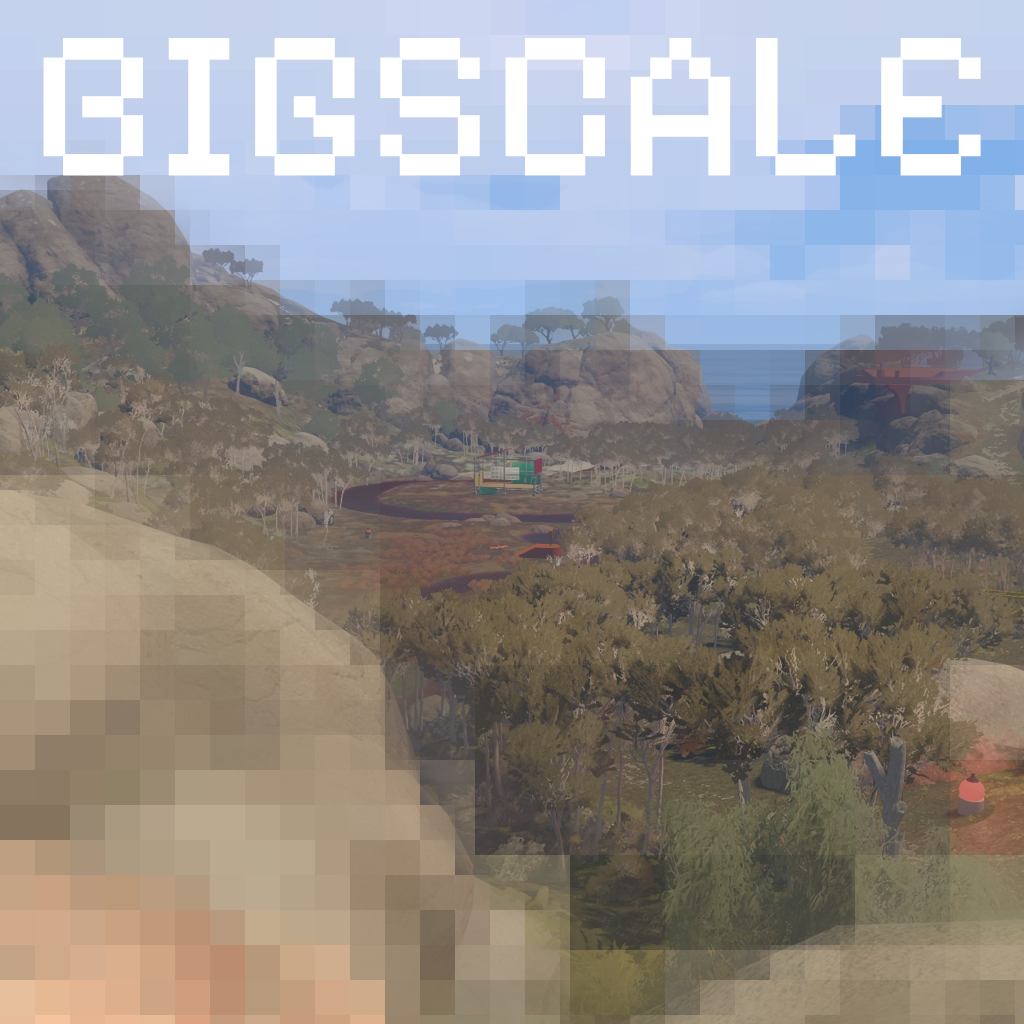
Temporal Upscaling and Frame Generation for Big Walk (Unity 6, IL2CPP, Direct3D 11) using DLSS,
FSR 2/3/4, XeSS and ANR. Replaces URP's temporal upscale, controlled from an in-game Upscaling
settings category. Mod is experimental and has some issues.
Status
| Area | State |
|---|---|
| Desktop super resolution | Supported |
| Frame Generation | Works, but experimental and currently has issues |
| DLSS5 Neural Rendering | Experimental and opt-in; requires a user-supplied runtime |
| Big Walk VR mod | Not supported; BigScale does not work with it, and it might never work |
Overlays: Steam Overlay (Shift+Tab) and similar overlays may have issues with BigScale, especially when Frame Generation is enabled.
Installation
- Install BepInEx 6 (IL2CPP) for Big Walk, then launch the game once and close it.
- Delete
BepInEx/plugins/BigWalkDLSSif it exists. BigScale is a clean break and does not migrate old settings. - Install BigScale from the Big Walk Thunderstore community
with r2modman or Gale, or unzip
BigScale.zipintoBepInEx/plugins/BigScale/. - Launch the game, open Settings, and select Upscaling.
A mod-manager install lands in BepInEx/plugins/<Team>-BigScale/; the paths below use the manual
BigScale folder name.
Usage
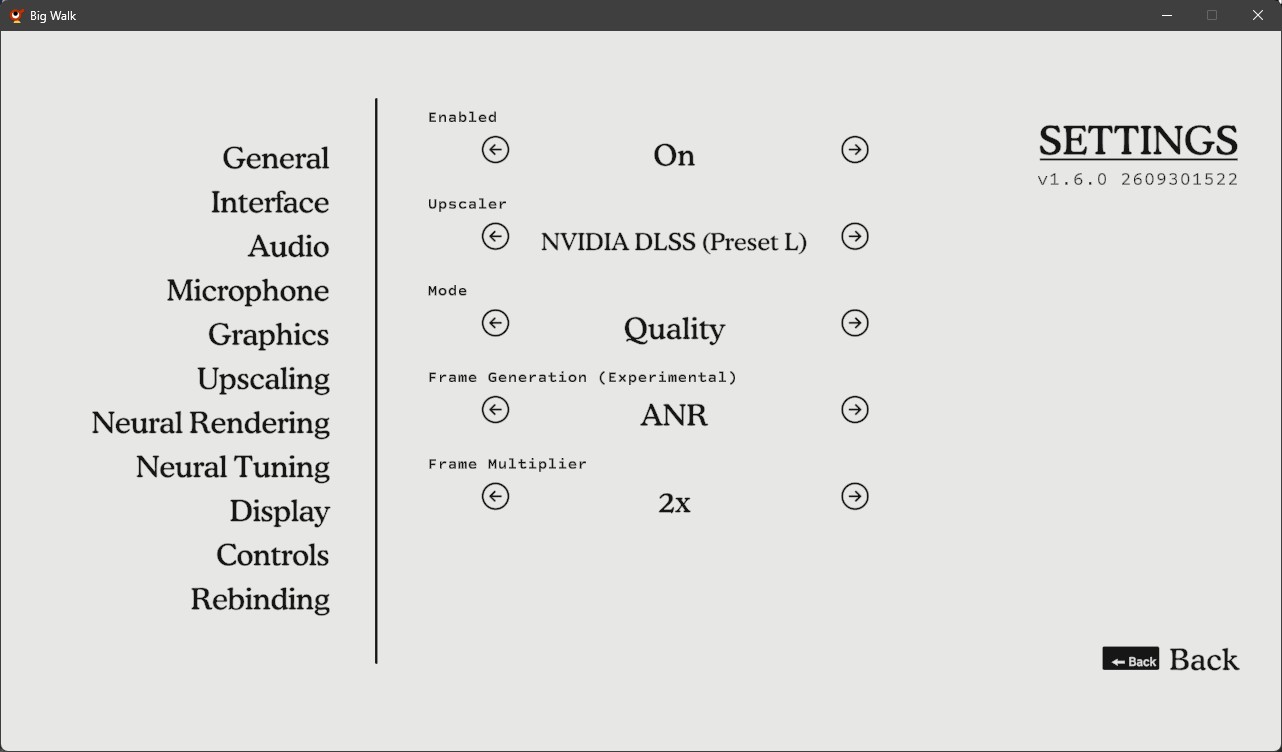
The Upscaling category has these rows:
- Enabled: master switch for upscaling and Frame Generation.
- Upscaler: NVIDIA DLSS, NVIDIA DLSS Preset L, AMD FSR 2, AMD FSR 3, AMD FSR 4, or Intel XeSS.
- Mode: Quality, Balanced, Performance, Ultra Performance, or Native AA.
- Frame Generation (Experimental): Off, NVIDIA, AMD FSR, Intel XeSS, or ANR.
- Frame Multiplier: 2x–6x; ANR is fixed at 2x.
Hold TAB in game for the status line. Settings are written to
BepInEx/config/raharu.bigscale.cfg; edit that file with the game closed.
Recommended settings
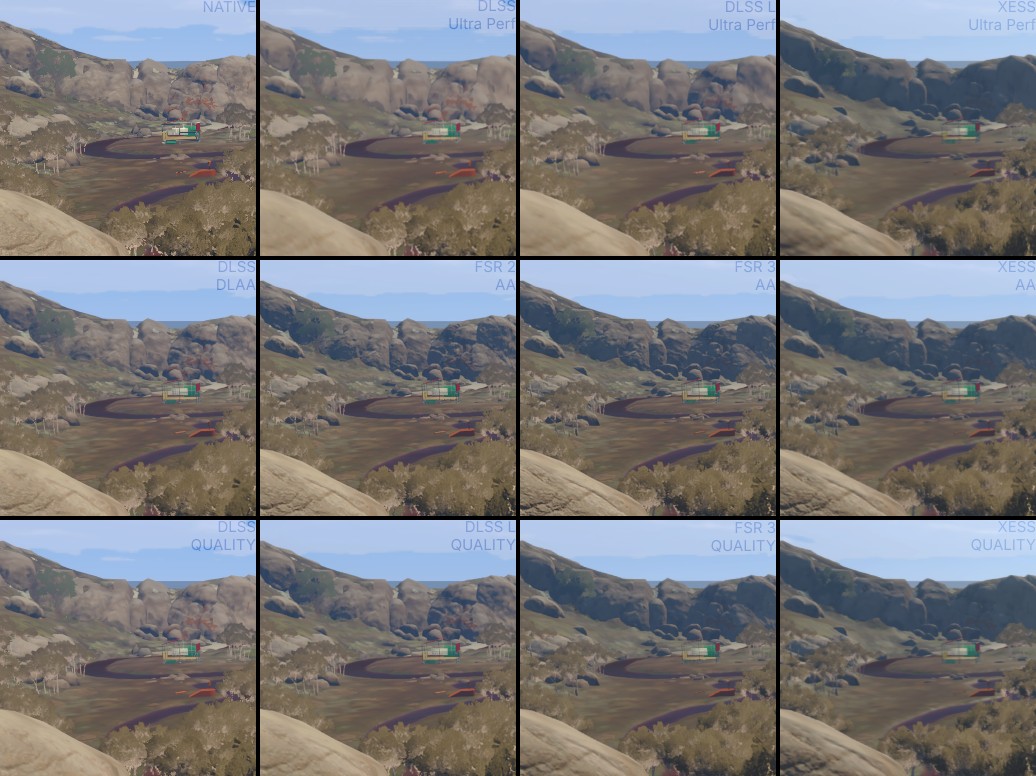
This comparison does not fully represent the in-game difference.
| Goal | Recommendation |
|---|---|
| Best upscaling on NVIDIA RTX | DLSS |
| Best upscaling on supported AMD GPUs | FSR 4 — not tested, but expected to be the best |
| Best upscaling on other GPUs | XeSS |
| Best Frame Generation for most users | ANR (manual install) |
ANR Frame Generation
ANR is not bundled with BigScale.
- Download the newest
anr-fg-*-addon.zipfrom https://github.com/apex-compute/ANR/releases/latest. - Copy the contents of
Apex Neural Rendering FG/dlssg/intoBepInEx/plugins/BigScale/providers/anr/so thatproviders/anr/nvngx_dlssg.dllexists. Do not copy the add-on's other folders. - In Settings → Upscaling, set Frame Generation to ANR. OptiScaler and the ANR installer are not needed.
Selecting ANR starts it without a restart. After ANR has run, selecting another provider requires a game restart.
DLSS5 Neural Rendering (experimental)
BigScale can add an experimental NGX neural-rendering pass. It needs a runtime that BigScale cannot redistribute:
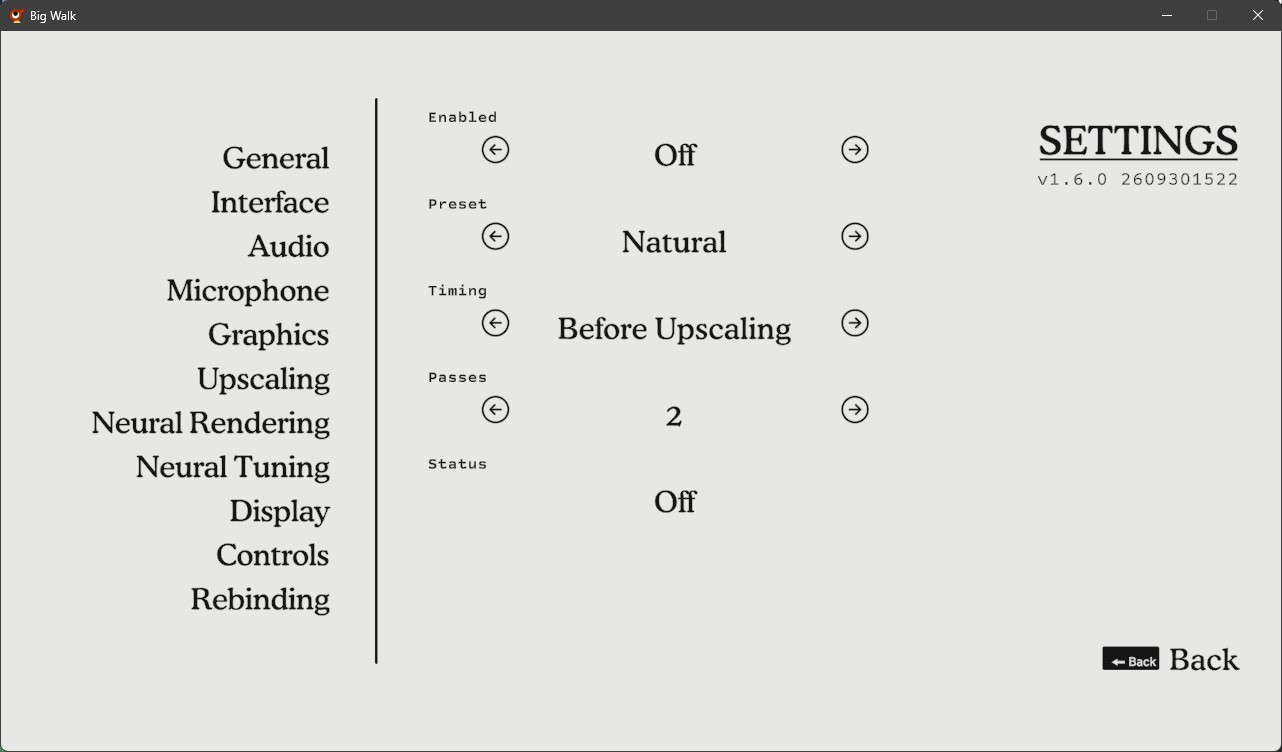
- Place the RTX 40-series fp16
nvngx_dlssnr.dllatBepInEx/plugins/BigScale/providers/dlss5/nvngx_dlssnr.dll(or besideBigScale.Native.dll). - Set
[DLSS5] Enabled = trueinBepInEx/config/raharu.bigscale.cfg, then restart the game. The in-game Neural Rendering and Neural Tuning settings appear only when this config gate is enabled. - Use Neural Rendering to turn the pass on or off and tune its preset, timing, strength, detail, and passes. Character Masking currently does not work.
If the runtime is missing or unusable, the status row reports Runtime missing and normal
upscaling and Frame Generation keep working.
Optional runtimes
- NVIDIA DLSS: replace
BepInEx/plugins/BigScale/nvngx_dlss.dllwith the newest official build from https://github.com/NVIDIA/DLSS/releases/latest. - Exact paths, switching rules, and removal steps:
_ADDITIONAL_PROVIDERS.txt.
Troubleshooting
The BepInEx log is BepInEx/LogOutput.log. For native provider problems, set
[Diagnostics] NativeLog = true in the config and restart; the native log is
BepInEx/BigScale/native.log.
License
Apache License 2.0; see LICENSE. Third-party notices are in THIRD-PARTY-NOTICES.txt.
