

sPEAKer
Now with LIBRARY VIEW — Fully-fledged music player with YouTube, Spotify, Soundcloud and Custom Mixtapes support.
| Last updated | 3 days ago |
| Total downloads | 399105 |
| Total rating | 33 |
| Categories | Mods Misc Audio Items All Clients |
| Dependency string | onlystar-sPEAKer-3.0.3 |
| Dependants | 610 other packages depend on this package |
This mod requires the following mods to function


README
Sophisticated Pulse-Eloquent Acoustic Kymatologic Eidolon Reverberator


🎶 ...or just sPEAKer
This is sPEAKer, the most feature-packed music player in PEAK.
Unlike the bugle, sPEAKer is an independent audio source. Simply press play and enjoy your music. Drop it, toss it around, audio will just not stop!
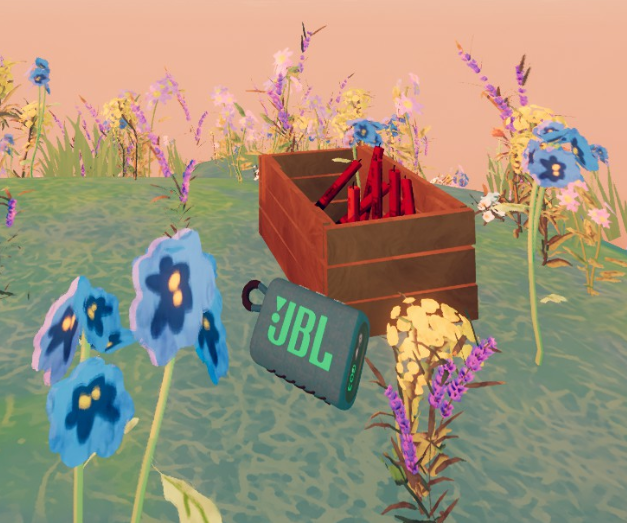
sPEAKer at the PEAK.
The main feature of this mod is that it works as a true portable speaker. Instead of playing 2D music for everyone, it leverages spatial audio to make it part of the immersive experience of PEAK.
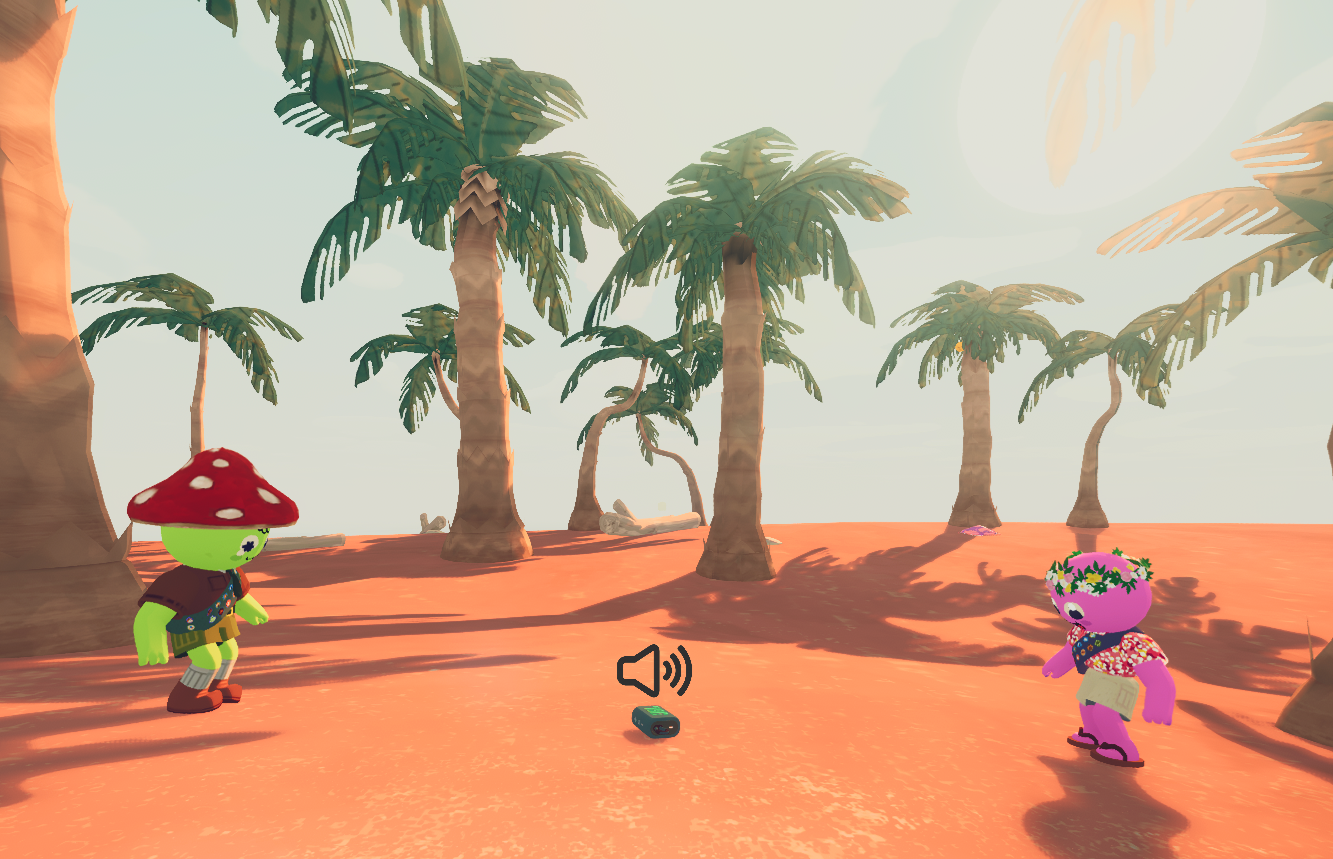
It won't stop playing if you drop it.
🎸 Loading Songs
When it comes to loading songs, you have two solid options.
The first is to use Mixtapes, the favorite format among users of this mod. Thunderstore has plenty to pick and choose from already. There are MANY different styles out there, even some original music from independent artists! Either way, you always have the option to make your own mix and upload it to Thunderstore. Playback is instantaneous and perfectly synced. This is the highest quality option.
The second is to use YouTube Radio, the latest mode that lets you search a song by name (or paste a link) and get infinite recommendations! Literally pick a song and let the vibe carry itself. Or if you prefer, put together a YouTube playlist and input that instead. Sync is entirely host-driven, so clients may start songs a little late. This is the least setup option.
Whatever you choose, and however you play, sPEAKer has your back.

Mod Contents
Installation
Please refrain from installing manually and use Gale or r2modman to install sPEAKer.
If you still wanna install manually, this is a quick reference guide:
Manual Installation
- Install BepInEx for PEAK
- Install required dependencies
- PEAKLib.Items
- PEAKLib.Core
- SoftDependencyFix
- MonoDetour_BepInEx_5
- MonoDetour
- ytModule
- Place the mod files in your BepInEx folder. Depending on the mod they'll go into
/plugins,/patchersor/core(pay attention at the folder names when you download the ZIPs) - Launch PEAK
NOTE: Not all dependencies go into /plugins. If you have issues, use a mod manager!
Controls
🎮 Basic Controls
When holding sPEAKer, you get the following controls:
-
Primary: Play/Pause toggle
-
Secondary: Next Song
-
Scroll: Volume Up/Down
-
Shift + Secondary: Previous Song
-
Ctrl + Secondary: Toggle Shuffle
-
Alt + Secondary: Cycle Loop modes
⌨️ Keyboard Controls
All these are rebindable via ModConfig.
-
U: Opens sPEAKer's UI. Most controls you'll need are inside this UI
-
Y: Switch to YouTube Radio
-
Ctrl + Y: Switch to Mixtape Player
-
P: Toggle Drone Mode
-
Ctrl + P: Recall sPEAKer
-
O: Do a dance Emote (when Drone Mode is active)
🕹️ Gamepad Support
sPEAKer is fully playable on a gamepad.
-
Tap SELECT: Open / Close sPEAKer's UI
-
Hold SELECT: Open the Actions wheel
SELECT is View on an Xbox controller, Minus on a Joycon.
The Actions wheel is aimed with the right stick and confirmed with the Right Trigger.
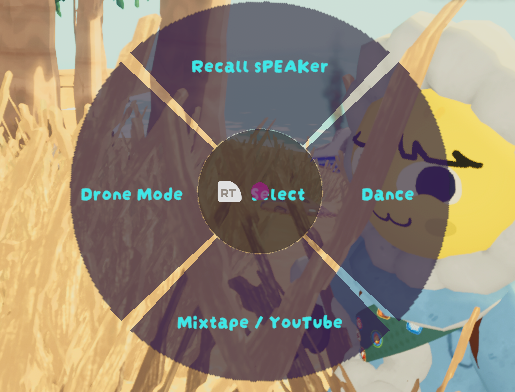
⭐ Extra Controls
-
Media Keys: If your keyboard has Play/Pause, Previous and Next keys, they can control sPEAKer directly when the game is focused.
-
Local Volume Control: Is available via Pause Menu:
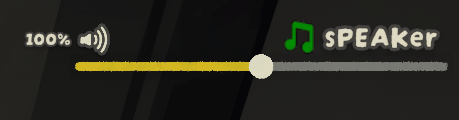
This slider only affects your own playback, separately from the lobby's volume.
Mixtapes
Adding Music
After launching PEAK, your default music folder will be created:
.../plugins/onlystar-sPEAKer Music
This is intended for local playback. To listen in with your friends, you should use mixtapes.
📀 Introducing: Mixtapes
A mixtape is simply a folder containing your collection of audio files.
To create one, start by creating a new folder inside your default music folder (onlystar-sPEAKer Music) and drop your songs in it. The name of the folder will be used as the mixtape's name by default.
Optionally, you can also include a mixtape.json file inside your mixtape folder:
  {
    "name":  "Undertale Bosses",
    "author":  "onlystar"
  }
This takes priority over default naming and allows you to sign your Mixtape with your name.
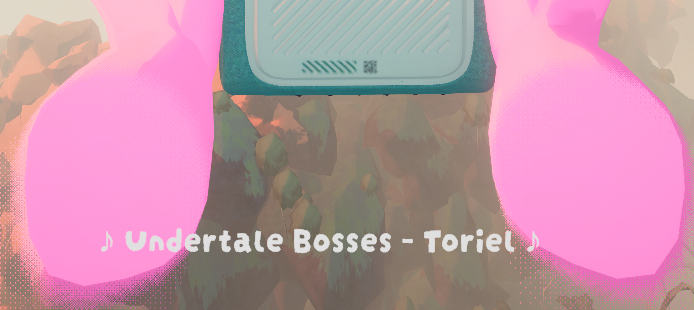
It's "Mixtape Name - Song Name"
🎧 "Mixtapes" in Thunderstore
Mixtapes are really easy to share and manage. Since release, the available catalogue of mixtapes in the Thunderstore has grown to around 600 SUBMISSIONS!! Thank you all for enjoying sPEAKer!
There are SO MANY that there's even an exclusive filter for them:
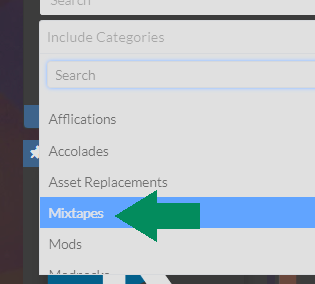
Just in case you wanna list them all or filter them out of your browsing. A heads up tho: if you're browsing on Thunderstore's webpage, all mixtapes will be under "Resource Packs" instead of "Mods".
Bundling a mixtape for Thunderstore 
If you want to upload your own mixtape as a mod to share with your friends, just put an empty sPEAKer.json file in the same folder as your mixtape folder.
You can refer to the general instructions for Manual Packaging as described here.
There's also an alternative explanation on how to create mixtapes here.
As a minimum, your package should include a manifest.json, a README.md, a /plugins folder and (hopefully) a 256x256 icon.png.
manifest.json is formatted as follows, and should list sPEAKer as its dependency:
  {
    "name": "Demo_Mixtape",
    "author": "onlystar",
    "version_number": "1.0.0",
    "website_url": "",
    "description": "I'm a short description!",
    "dependencies": [
      "onlystar-sPEAKer-3.0.0" // remember to add this line
    ]
  }
This way, you can point your friends to your mixtape and their mod manager will install sPEAKer along with it.
Think carefully about the "name". Once uploaded, you can't change it.
plugins/ folder is where your songs are. It should follow a structure like this:
plugins/
├── sPEAKer.json // <-- this file is empty!
└── my mixtape/
    ├── a true hero.ogg
    ├── omega flowey.mp3
    ├── ...
    └── mixtape.json
sPEAKer.json is the way to tell sPEAKer that your uploaded mod includes a mixtape, otherwise it won't find it.
Important Note: Even though MP3 and WAV are supported, it is highly recommended that you use OGG format. It's the fastest to load, smallest in size and you lose negligible quality. You can use a tool like Convertio or, if you're up for using scripts, check out the Wiki tab for the script I use for mass converting MP3 into OGG.
At this point, you should have everything to put together your package, like so:
some_folder/
├─ manifest.json
├─ README.md
├─ icon.png
└─ plugins/ <-- the folder from before!!
Your next step is to put these files inside a ZIP. This does NOT MEAN to ZIP the containing folder (like "some_folder" in this example), it should only be the contents. In other words, when opening your ZIP you should directly see the manifest.json, README.md, icon.png and plugins/ folder inside.
Once your package is ready, upload it to Thunderstore.
You should only select "Mixtapes" in the Categories field.
💡 Don't delete the files you created your package with! (manifest, README, etc)
👇 It's important for the next section
Updating your Thunderstore mixtape
If you wanna add songs to an already published mixtape, add your songs to the original (uncompressed) plugins/ folder and bump the "version_number" up that's inside your manifest.json. DON'T change the "name" field, otherwise Thunderstore will create a new mod instead of updating the existing.
  {
    "name": "Demo_Mixtape",
    "author": "onlystar",
    "version_number": "1.0.1", // previously "1.0.0"
    "website_url": "",
    "description": "",
    "dependencies": [
      "onlystar-sPEAKer-3.0.0"
    ]
  }
ZIP it once again and reupload it.
You should only select "Mixtapes" in the Categories field.
Disclaimer: Make sure you have permission to upload the audio files your mixtape contains to Thunderstore.
YouTube Radio
 YouTube Radio
Listen in to YouTube, Spotify or Soundcloud tracks in sync.
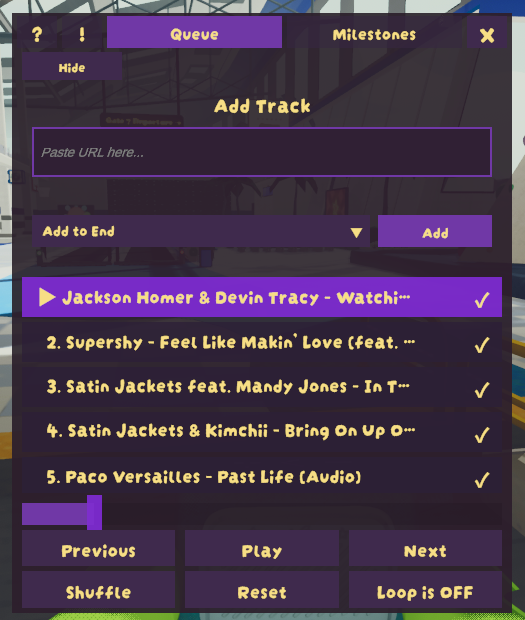
Here's how to get it started:
- Enter YouTube Radio using
Yor the UI button. - The UI will open, with a box to enter an URL or query.
- Choose how to add the track to the queue with the dropdown, and press Add/+.
It is autoplay from there by default. A queue of songs will be filled with endless recommendations based on the song you entered. The recommendations are made to be quite aggressive in their "likeness" so whatever song you pick will become the vibe.
To add more songs later, just press Y to bring the UI up again.
YouTube playlist links are supported
By entering a YouTube playlist URL, you skip the recommendations system altogether and the queue will fill with your playlist instead. This includes albums from YouTube Music, as they are treated as playlists.
You don't need to clean URLs either, just copy and paste.
Note: YouTube Music playlists sometimes display unavailable videos on the YT music app/site. These are filtered out automatically, so you'll probably wanna preview the playlist without the "music." in the URL to see what's actually gonna be added to sPEAKer's Queue.
Spotify links are partially supported
Because of how strict the API is, only individual tracks can be entered.
Spotify playlists or albums are not supported directly.
Instead, you can use a service like Soundiiz to convert Spotify playlists into YouTube ones.
🎤 Sing along
YouTube Radio now shows synced lyrics.
They come in as toasts, line by line, timed to the track. They're sourced from LRCLIB's open database, so coverage is great for most songs but not all of them. Every once in a while, lyrics will be out of sync or just wrong. And that's okay.

Extra Features
🌠 A Powerful UI
Press U to bring up the UI.
Queue
All your songs are here by default.
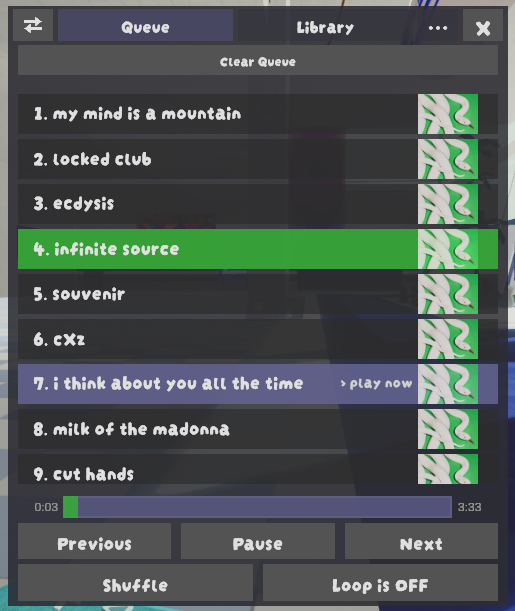
Drag & drop to reorder, clear the queue, and control playback all in one place.
When playing Mixtapes, see which tracks belong to which mixtape. When in YouTube Radio, see what songs are downloading and which ones are ready to play.
Library
Once you have many mixtapes, it can get difficult to manage from the Queue alone.
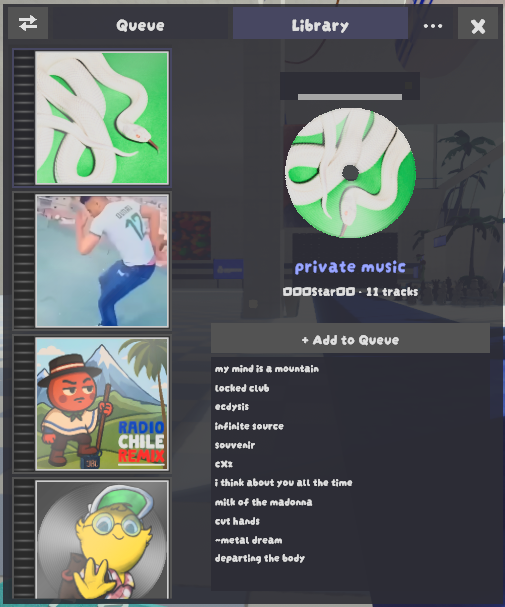
That's why Library exists.
Every mixtape you have installed shows up as a jewel case with its respective cover art. Select one and its disc slides out of the case and into the slot, showing you the full tracklist on the right.
From there you can add a whole mixtape to the Queue, or take it back out.
Storage
In YouTube Radio, all that you listen to is downloaded in a cache.
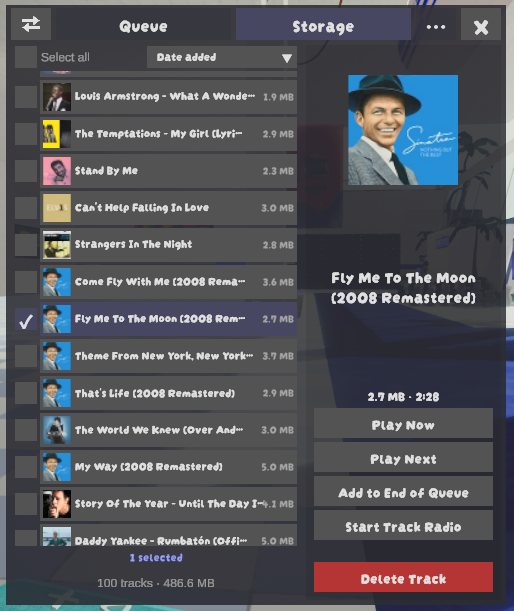
The Storage tab exposes this cache.
Each track is shown with its corresponding YouTube thumbnail. From there you can Play Now, Play Next, Add to End or Start a new Queue from the selected track. All actions you can already do from the Queue tab when first downloading them, with the difference that all songs visible in this view are already downloaded in full, so playback is mixtape-fast.
Multi-selection is supported too, in case you wanna queue or delete many songs at once.
Settings
Normally, you'd have to make changes in your BepInEx config and restart the game.
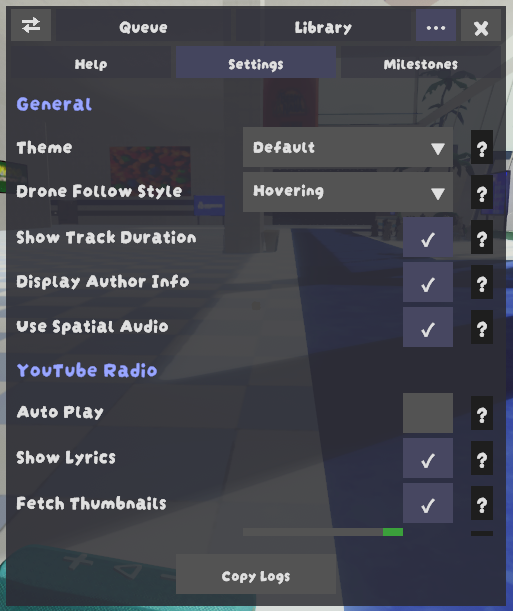
The Settings tab applies changes live.
Here you can customize your experience, each different config with a hint button that tells you what it does. This screen is constantly growing as more features are released.
Keybinds however, have always been best configured via the ModConfig mod, so you won't find them in this tab.
Fully Gamepad supported
Everything you can do with the mouse, you can with a gamepad in this UI.

Open the UI with SELECT button instead of U.
And for other features that don't belong in the UI, hold SELECT to open the feature wheel.
🪽 Featuring: Drone Mode
Instead of having a dedicated slot, you can make sPEAKer engage Drone mode and it will follow you around!
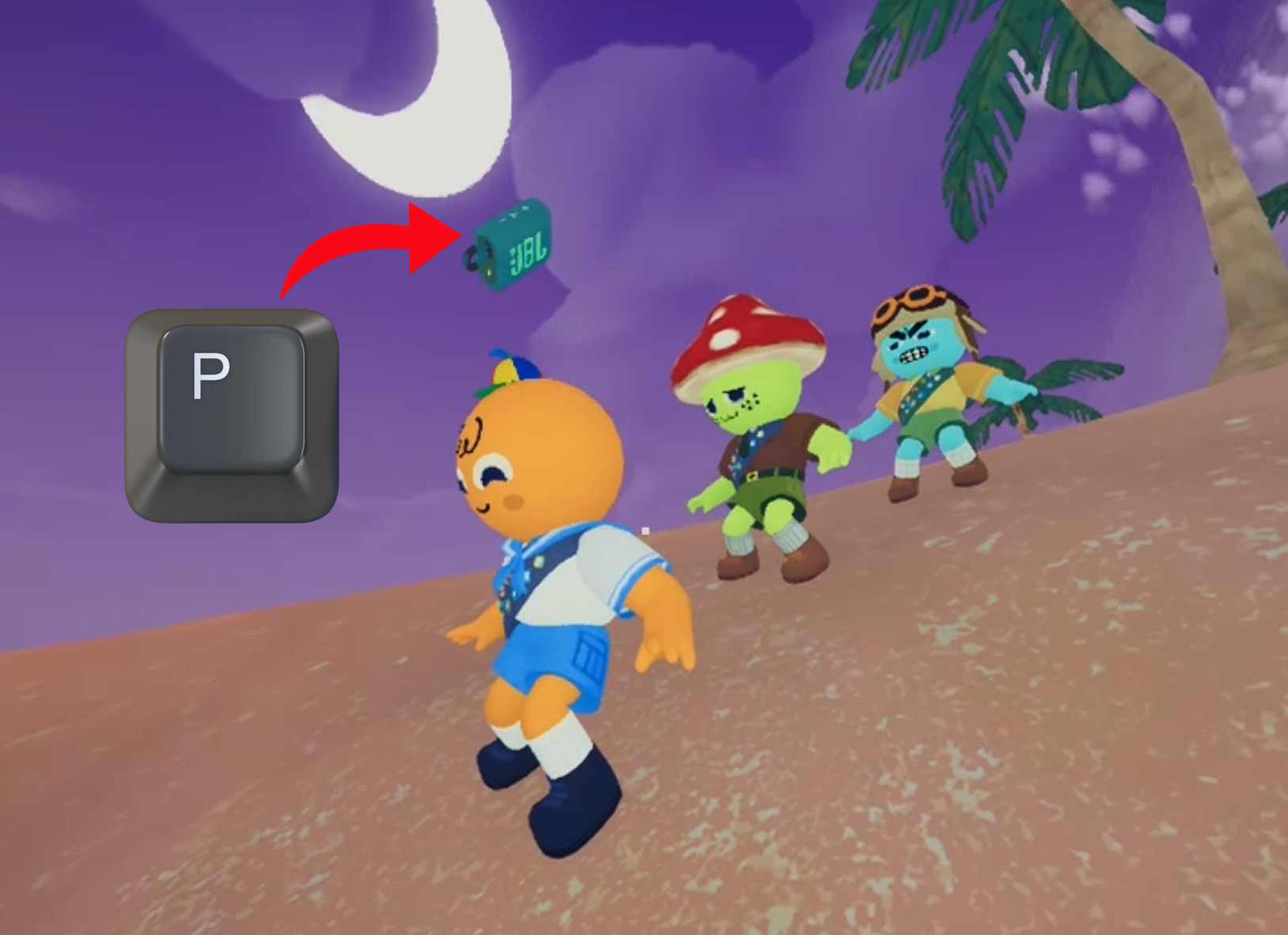
Drop it, press P and you will be followed anywhere you go.
If you happen to lose it, use Ctrl + P to make it come back directly to you.
Customize how you want the drone to position itself as a drone in the Settings tab by changing Following Style:
- Orbiting makes the drone smoothly circle around you.
- Hovering pins the drone to a point behind and above you.
🕺 It can also Dance!
sPEAKer features 9 different dance motions / emotes.
Press O to strike a move when in Drone mode!
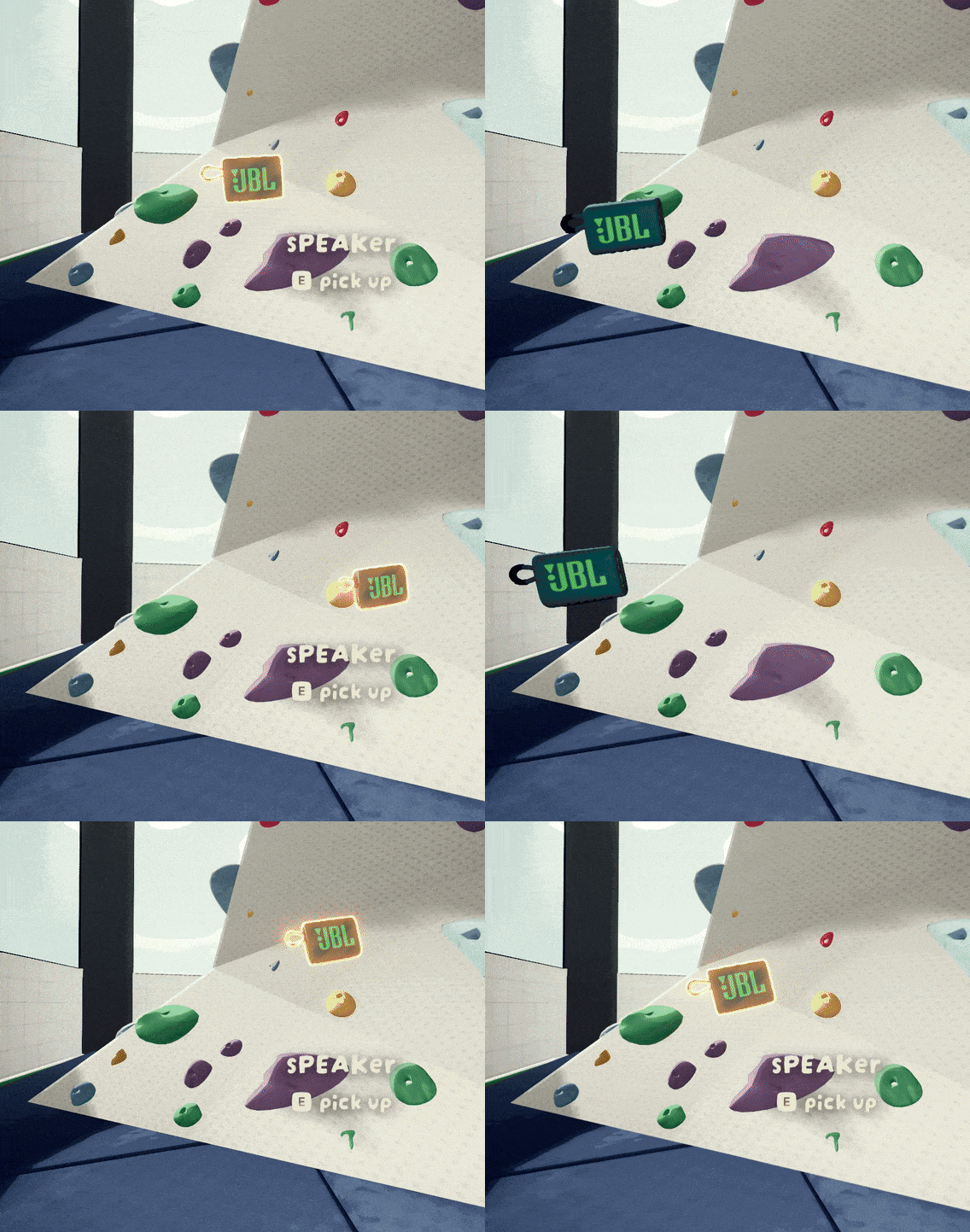
✈️ Takes off with You
sPEAKer spawns in the airport! Right about here:
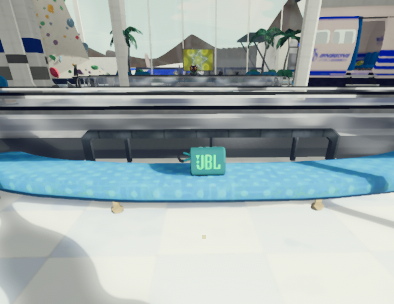
Also, when music plays, sPEAKer will take control of the airport flight boards to show four different audio visualizers that react to your music!


Fun fact: I made the first three manually while learning how shaders work. I released star-shaped one on Wallpaper Engine! Please go check it out :-)
The last one was made by JLChnToZ, which goes way harder on their YouTube video.
🏆 Milestones
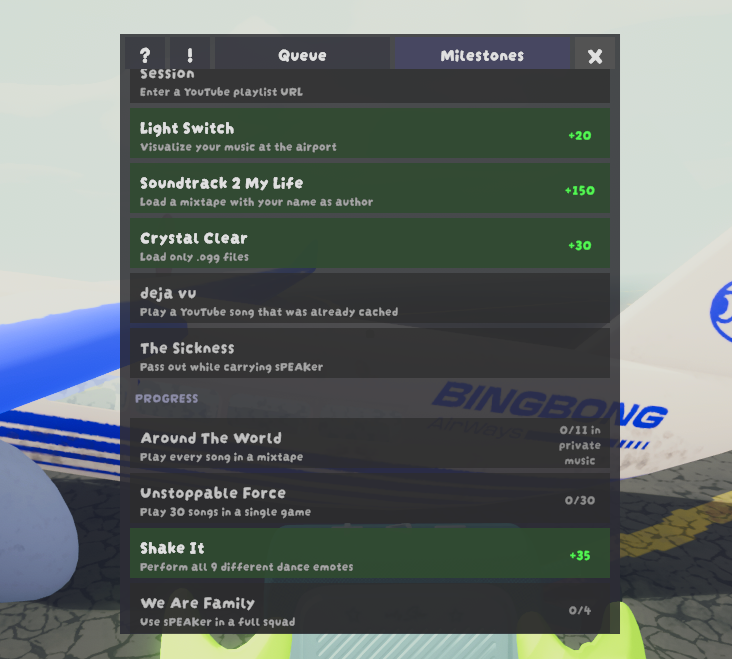
sPEAKer has a Milestones or Achievements system!
There are 38 milestones of varying difficulty, designed to guide you through everything this mod has to offer and reward you along the way. That includes a couple of secret ones for messing around with certain hidden interactions.
Milestones grant XP and work alongside Atomic's Leveling. If you don't have it installed, sPEAKer will hold onto your earned XP until you do.
You can track your progress anytime under the Milestones tab in the UI (U).
Configuration
Configuration Options 🪚🔧🔨
These are options you can change before starting your game.
You can find them in BepInEx/config/onlystar.sPEAKer.cfg or via your mod manager.
| Key | Category | Description | Default Value |
|---|---|---|---|
| ExternalAudioFolderPath | 💾Audio Loading | Folder path where sPEAKer will mainly load mixtapes and external audio from. It's recommended to leave unchanged. | onlystar-sPEAKer Music, next to your plugins folder |
| LoadDemoSong | 💾Audio Loading | Include a demo song in your track list. | true |
| ExtendedFormatSupport | 💾Audio Loading | Enables loading of MP3 and WAV files. May impact performance. | true |
| StartupLoadingIndicator | 💾Audio Loading | Shows a loading text during game start. | true |
| FastLoad | 💾Audio Loading | Makes sPEAKer load songs during gameplay instead of at game start. | true |
| ShuffleOnStart | 🔊Playback | Start with Shuffle enabled by default. Saves you a toggle if you only want shuffled playback. | false |
| TurnOnAndPlay | 🔊Playback | Make sPEAKer start playing immediately after turning it on. | false |
| SoundEffectsEnabled | 🔊Playback | Enables JBL sound effects. | true |
| UseSpatialAudio | 🔊Playback | Enables proximity-based audio. If false, playback will sound globally instead of coming from the sPEAKer. | true |
| RenderVisualizers | 🔊Playback | Renders visualizers when sPEAKer plays music in the airport. | true |
| ShowTrackDuration | 🖥️UI | Shows every song's current time and length. | true |
| DisplayAuthorInfo | 🖥️UI | Displays track author during playback. | true |
| QueueUITheme | 🖥️UI | Personalizes your UI with various color styles. Recommended to change in-game. Options: default, royal_amethyst, deep_sea, pinky_promise, blood_moon, terminal, wood, cyberpunk, forest |
"default" |
| GamepadSelectorStyle | 🖥️UI | Shape of the focus selector drawn around the highlighted element when playing on a gamepad. Options: outline, solid, brackets |
"outline" |
| DroneHoverStyle | 🛸Drone | How sPEAKer follows you in Drone Mode. orbiting circles around you, hovering pins it to a post behind and above you. |
"orbiting" |
| SpawnAtAirport | 📻Spawning | Automatically spawn sPEAKer at the airport. | true |
| SpawnAtGameStart | 📻Spawning | Automatically spawn sPEAKer around the crash site when a game starts. | true |
| SpawnWithF4 | 📻Spawning | Allows the host to spawn sPEAKer in their hands when pressing F4. Only one sPEAKer may exist at a time. |
true |
| RecallEnabled | 📻Spawning | Enables recalling existing sPEAKer when pressing F4. Only works if SpawnWithF4 is also enabled. Also, sPEAKer can only be recalled if it's in the ground (not in a slot) and not following anyone. |
true |
| AutoPlay | ▶️YouTube Radio | Whether to keep filling your queue with recommendations or just play what you input. | true |
| MaxCachedSongs | ▶️YouTube Radio | How many songs YouTube Radio is allowed to keep on disk. Range: 10-100. | 30 |
| PredownloadCount | ▶️YouTube Radio | Number of upcoming songs that YouTube Radio will download in the background. Range: 1-20. | 5 |
| ShowLyrics | ▶️YouTube Radio | Displays synced lyrics as toasts while a track plays. Lyrics are fetched from LRCLIB. | true |
| FetchThumbnails | ▶️YouTube Radio | Shows real YouTube thumbnails on the Storage screen. Turn off to use letter placeholders and issue no image requests. | true |
| Debug | 📜zZzZz | Enables custom verbose logging. If you want to report a bug, please include your BepInEx/LogOutput.log! |
true |
⌨️ Keybinds
To change keybinds more easily, I recommend using ModConfig.
The following keybinds are currently configurable:
| Key | Description | Default Value |
|---|---|---|
| DroneToggle | Drone Mode toggle. | P |
| RecallCommand | Hold this while pressing DroneToggle key to make sPEAKer "recall" to you instead of looking for people nearby. | Ctrl(so default usage is Ctrl + P) |
| DanceEmote | Makes sPEAKer dance when Drone Mode is active. | O |
| YouTubeKey | Enter Youtube Radio mode. Hold Ctrl and this key to exit. | Y |
| SpawnKey | Key to spawn sPEAKer if the corresponding spawning option is enabled. | F4 |
| QueueUIKey | Opens sPEAKer's UI. | U |
| HostOnlyKey | Toggles between streaming your voice or your music. | H |
Keybinds are released regularly alongside new features.
Technical Notes
️Technical Notes

Mixtape Playback
- For the best experience, everyone in the room should have the same tracks and mixtapes.
- The Library tab tells you which of your installed mixtapes the host also has, so you can see what's actually playable for the room before you queue it.
- The host always owns the tracklist canon, which means everyone must play the host's catalogue regardless if you have more music locally.
- If you're missing a song your host has, you'll hear white noise instead. Songs are content-hashed on load, so playback will resume when the host plays something you do have.
- Large files (4MB+) and MP3/WAV files cause significant lag spikes during loading. OGG is strongly recommended.
- Shuffle randomizes your list every time you toggle it on, so you might get repeated songs if you toggle it more than once.
- If you experience lag when playing music, you can load during game startup instead by setting FastLoad to
false. You'll then experience a big lag spike when game boots up until music loading finishes, but have no lag during playback. - Beware of loading too much music with FastLoad set to
false, as every song will fully load into RAM. This has been tested with up to 250 songs (a mp3/wav/ogg test mix) on a 32 GB system. Potentially more songs could be achieved by using OGG exclusively, and even more if you choose more aggressive compression methods. ExternalAudioFolderPathis set only on first mod load. When moving your game folder, the path won't automatically change. You should set it to your music's folder new location, or you can deleteconfig/onlystar.sPEAKer.cfgto regenerate the correct path (this also resets your other configs).- When importing a profile code, it copies both mods AND configs from the original profile. This includes their
ExternalAudioFolderPath, which will inevitably be an invalid path in your machine. To avoid issues, sPEAKer will automatically default to a relative path toplugins/onlystar-sPEAKer Musicwhen it detects it has been installed through a profile code. Mixtapes downloaded from Thunderstore are unaffected by this config, which is probably the main source of music for shared profiles anyway.
YouTube Radio
- This mode has been designed to be used slow. Skipping too quickly will likely result in a messy state. The room's state will eventually sync again, but it can take some time.
- If you're ever stuck in a messy state too long while in YouTube Radio, you can fix it by pressing
Yand entering an URL. This works because it kills all pending actions/downloads to prioritize the one you just entered. - Despite the name, YouTube Radio is download-based and does not stream. This may change in the future.
- Songs next in queue are always being downloaded in the background. This means that while you play a song, you are also downloading the next 10 or so in the queue to achieve a faster playback experience similar to that of mixtapes.
- YouTube Radio always keeps a small cache of songs in
%temp%/sPEAKerYT, so it's possible you won't need to download tracks you have played recently. You can set how many songs it holds with theMaxCachedSongsconfig. - The sync strategy in YouTube Radio is host-centric. The host always starts playing first, and the rest catch up to them when they can.
- Downloads that get blocked are now detected and pointed at this guide for using your own cookies to get around it.
- The Storage tab is where the cache lives. Anything in there plays instantly, and you can clear out what you don't want. Lowering
MaxCachedSongsasks for confirmation first, since deleting can't be undone. - Lyrics are fetched from LRCLIB, an open community database. Coverage is good but not universal, and timing is only as good as whoever submitted it.
General
- Your sPEAKer is protected by The Observer, its very own watchdog. It makes sure exactly one sPEAKer exists at all times. If it ever goes missing, gets duplicated, or ends up stuck in a broken state, it cleans up and respawns a single fresh one for the whole lobby.
- sPEAKer is considered to "exist" when it's: on the ground, floating in the air, in a backpack, held in someone's hands, or in someone's pocket. If it disappears from all of these states without explanation, The Observer will respawn it after a few seconds to prevent permanent loss.
- Only the host is allowed to diagnose a bad state and order a repair; everyone else just reports what they see. When respawning, sPEAKer will appear above its last known holder in Drone mode. Any duplicate copies in inventories/backpacks will be removed to maintain a single instance.
- In some cases, your client may be forced to destroy and respawn sPEAKer even if you never had a failed state. This ensures all clients stay synchronized; consistency is prioritized over continuity.
- When an action gets rejected, sPEAKer will tell you why instead of silently doing nothing. Things like "Only the host can spawn sPEAKer with F4" or "Can't deactivate Drone mode while it's following someone else".
- The Turn On state is shared between Mixtapes and YouTube Radio. If you switch modes while turned off, sPEAKer turns itself on.
Created by onlystar - Bringing music to the PEAK experience!
