

PinABuildCost
Pin a building or upgrade and track missing materials beside the resource bar. Supports controller, keyboard and mouse.
| Last updated | 24 minutes ago |
| Total downloads | 1 |
| Total rating | 0 |
| Categories | Mods |
| Dependency string | GKJ-PinABuildCost-0.1.0 |
| Dependants | 0 other packages depend on this package |
This mod requires the following mods to function

BepInEx-HideManagerGameObject_Config
BepInEx config that sets HideManagerGameObject to true.
Preferred version: 5.4.2304
BepInEx-BepInExPack
BepInEx pack for Mono Unity games. Preconfigured and ready to use.
Preferred version: 5.4.2305README
Pin a building or upgrade to keep its material checklist beside the resource bar while you play. Close the building panel and you can still see what you need before you return to buy it.
Features
- Track one purchase at a time, including an unaffordable upgrade such as the Castle’s Increase storage or Wall.
- Each material gets a green check when you have enough. Spend some of it and the row shows how much you still need. The checklist refreshes every half second.
- Ready means the purchase check passes. Materials Ready · Requirements Pending means you have the materials but another rule still blocks the purchase.
- Completing the pinned build or upgrade clears the checklist. Demolishing a building also clears its upgrade pin.
How to Use
- Open a construction card or supported upgrade and choose Pin Cost. Click it with the mouse, or focus it with a controller and use the game’s confirm button.
- For the shortcut, focus the offer and press Tab on keyboard, Y on Xbox, or Triangle on PlayStation by default. A panel with one offer also accepts the shortcut from another control, such as Cancel in Repair Church.
- Choose Replace Pin on another offer to switch targets. Moving focus there keeps your original pin until you activate the button. Choose Unpin on the tracked offer to clear it. Loading a run also clears the pin.
Screenshots
Both captures show version 0.1.0 in-game at 1920 × 1080 in borderless fullscreen with simulated controller input.
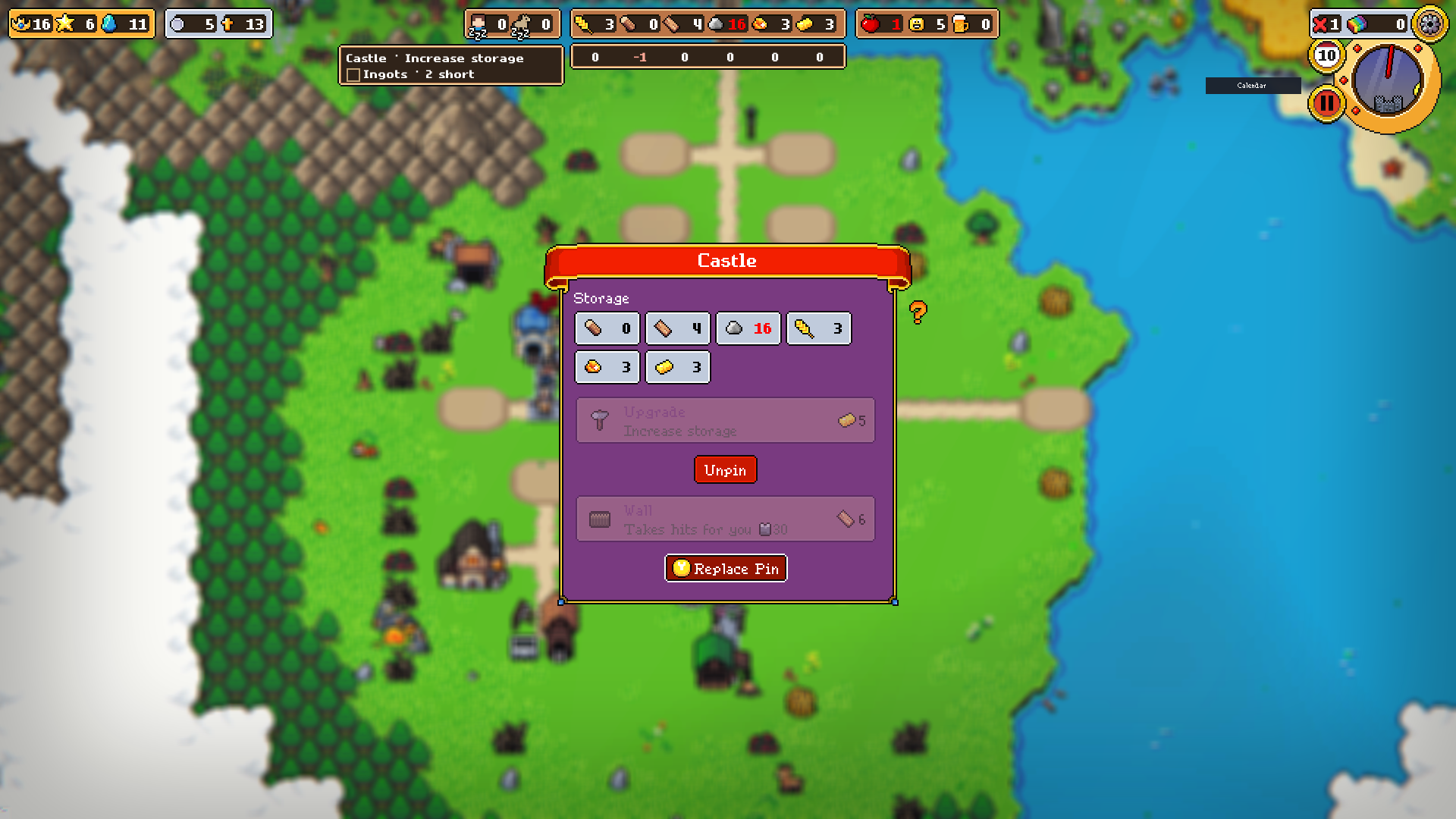
1× UI scale. The checklist shows Ingots · 2 short, and Unpin beneath Increase storage identifies the tracked upgrade.
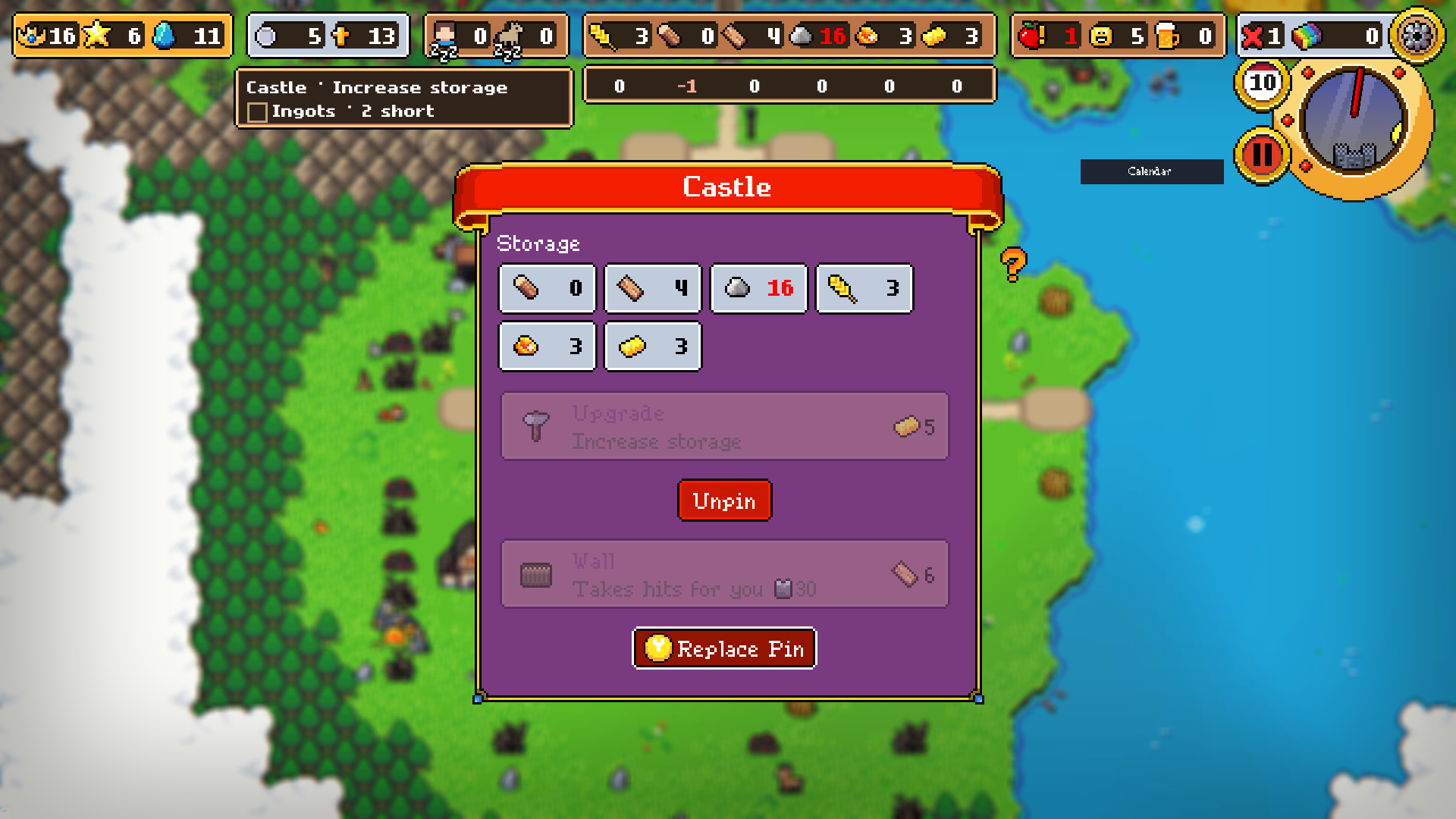
1.5× UI scale. The white outline shows focus on the Wall’s Replace Pin button. The checklist above still tracks Increase storage.
Compatibility
Tested on Super Fantasy Kingdom 0.8.068. The checklist works alongside Daybook and Production Bottlenecks. It follows changes to native prices, available stock and purchase rules. Mods that use their own purchase menus or private inventories can add pin support through the optional integration API.
The shortcut follows the game’s UI/Tab binding. If a panel disables that action and your binding uses a custom hold or release, click the pin button or use focused controller confirm.
Installation
- Select Super Fantasy Kingdom and your profile in Thunderstore Mod Manager. Use Install with App on this listing.
- Allow the manager to install BepInExPack and HideManagerGameObject_Config, then launch the modded game.
