
Please disclose if any significant portion of your mod was created using AI tools by adding the 'AI Generated' category. Failing to do so may result in the mod being removed from Thunderstore.

Daywheel
A small day and night wheel for your HUD, so you can see at a glance how much daylight is left. Seven looks to choose from, and no BepInEx needed.
| Last updated | a day ago |
| Total downloads | 1071 |
| Total rating | 2 |
| Categories | Mods Client-side Utility Deep North Update |
| Dependency string | VysesDarkheart-Daywheel-1.0.14 |
| Dependants | 1 other package depends on this package |
This mod requires the following mods to function

denikson-BepInExPack_Valheim
BepInEx pack for Valheim. Preconfigured with the correct entry point for mods and preferred defaults for the community.
Preferred version: 5.4.2350README
Daywheel
A small day and night wheel for your HUD, so you can see at a glance how much daylight is left. Install it with a mod manager as usual, or copy it into your Valheim folder and play, with no BepInEx needed. On Linux and a Mac, a copy installed by hand also needs one launch option in Steam.
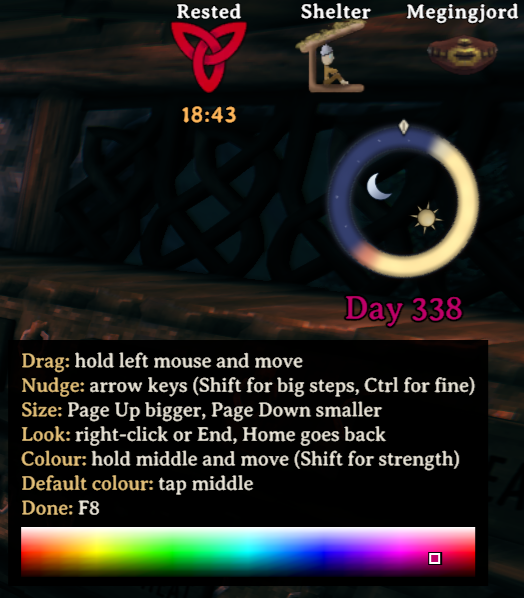
The mark at the top is "now". The ring turns as the day goes on, so the distance from the mark to the dark part is the daylight you've got left. The day number sits underneath.
It follows the game's own clock. Day runs from a quarter to three quarters of the way through each 20 minute cycle, so the light and dark halves match the sky you're under.
Themes
There are seven looks to pick from:
- Ember and moonstone (the default): amber by day, deep blue at night
- Northern twilight: pale gold and indigo, a bit softer
- Rootbound forest: a ring of roots and leaves, mossy at night
- Dvergr lantern: an eight-sided gold and violet frame
- The wolf chase: a light wolf and a dark wolf chasing each other's tails
- Mountain relic: frost-blue carved stone
- Ashlands: black rock with lava running through it
Set one in the config, or flip through them in game (see below).
Moving and resizing
Press F8 to move the wheel. A small menu opens beside it, listing the keys, and it stays on screen wherever the wheel goes. Your character stands still until you finish. Put away a hammer, hoe or cultivator first: while one is out, the game uses the mouse for building. Then:
- hold the left mouse button and move the mouse to drag the wheel. You don't need to point at it, so it works anywhere on screen
- Page Up and Page Down (or + and -) make it bigger or smaller
- the arrow keys nudge it (hold Shift for bigger steps, Ctrl for smaller)
- right-click, or press End, for the next look, and Home for the one before
- hold the middle mouse button and move the mouse to pick the day number's colour: left and right change the colour, up and down make it lighter or darker, and with Shift held, stronger or softer. A small field in the menu shows where you are. A quick tap of the middle button puts back the colour it came with
Press F8 again when you're done, and your controls come back. The position, size, look and colour are saved. Opening your bag, the map, the build menu or the game menu also ends it.
It's done this way so the minimap stays in view while you line the wheel up. The bag's crafting panel and the big map both cover that corner.
Config
| Setting | What it does |
|---|---|
Show |
Turns the wheel on or off |
ShowDayCount |
Shows the day number under the wheel |
DayColor |
The day number's colour, as a hex code. FFFFFF is white |
Size |
Width, in the game's interface units, so it follows the game's UI scale |
X, Y |
Position, measured from the top right corner |
Theme |
Which look to use, spelled exactly as listed above |
Glow |
Glow strength. 1 is normal, 0 turns it off |
MoveKey |
The key for moving the wheel, F8 by default |
When Keel starts Daywheel, it keeps these in Keel\Daywheel\Daywheel.cfg,
which appears the first time you play. When BepInEx starts it, as it does
with a mod manager, they're in BepInEx's config folder, where the manager's
config editor can change them. You won't usually need to touch Size, X
or Y yourself, since dragging the wheel sets them.
Installing
There are two ways to install Daywheel, and both use the same zip.
With a mod manager
This is the easiest way.
- Open r2modman or the Thunderstore Mod Manager, and choose Valheim.
- Find Daywheel and install it. The manager adds BepInEx for you.
- Start the game from the manager.
If you already use a mod manager for other mods, install Daywheel through it too. Each time the manager starts the game, it puts its own startup files back into the Valheim folder, so a copy installed by hand wouldn't start. On Linux, a mod manager asks for a launch option of its own in place of Keel's, so use one or the other.
By hand on Windows
- Click Manual Download on this page, and open the zip.
- Open your Valheim folder. In Steam, right-click Valheim and choose
Manage, then Browse local files. It's the folder with
valheim.exein it. - Copy these three from the zip into that folder:
winhttp.dll,doorstop_config.iniand theKeelfolder. - Start Valheim from Steam as usual.
The main menu now says the game is modded, and the wheel shows once you're
in a world. If it doesn't, Keel\Keel.log in the Valheim folder says what
happened.
By hand on Linux or the Steam Deck
-
Do steps 1 to 3 above. On the Steam Deck, switch to Desktop Mode first. The Valheim folder is the one with
valheim.x86_64in it, orvalheim.exeif you play the Windows version through Proton. -
In Steam, right-click Valheim and choose Properties. In Launch Options, enter exactly this line:
sh ./Keel/run.sh %command% -
Start Valheim from Steam.
Use the same line if you play the Windows version of Valheim through Proton. So far this has only run on Valheim's Linux dedicated server, not yet in the game through Steam, on a Steam Deck or through Proton.
By hand on a Mac
-
Do steps 1 to 3 of the Windows steps. The Valheim folder is the one with
valheim.appin it. -
On a Mac with Apple Silicon, install Rosetta once. Open Terminal and run:
softwareupdate --install-rosetta --agree-to-licenseThe launch line in step 5 runs the game through Rosetta. Without Rosetta the game still starts, but natively, and Daywheel doesn't. Upgrading to macOS 27 removes Rosetta, so install it again after that upgrade.
-
Let macOS load the files you downloaded. In Terminal, type
xattr -dr com.apple.quarantinewith a space at the end, drag theKeelfolder in your Valheim folder onto the Terminal window, and press Return. Or, once the first start is blocked, allowlibdoorstop.dylibin System Settings, Privacy & Security, and start again. -
Copy the full path of
run.sh. In Finder, open theKeelfolder in your Valheim folder, hold Option, right-clickrun.shand choose Copy "run.sh" as Pathname. -
In Steam, right-click Valheim and choose Properties. In Launch Options, type
sh ", paste the path, and type" %command%after it. It should look like this:sh "/Users/<name>/Library/Application Support/Steam/steamapps/common/Valheim/Keel/run.sh" %command% -
Start Valheim from Steam.
The small library that starts Daywheel on a Mac, libdoorstop.dylib, is
built for macOS 15.5 and later, so an older macOS may not load it. No real
Mac has run Daywheel this way yet.
If you use BepInEx without a mod manager
You can do either of these.
- Add only the mod. Copy
Daywheel.dllfrom the zip'sKeel\Daywheelfolder intoBepInEx\plugins, in place of any olderDaywheel.dllthere. BepInEx starts it like any other mod. - Install the whole zip by hand, as above, into the same Valheim folder.
Keel then starts BepInEx first, so BepInEx and your other mods keep
running, and then it starts Daywheel. On Windows, the zip's
winhttp.dllanddoorstop_config.initake the place of BepInEx's own, so choose to replace them when Windows asks.- Delete any older
Daywheel.dllfromBepInEx\pluginsfirst. While BepInEx has its own copy, Keel leaves Daywheel to it. - From then on, Daywheel keeps its settings in
Keel\Daywheel\Daywheel.cfg. The first time, it copies them from BepInEx's config, so nothing is lost. After that, change them in the new file. - Keep the
Keelfolder, because Keel is what starts BepInEx now. If you update BepInEx by hand later, copy Daywheel'sdoorstop_config.iniback in afterwards. On Linux and a Mac, keep Keel's launch option. - If you had switched BepInEx off and want it to stay off, open
Keel\Keel.cfgand setStartBepInEx = false. If that file isn't there yet, create it with just that one line before you start the game.
- Delete any older
Updating
- With a mod manager: update Daywheel in the manager.
- By hand: download the new zip and copy its three things in again, over
the old ones. Your settings are kept inside the
Keelfolder, so merge the newKeelfolder into the old one rather than deleting the old one first.- On Windows, copying the new
Keelfolder over the old one merges them. If Windows asks, choose to replace the files. - On Linux, if your file manager asks, choose to merge the folders (Write Into in Dolphin, the Steam Deck's file manager) and to replace the files.
- On a Mac, don't use Finder's Replace, which deletes your settings. In
Terminal, type
dittowith a space at the end, drag in the newKeelfolder, then theKeelfolder in your Valheim folder, and press Return. Then do step 3 of the Mac steps again.
- On Windows, copying the new
Removing
- With a mod manager: uninstall Daywheel in the manager.
- By hand: delete the
Keel\Daywheelfolder. If you putDaywheel.dllintoBepInEx\plugins, delete it from there instead. - To take Keel out as well: on Linux or a Mac, clear Valheim's launch
option in Steam first. Then delete
winhttp.dll,doorstop_config.iniand theKeelfolder from the Valheim folder. If you use BepInEx without a mod manager, copy BepInEx's ownwinhttp.dllanddoorstop_config.iniback in from its download afterwards, or on Linux and a Mac set its own launch option again. Otherwise BepInEx won't start either.
Compatibility
Daywheel doesn't patch the game and doesn't add anything to the network, so
it's purely client side. Friends without it can still join your server, and
it never changes your world or character files. It writes nothing but its
own settings file. Installed by hand, Keel also keeps a short log of what it
started, the log from the start before, and a small settings file of its
own. While the game starts, it writes one more small file, Keel.starting,
and deletes it a moment later. While you're moving the wheel it pauses your
character's controls, and it gives them back the moment you finish. If
something goes wrong inside it, it logs one line and keeps going.
Installed by hand, Keel lets the game know that it's modded, as the game asks every mod to, so the main menu says so and achievements are off while it's installed. The BepInEx pack for Valheim, which mod managers install, does the same.
Licence and credits
Daywheel is released under the MIT licence. The full text is in the LICENSE
file that comes with the mod.
It starts through Keel, a small
framework that comes in the same zip. Keel is released under the Mozilla
Public License 2.0, with its licence in Keel\Keel-LICENSE.txt, and its
source code is at https://github.com/VysesDarkheart/keel. Keel in turn starts
with the game through
Unity Doorstop by NeighTools.
The zip carries Doorstop's winhttp.dll, libdoorstop.so and
libdoorstop.dylib unchanged, and Keel's copy of its run.sh, under the GNU
Lesser General Public License 2.1, with that licence in
Keel\Doorstop-LICENSE.txt and Doorstop's source code beside it. With a mod
manager, Daywheel runs on
BepInEx 5, which is
released under the MIT licence.
The name on the store icon is set in Marcellus SC by Astigmatic, used under the SIL Open Font License.
