
Please disclose if any significant portion of your mod was created using AI tools by adding the 'AI Generated' category. Failing to do so may result in the mod being removed from Thunderstore.
RollingGiant
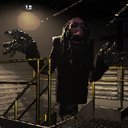
Adds the Rolling Giant as a new enemy type. Sounds are included. V81+
| Last updated | 3 months ago |
| Total downloads | 48655 |
| Total rating | 0 |
| Categories | Mods BepInEx Server-side Monsters |
| Dependency string | SoftDiamond-RollingGiant-2.6.3 |
| Dependants | 29 other packages depend on this package |
This mod requires the following mods to function

BepInEx-BepInExPack
BepInEx pack for Mono Unity games. Preconfigured and ready to use.
Preferred version: 5.4.2100README
Rolling Giant
Note: This is a build created for v81. Reach outs have been made to both modders for the original project and the v73 project. I am happy to deprecate my project/continue the project as/if needed.
Made by Andrew Burke
Adds the Rolling Giant as a new enemy type into Lethal Company. Sounds are included.
Features:
- Adds the Rolling Giant as a new enemy
- Adds a custom scrap poster for the Rolling Giant
- Rolling Giants can be scanned to read their own unique bestiary entry
- Multiple AI behaviours to choose from
- Can change the scale of the Rolling Giant between two values
- Can change the Rolling Giant's movement speed, wait durations, move durations, and more
- Rolling Giants have the option to rotate to face the player if they have been still for some time
- Can change the AI type of all Rolling Giants on the fly:
- A hot key to reload the entire config file
- Hotkeys to cycle between AI types

Installation
Put the /BepInEx/ folder inside your /steamapps/common/Lethal Company/ folder after installing all the dependencies.
Config
Generated after launching the game for the first time.
General
GiantScaleInsideMin- The minimum scale of the Rolling Giant's model inside- This changes how small the Giant can be
GiantScaleInsideMax- The maximum scale of the Rolling Giant's model inside- This changes how big the Giant can be
GiantScaleOutsideMin- The minimum scale of the Rolling Giant's model outside- This changes how small the Giant can be
GiantScaleOutsideMax- The maximum scale of the Rolling Giant's model outside- This changes how big the Giant can be
Spawn Conditions
These do not update when reloading the config in-game!
SpawnIn- Levels that the Rolling Giant can spawn in, separated by their chances of spawning- Vanilla caps at 100, but you can go farther.
- This chance is also a weight, not a percentage
- Higher chance = higher chance to get picked
- The names are what you see in the terminal
Vow:45,March:45,Rend:54,Dine:65,Offense:45,Titan:65
SpawnInOutsideChance- The chance for the Rolling Giant to spawn outside in the levels fromSpawnInSpawnInAny- If the Rolling Giant can spawn on any levelSpawnInAnyChance- The chance for the Rolling Giant to spawn in any levelSpawnInAnyOutsideChance- The chance for the Rolling Giant to spawn outside in any levelCanSpawnInside- If the Rolling Giant should spawn inside the dungeonCanSpawnOutside- If the Rolling Giant should spawn outsideDisableOutsideAtNight- If the Rolling Giant will turn off if it is outside at night.MaxPerLevel- The maximum amount of Rolling Giant's that can spawn in a levelSpawnPosterIn- Where the Rolling Giant poster scrap can spawn, separated by their chances of spawning- Vanilla caps at 100, but you can go farther.
- This chance is also a weight, not a percentage
- Higher chance = higher chance to get picked
- The names are what you see in the terminal
Vow:12,March:12,Rend:12,Dine:12,Offense:12,Titan:12
AI
AiType- Type of AI the Rolling Giant uses- Putting multiple will randomly choose between them each time you land on a moon
- Coilhead - Move when the player is not looking at it
- InverseCoilhead - Move when the player is looking at it
- RandomlyMoveWhileLooking - Randomly move while the player is looking at it
WaitTimeMin- The minimum duration in seconds that the Rolling Giant waits before moving againWaitTimeMax- The maximum duration in seconds that the Rolling Giant waits before moving againRandomMoveTimeMin- The minimum duration in seconds that the Rolling Giant moves toward the playerRandomMoveTimeMax- The maximum duration in seconds that the Rolling Giant moves toward the player
- LookingTooLongKeepsAgro - If the player looks at it for too long it doesn't stop chasing
LookTimeBeforeAgro- How long the player can look at the Rolling Giant before it starts chasing.
- FollowOnceAgro - Once the player is noticed, the Rolling Giant will follow the player constantly
- OnceSeenAgroAfterTimer - Once the player sees the Rolling Giant, it will agro after a timer
WaitTimeMin- The minimum duration in seconds that the Rolling Giant waits before chasing the playerWaitTimeMax- The minimum duration in seconds that the Rolling Giant waits before chasing the player
- All - Will select all of the ai types
AiTypeChangeOnHourInterval- If the AI type should change every X hours. Set to 0 to disableMoveSpeed- Speed of the Rolling Giant's movement in m/s²MoveAcceleration- How long it takes the Rolling Giant to get to its movement speed in secondsMoveDeceleration- How long it takes the Rolling Giant to stop moving in secondsRotateToLookAtPlayer- If the Rolling Giant should rotate to face the player if it has been still for some timeDelayBeforeLookingAtPlayer- The delay before the Rolling Giant looks at the playerLookAtPlayerDuration- The duration the Rolling Giant takes to look at the player
Host
These do not update when reloading the config in-game!
GotoPreviousAiTypeKey- The key to go to the previous AI type- This uses Unity's New Input System's key-bind names
- Defaults to
Keypad 7
GotoNextAiTypeKey- The key to go to the next AI type- This uses Unity's New Input System's key-bind names
- Defaults to
Keypad 8
ReloadConfigKey- The key to reload the config. Does not update spawn conditions- This uses Unity's New Input System's key-bind names
- Defaults to
Keypad 9
Building the project
Removing the local plugin package step
Remove the PreBuild step in the csproj, and replace the PostBuild step with
<Target Name="PostBuild" AfterTargets="PostBuildEvent">
<Exec Command="cd $(NetcodePatcherDir)
NetcodePatcher.dll $(TargetDir) deps/
xcopy /y /d "$(TargetDir)$(TargetName).dll" "$(GameDir)\BepInEx\plugins\RollingGiant\"
" />
</Target>
Also remove:
<ItemGroup>
  <Folder Include="plugin\BepInEx\plugins\RollingGiant\" />
</ItemGroup>
Initial steps
- Open the .csproj
- Change
<GameDir>to where your game is installed - Change
<NetcodePatcherDir>to where you have the Unity Netcode Patcher extracted
Can also remove the enter netcode patcher step if you want to use the nuget version instead, but I haven't updated to that yet, so I haven't looked into it
- Build
When built, it will patch the dll and then copy the dll to the game's plugin folder.
If you don't want the auto-copying to the game directory, then remove this from the PostBuild step:
xcopy /y /d "$(TargetDir)$(TargetName).dll" "$(GameDir)\BepInEx\plugins\RollingGiant\"

Acknowledgments
Ayyobeefor a bunch of online testing and suggestions.Krampusfor the help with the new Rolling Giant model.@Headcrapsfor the original Rolling Giant model!

