
Please disclose if any significant portion of your mod was created using AI tools by adding the 'AI Generated' category. Failing to do so may result in the mod being removed from Thunderstore.

Automatics
Automatics is a mod that automates the tedious tasks of life in Valheim. Most of its features exist in existing mods, but it has been re-designed to make it easier for me to use.
| Last updated | a week ago |
| Total downloads | 42583 |
| Total rating | 13 |
| Categories | Utility Tweaks Client-side AI Generated Mods Deep North Update |
| Dependency string | eideehi-Automatics-1.9.0 |
| Dependants | 74 other packages depend on this package |
This mod requires the following mods to function

denikson-BepInExPack_Valheim
BepInEx pack for Valheim. Preconfigured with the correct entry point for mods and preferred defaults for the community.
Preferred version: 5.4.2351README
Automatics - Valheim Mod
Automatics is a mod that automates the tedious tasks of life in Valheim. Most of its features exist in existing mods, but it has been re-designed to make it easier for me to use.
IMPORTANT:
- This mod has been developed by an individual and is not associated with the game's developer in any way. Please refrain from asking the developer any questions regarding this mod.
- This mod has been developed with the sole intention of single-player usage. Please be aware that it is not supported for server operation, and we kindly request your understanding in this matter.
Features
TIP: On a new install every feature below starts turned off. Turn on the ones you want with the "Module" option in each section of the configuration. Automatic Door, Automatic Pickup, Automatic Processing, Automatic Mapping, Automatic Mining, Automatic Feeding, Automatic Farming, Automatic Repair, Automatic Storage, Automatic Supply and Automatic Woodcutting can all switch without restarting the game. Turning one off stops new actions immediately and lets work already in progress finish; the switch completes over the next few frames. The settings inside each feature keep their usual defaults, and an existing configuration keeps each feature on or off as it was.
For released feature documentation, see docs/user-guide.md.
Automatic door
Automatically opens and closes allowed doors near the player. The open and close intervals, detection distances, allowed doors, optional enable/disable shortcut, and toggle message position can be changed from the configuration.
Automatic mapping
Bind Pin Looked-at Object Key to save a pin for the object or ground you look at, up to Object Pin Range (100 meters by default). A location’s structure, the ground within its loaded area (also when looking through water or tar) and a dungeon’s interior get one location pin with its recognized name and icon. World-generated pieces inside a loaded location’s area also pin the location, even when detached from its hierarchy. Overlapping areas use the nearest containing location; when that location is not recognized, the usual object or ground pin applies. Player-built pieces, creatures, trees, deposits, loose items and other objects such as rune stones keep their own pins. An object that already has an automatic pin, other than a creature or vehicle, gets that pin saved instead, and a flora patch, with or without an automatic pin, gets one pin for the whole patch.
Automatically pins nearby dynamic objects, static objects, and locations to the map, including animals, monsters, flora, minerals, vehicles, portals, dungeons, spots, and other configured objects. You can configure search ranges, allowed targets, static pin saving, destroyed-object pin cleanup, and user-defined objects. The map navigation shortcut starts or clears navigation by holding the configured modifier key (Left Shift by default) and left-clicking a pin on the large map; while navigating, the HUD shows the target name and distance, and an optional swarm of small glowing lights streams along the ground toward the target. Turn on Compass to show a strip at the top or bottom of the screen with the cardinal directions and the icons of the map pins within Compass Pin Range (100 meters by default) in the direction they lie; it shows the navigation target at any distance and names the pin you face.
- Custom icon pack: You can also define your own icons in png and json files. See docs/custom-icon-pack.md for custom icon pack specifications.
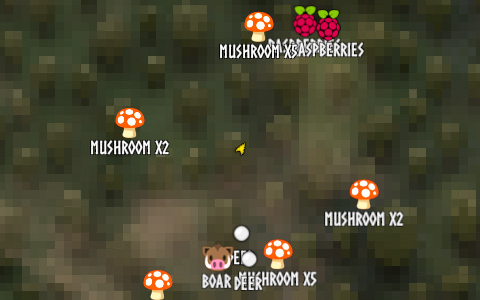
Automatic processing
Uses nearby allowed containers to automate supported processing tasks: supplying materials for crafting, refueling, storing produced items, and charging pieces such as Ballista. Per-piece operations, container search ranges and limits, stop thresholds, and the storage connection effect color can be changed from the configuration.
Automatic feeding
Allows configured tamable creatures to eat valid food from nearby containers, the player's inventory, or both instead of only food dropped on the ground. Feeding range, animal types, and whether animals must move close to the feed can be changed from the configuration.
Automatic repair
Automatically repairs items when the player is near usable crafting stations or, if enabled, when the crafting station GUI is opened. It can also repair nearby pieces while a build tool such as a hammer is in your hand with its repair action selected.
Automatic mining
Automatically mines allowed minerals around the player. Mining runs at the configured interval (0 turns it off) and each time the mining shortcut is pressed, and it can require a pickaxe or wishbone for underground minerals. With Area Mining (on by default), a pickaxe swing at an allowed mineral also hits other allowed minerals and rock sections nearby, wearing the pickaxe once per extra target.
Automatic storage
Stores eligible player inventory items into nearby allowed containers when the storage shortcut is pressed. By default an item goes only into containers that already hold the same item, topping up their stacks before using their free slots; turn on Store Into Any Container to also use other containers with space. Containers that received items are then sorted unless Sort Containers After Storing is off. Hotbar, equipped, quest, and configured excluded items are kept in the player inventory by default, and items in slots locked with Slot Lock Key are never stored.
Automatic pickup
Automatically picks up nearby items at the configured interval; an interval of 0 turns this off. Interacting with a pickable object while pressing the Pickup All Nearby shortcut (Left Shift + E by default) picks up the matching nearby objects at once.
Automatic farming
Hold Left Alt while planting with the cultivator to add a grid of the same crop or tree sapling (5×5 by default), each extra crop costing what a hand-placed crop costs: inventory seeds (plus nearby containers while Automatic supply runs), stamina and cultivator durability (no seeds in free-build worlds, as in vanilla). Invalid cells are skipped; planting stops when you cannot pay for another crop. While Left Alt is held, the crop preview snaps to the rows of a growing crop of the same kind nearby, so a new grid lines up with an earlier one.
Harvests grown crops around the player and replants the regrowing sapling at each harvested spot, keeping a configurable reserve of every planting input. It can also sow into nearby empty cultivated ground on a spacing grid so the saplings settle healthy. Planting can draw from the player inventory, or from containers you designate by role — cultivation boxes to grow crops, seed-harvest boxes to multiply seeds, and storage boxes to receive the yield — so whole fields can run from chests without ever planting the wrong stock. Farming runs at the configured interval (0 turns it off) and each time the farming shortcut is pressed. While farming is active, Automatic pickup leaves the crops farming would harvest itself (those within reach of its range and containers) for farming to harvest and replant.
Automatic supply
Lets nearby containers supply what you use by hand. When you craft at a crafting station, build with the hammer or plant with the cultivator, items in accessible containers within Supply Range (10 m by default) count toward the requirements, and what your inventory lacks is taken from them, nearest first. Adding fuel to a fire, ore or fuel to a smelter-type station, or food to a cooking station takes one suitable item from a nearby container when you carry none. A craft or placement never completes without being fully paid for, and anything taken for an action that does not use it goes back. Warded, private, in-use and other containers you cannot access are never used. It starts off, even in an existing configuration.
Automatic woodcutting
Automatically chops allowed trees, small trees, fallen logs and tree stumps around the player with an axe. Woodcutting runs at the configured interval (0 turns it off) and each time the woodcutting shortcut is pressed. Each attempt hits one target once, as a swing would: the nearest allowed tree, log or stump within Woodcutting Range (3 m by default) that the axe is strong enough to cut and that nothing hides from your eyes. It uses the axe in your right hand, or, with Need To Equip Axe For Woodcutting off, a suitable axe from your inventory. The hit wears the axe and raises the skill a swing raises, but uses no stamina. With Area Woodcutting (on by default), an axe swing at an allowed tree, log or stump also hits other allowed ones nearby, wearing the axe once per extra target; those of the same kind as the one you hit, such as other beeches when you hit a beech, come before logs, stumps and other trees unless you turn that off with Area Woodcutting Same Kind First. The periodic run and area woodcutting fell any tree in reach, including ones you planted, and falling trees and rolling logs can hurt you and your buildings. It starts off, even in an existing configuration.
Console commands
Automatics adds console commands for command discovery, name lookup, nearby object lookup, and map pin cleanup.
automatics: Shows Automatics command usage.printnames: Finds internal and display names.printobjects: Shows nearby objects Automatics can handle.removemappins: Removes duplicate or filtered map pins.
See Console commands in the released documentation for usage and options.
Configurations
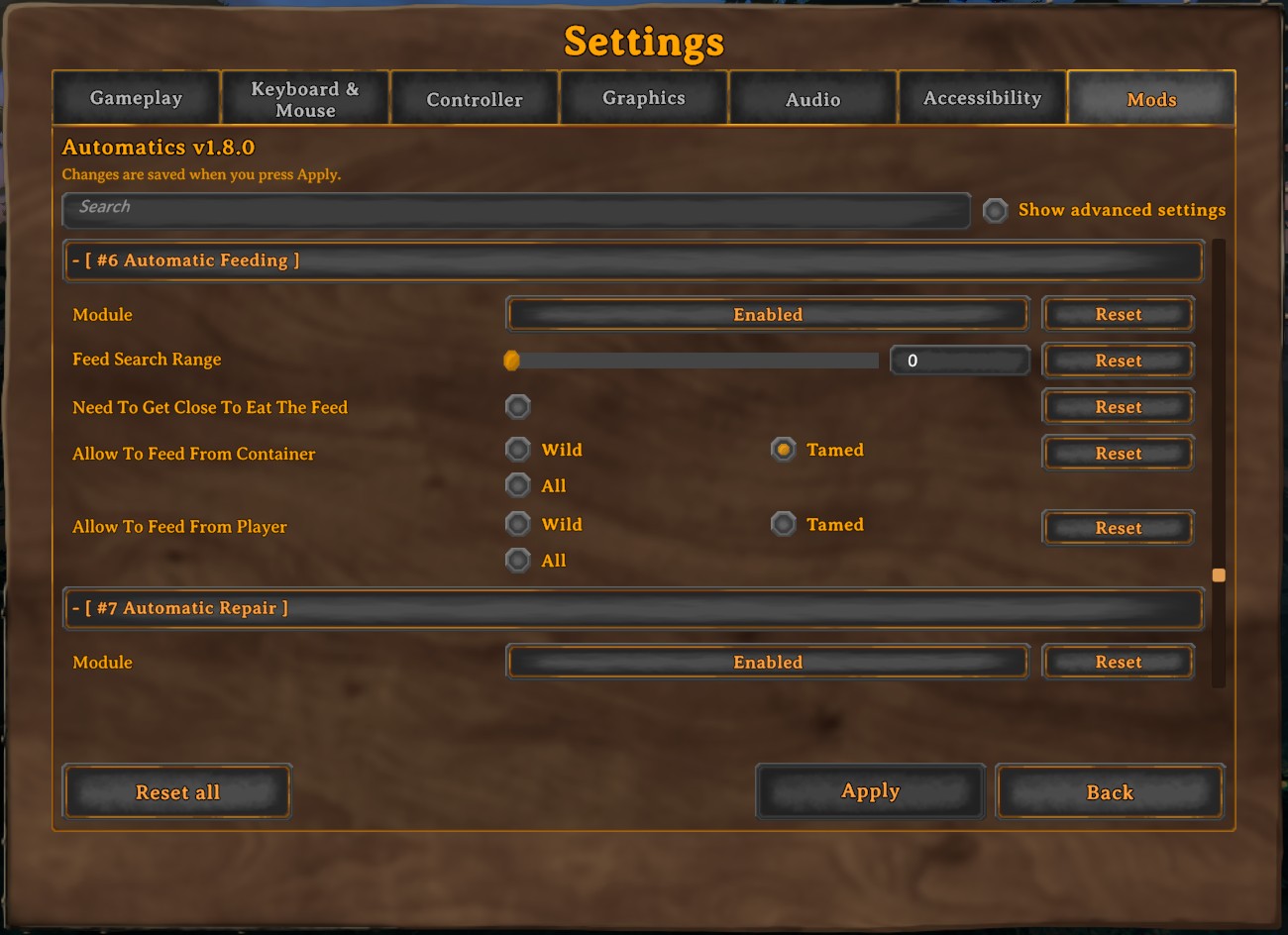
Open the game's Settings screen from the main menu or the pause menu, select the Mods tab, and then select Automatics. Changes are saved when you press Apply.
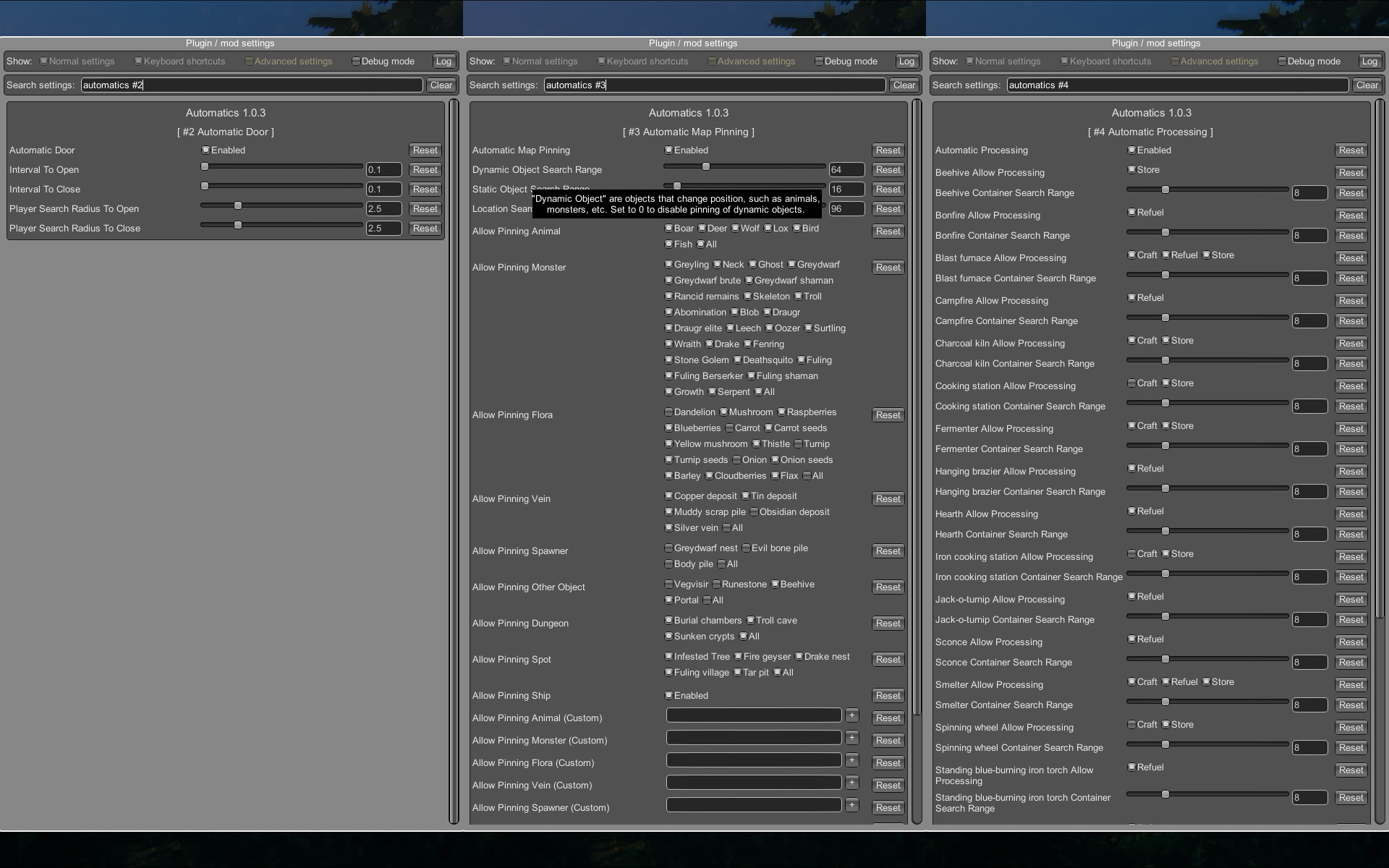
Automatics also works with Configuration Manager.
To remove Automatics from the Mods tab, turn off Show on the Settings screen in Configuration Manager's Settings screen category, or set show_on_settings_screen=false in the config file's [mod_utils] section. The change takes effect the next time the Settings screen opens; this option is not shown in the Automatics Settings panel.
Use CONFIG.md for every configuration entry, default value, and accepted value range. Use docs/user-guide.md for feature-by-feature usage notes.
Adding object definitions to Automatics
You can use the Configuration Manager to define objects that you want Automatics to work with.
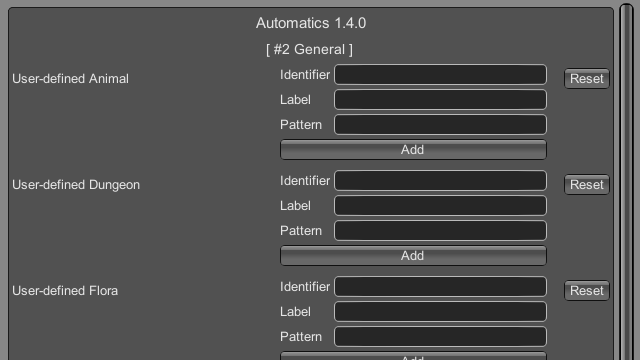
Open docs/add-user-defined-object.md to learn more about adding user-defined objects.
Languages
| Language | Translators | Status |
|---|---|---|
| English | Translation Tools | 100% |
| Japanese | EideeHi | 100% |
Contacts
Open an issue for bug reports, questions, suggestions, and requests.
Credits
- Dependencies:
License
Automatics is developed and released under the MIT license. For the full text of the license, please see the LICENSE file.
