Please disclose if any significant portion of your mod was created using AI tools by adding the 'AI Generated' category. Failing to do so may result in the mod being removed from Thunderstore.
InventorySlots
Equipment/quick slots, multicraft, progressive rows, keep-on-death, favorites, scrollable tooltips, crafting grid/list/search/sort, container stack/restock/sort, item comparison and controller support. Compatible with EpicLoot and Jewelcrafting.
| Last updated | a day ago |
| Total downloads | 56884 |
| Total rating | 15 |
| Categories | Mods Tweaks Server-side Client-side Utility AI Generated Deep North Update |
| Dependency string | sighsorry-InventorySlots-1.5.4 |
| Dependants | 4 other packages depend on this package |
This mod requires the following mods to function
denikson-BepInExPack_Valheim
BepInEx pack for Valheim. Preconfigured with the correct entry point for mods and preferred defaults for the community.
Preferred version: 5.4.2350README
InventorySlots
InventorySlots is an all-in-one Valheim inventory overhaul focused on stable slots, predictable item movement, and compact UI tools.
It adds progressive inventory rows, equipment slots, quick slots, favorites, keep-on-death rules, scrollable/pinned tooltips, a crafting browser, container tools, sorting, restock, multicraft, and controller support.
Visual Overview
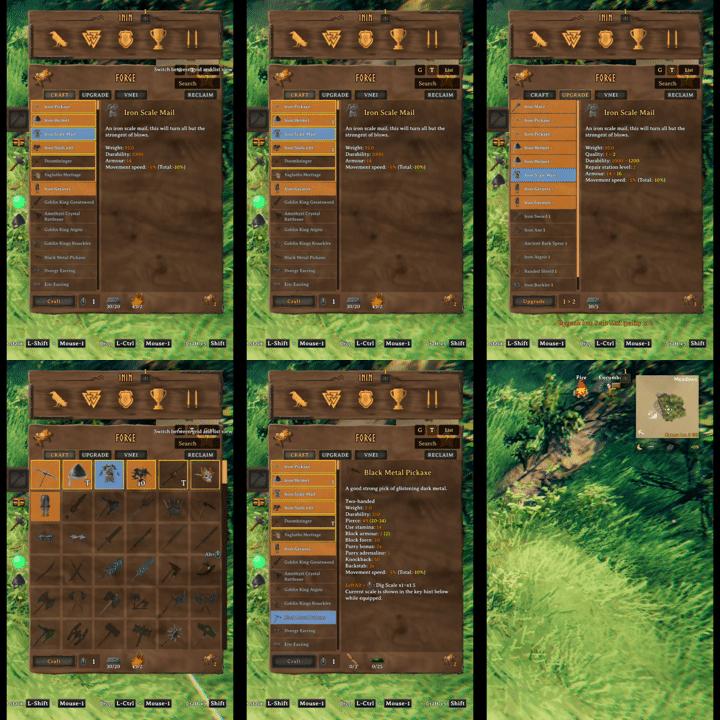
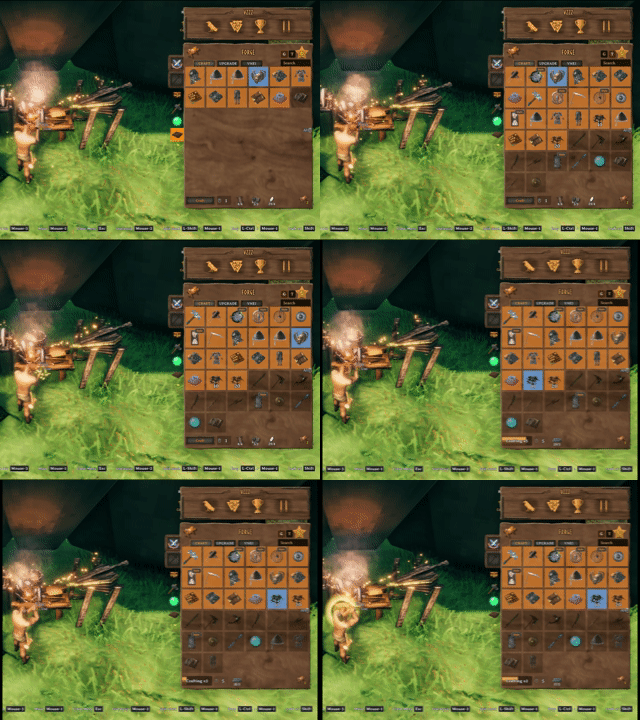
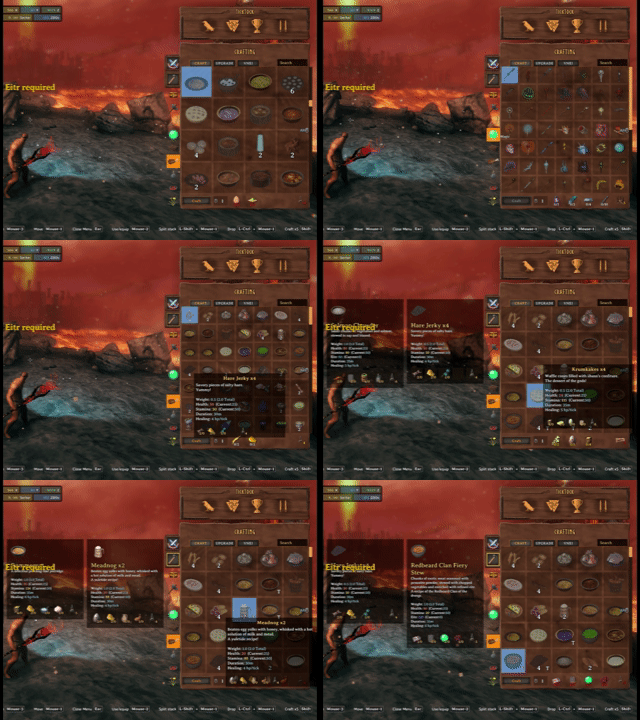
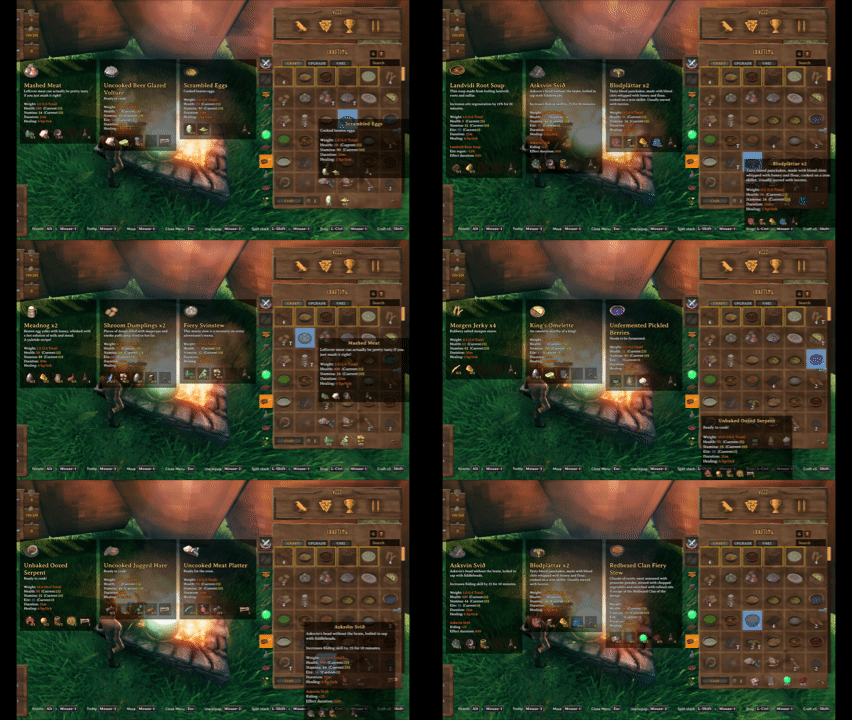
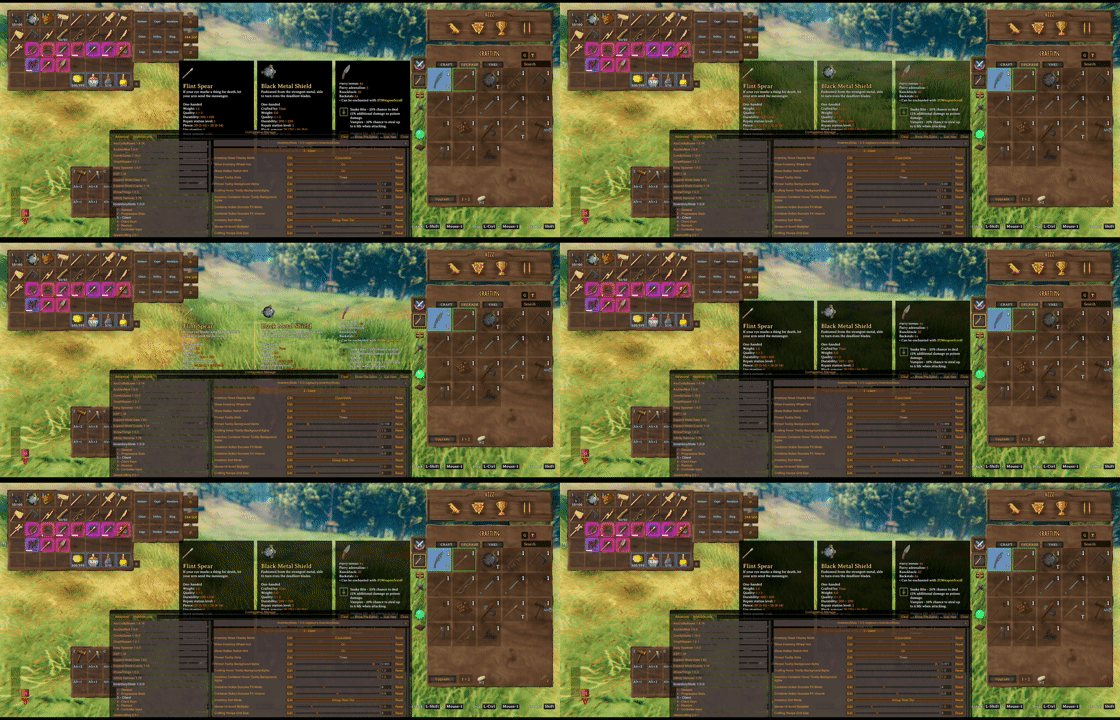
Listing view on crafting station is now available.
Change between grid view and list view can be applied live with a button.
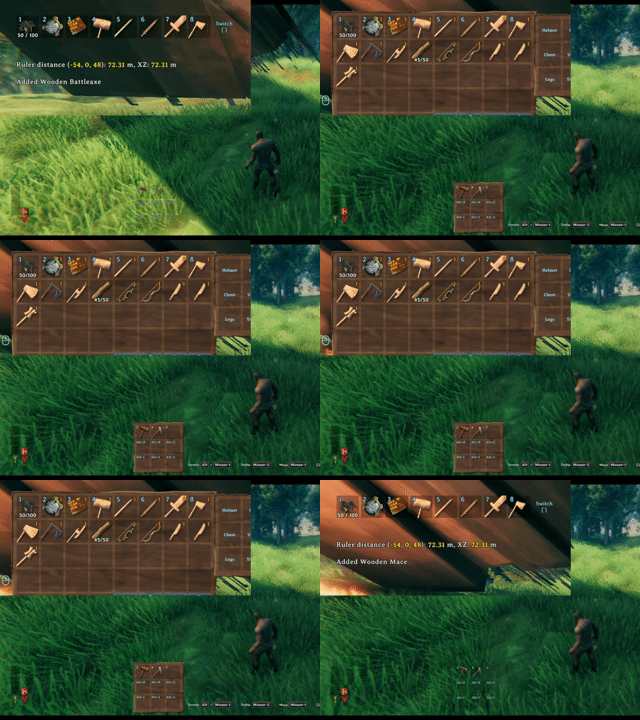
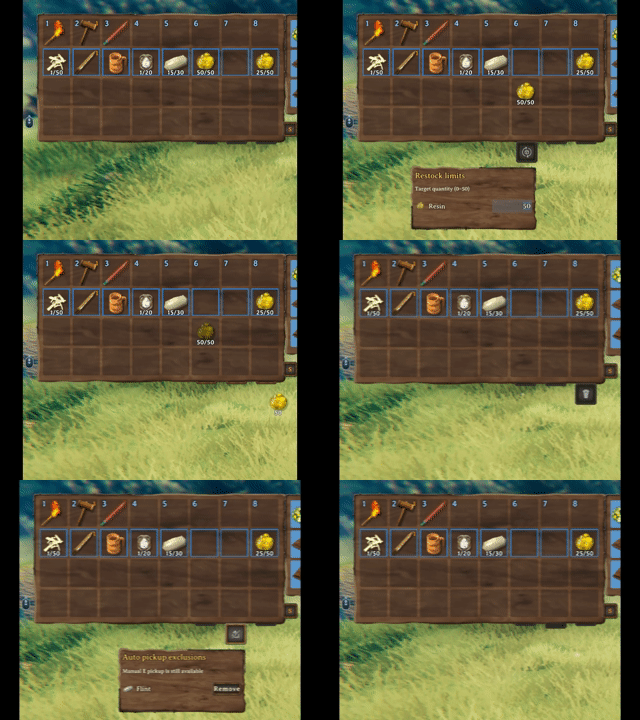
Three inventory buttons: Restock limit, Auto Pickup Exclude, and Trash
Stable Inventory Growth
Progressive rows and quick slots unlock over time without reshuffling saved item positions. Clients can expand or collapse the currently visible inventory rows, while equipment slots are defined by InventorySlots/InventorySlots.yml.
The hotbar switch key rotates the visible hotbar row, keeping a tall inventory practical without moving the underlying item coordinates.
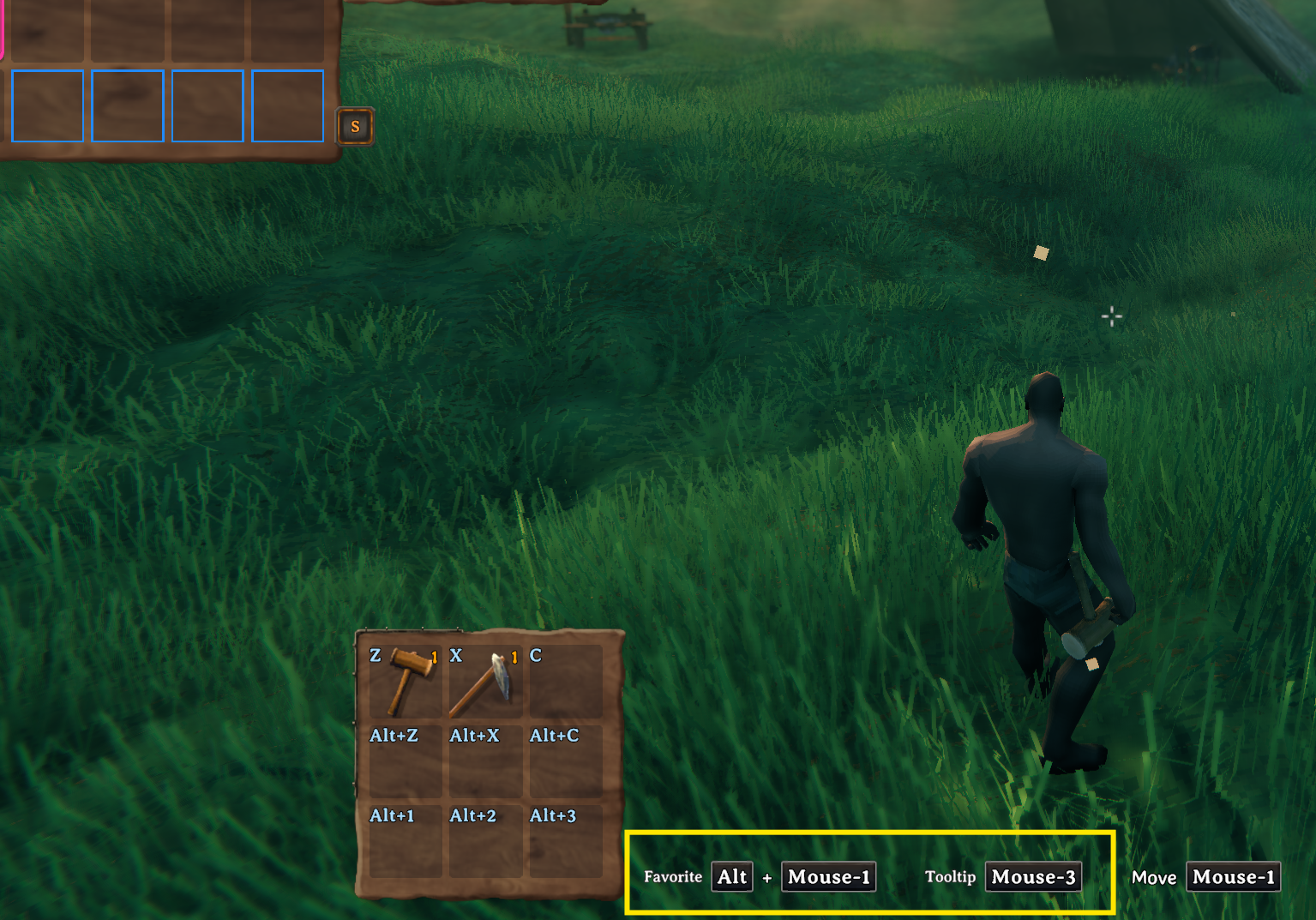
Key hints show the current favorite and tooltip hotkeys, including mouse/controller-aware bindings from the client config.
Crafting Browser
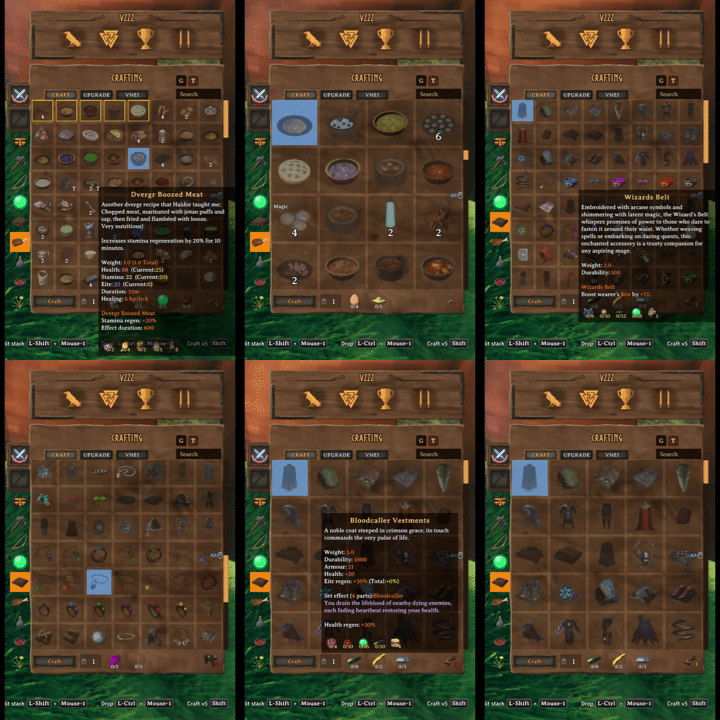
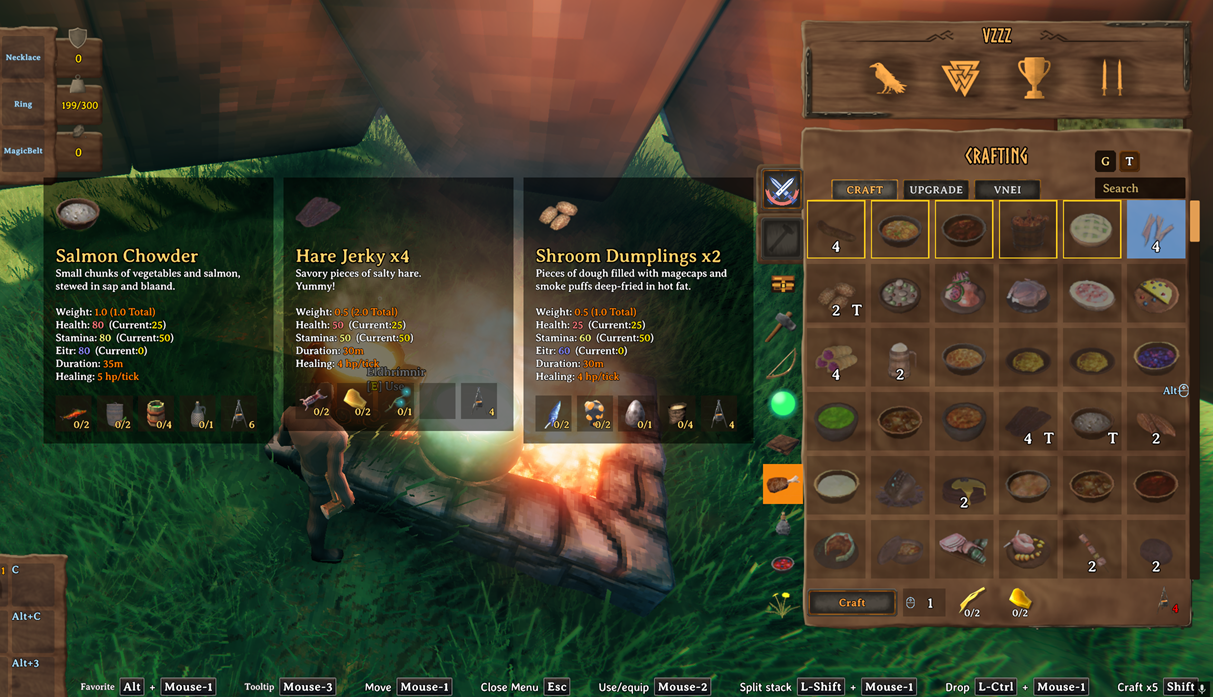
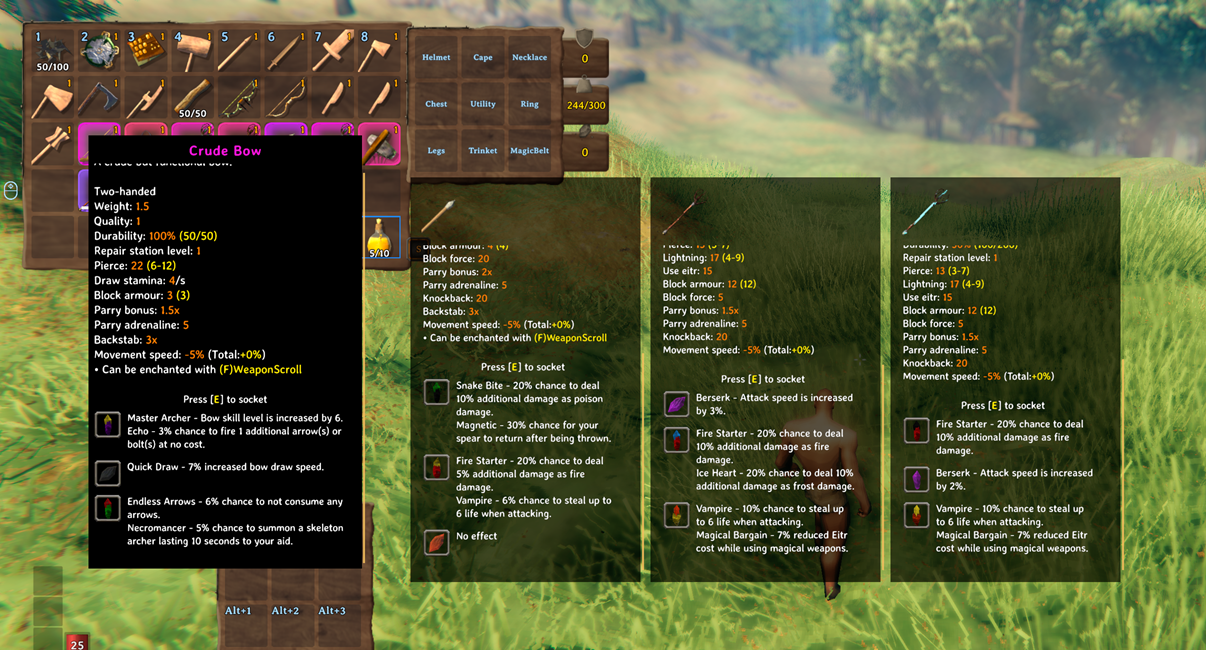
Crafting stations are redesigned into an icon-grid browser with search, group filters, favorites, sorting buttons, page scrolling, and hover/pinned tooltip support.
Use the Grid / List button immediately to the left of the search field to switch live. List is the default for new installations; existing saved selections are preserved, and your selection is saved locally between sessions. List shows recipe names on the left and the selected recipe's scrollable details on the right, without a recipe hover popup. Search, filters, favorites, selection, crafting quantity, and queued crafting are shared between views. List scrolling leaves the selected recipe unchanged. Craft, Upgrade, Jewelcrafting's Socket tab, and Recycle N Reclaim's Reclaim tab support both views. In List, Socket risk warnings and Reclaim status/blocking messages appear above the item description and scroll with it. Material costs, returned-item icons, and action buttons remain below; Grid keeps its existing bottom messages. Other external crafting tabs keep their existing layouts.
Mark favorite recipes and resize the crafting grid with mouse-wheel zoom.
Sort recipes by group and resource tier, then queue up to 999 crafting operations from the same station flow. Each operation still checks materials, inventory space, and the crafting station.
Recipe hover and pinned tooltips stay usable while changing grid size and browsing the crafting station.
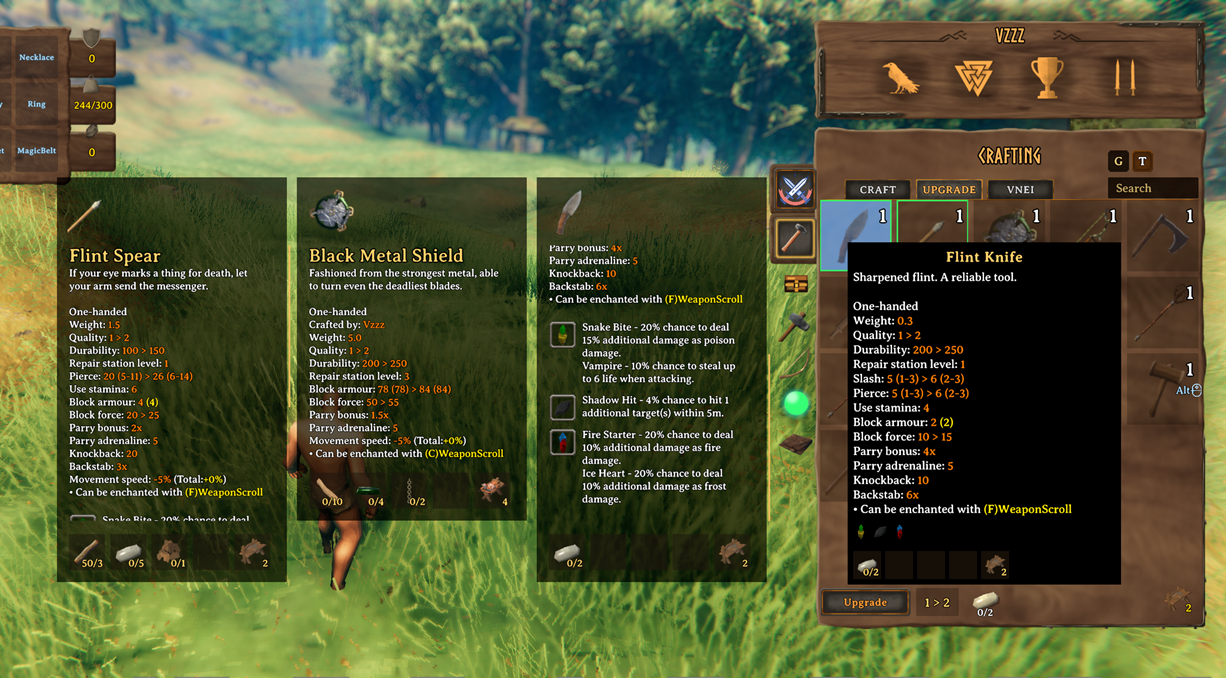
Upgrade views show the stat changes gained from upgrading gear, highlighting upgraded values in yellow in hover and pinned tooltips, with upgrade favorites kept separate from crafting favorites.
Scrollable Tooltips And Comparisons
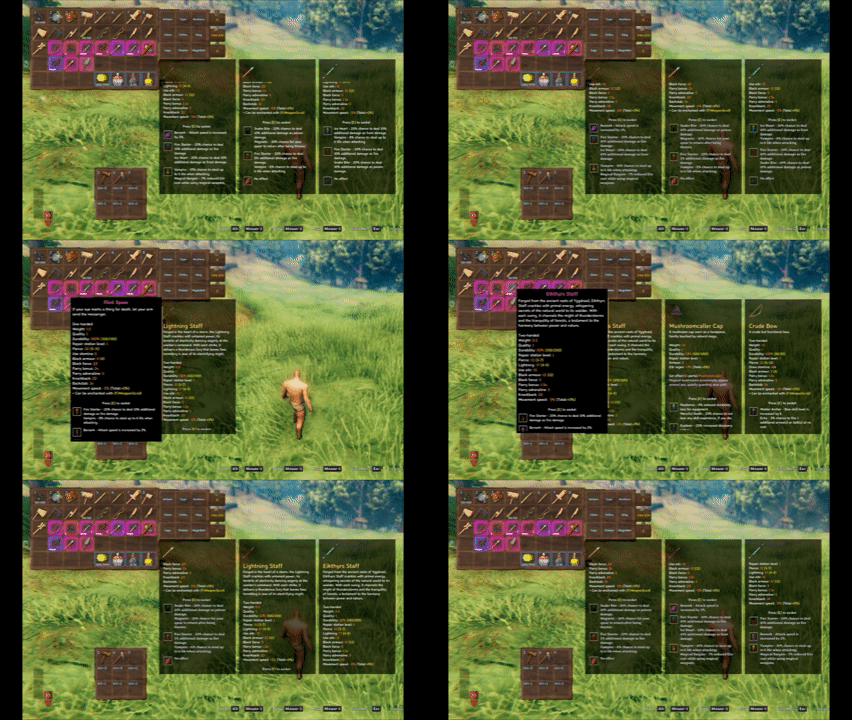
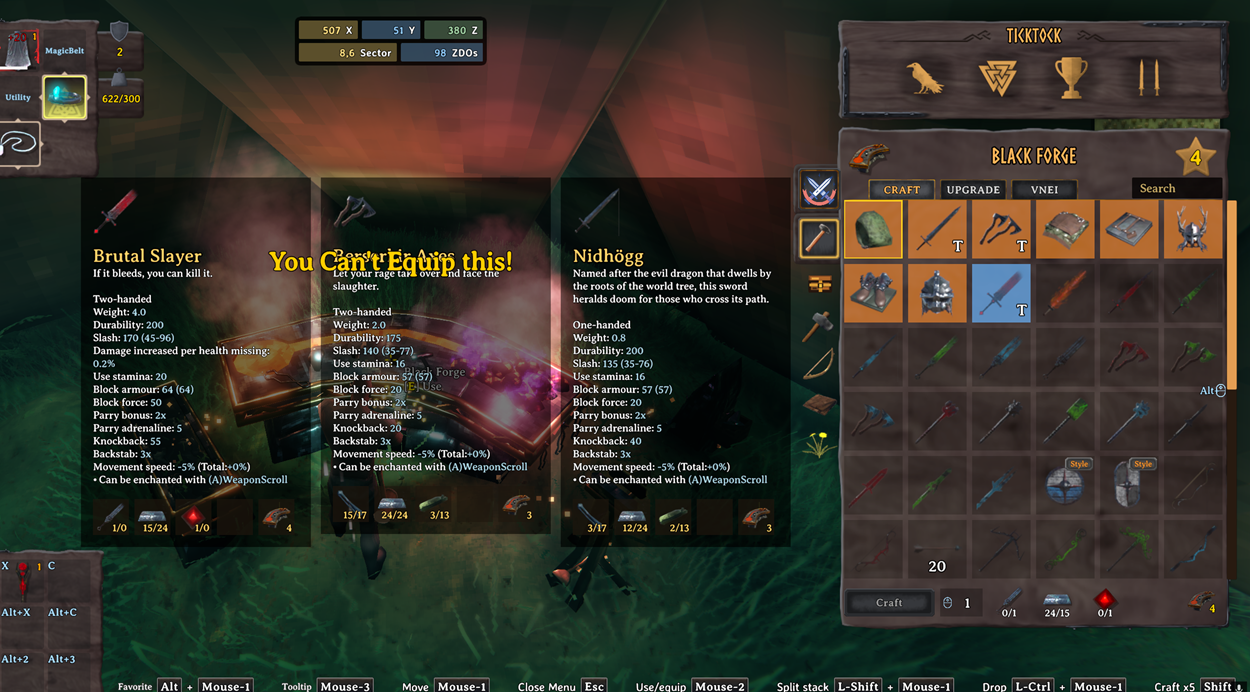
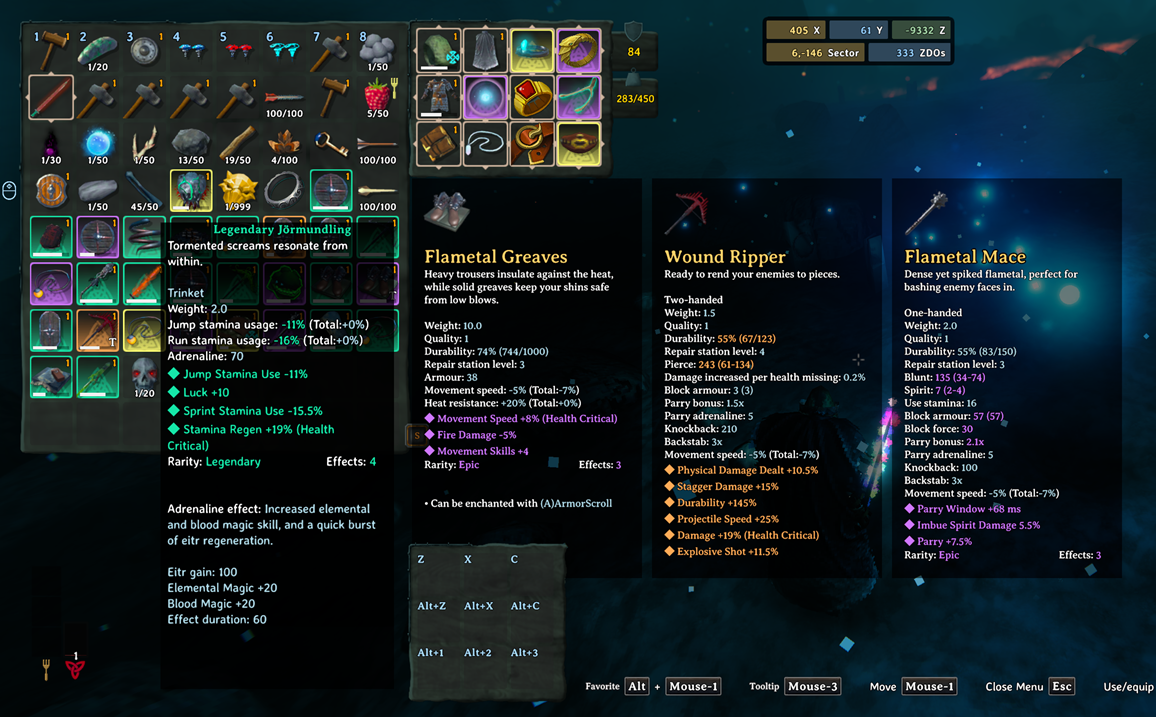
InventorySlots tooltips can expand into scrollable panels and support multiple pinned comparison slots.

Pin up to three tooltips to compare recipes, meals, potions, and gear without losing your current hover target.

Gear and food comparisons use the same pinned tooltip system.
Inventory/container and crafting hover tooltip background opacity are configurable on the client.
Container Tools
Looking at an accessible container can show its contents in a read-only container panel without opening or claiming the container. The preview keeps the last valid grid during its configurable close delay and supports controller-active UI safely. Set the delay to 0 to disable the preview.
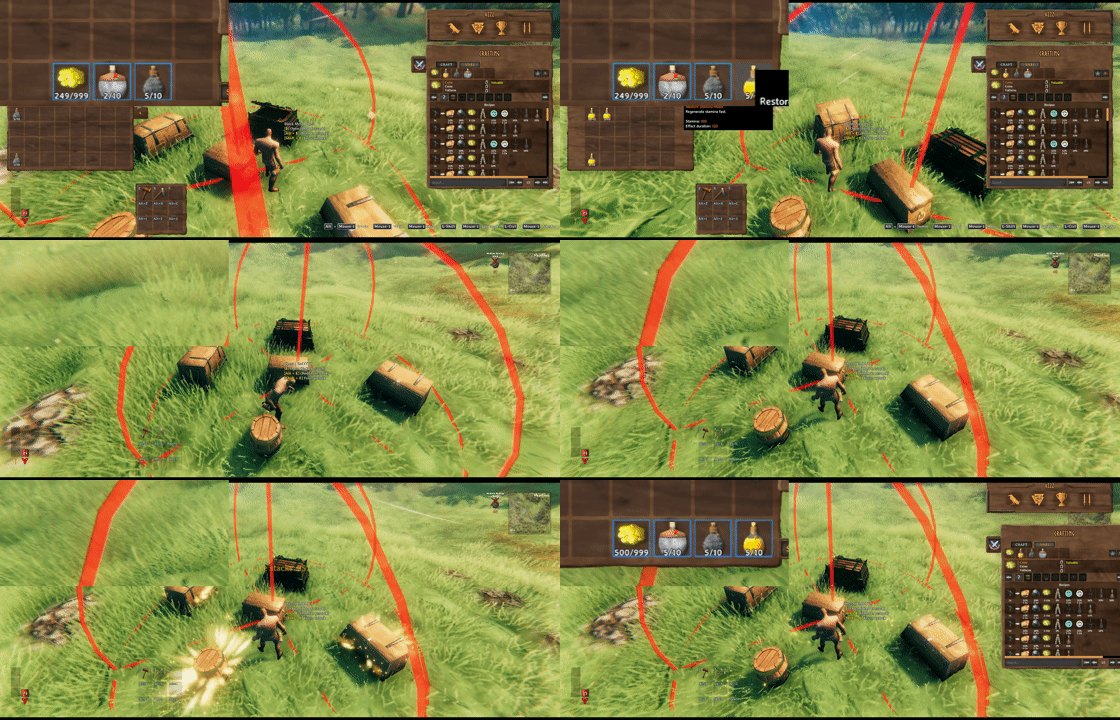
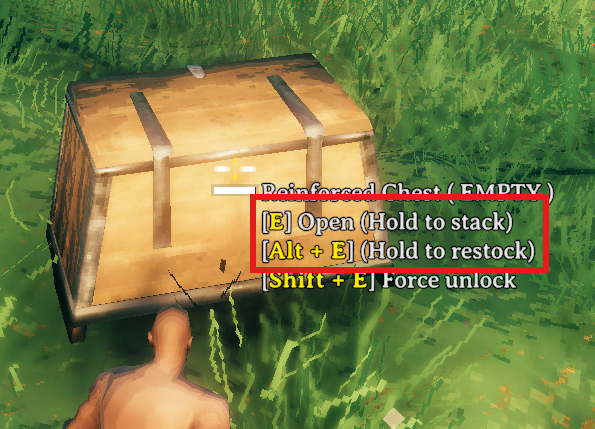
Hovering a container shows hold actions for area quick stack and area restock. Area ranges are centered on the interacted container.
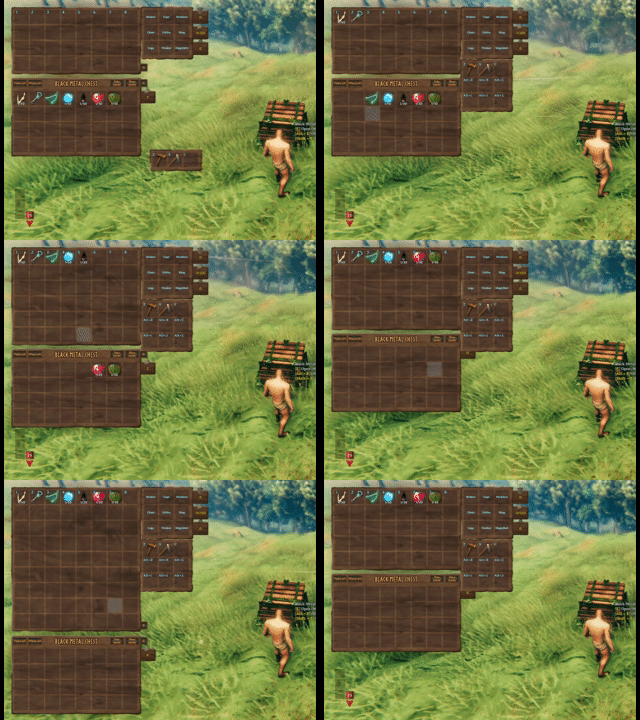
Hold E to quick stack matching non-favorited player items into the hovered container and nearby eligible containers.
Favoriting marks the inventory slot itself, making that slot immune to quick stack while also registering it as a restock target.
Hold Alt+E by default to restock favorited inventory stacks from the hovered container and nearby eligible containers.
Take stacks pulls only matching stackable items that are not favorited.
Client restock limits can cap favorite restock targets per prefab, such as Stone: 10 or Coins: 500.
Mod Compatibility Examples
EpicLoot items keep their tooltip data and can use InventorySlots equipment/custom slot routing when configured in InventorySlots/InventorySlots.yml.
EpicLoot gear can be compared from upgrade views with InventorySlots pinned tooltips.
Jewelcrafting sockets and gem tooltip content are supported in InventorySlots tooltip and comparison flows.
Highlights
- Stable inventory growth: locked rows and special slots stay reserved internally, so item coordinates do not reshuffle as progression changes.
- Dedicated equipment and quick slots: built-in equipment slots, YAML-defined custom slots, and a fixed quick slot panel with hotkeys.
- Clean favorite rules: regular rows, hotbar cells, and quick slots can be favorited.
- Container tools: quick stack, take stacks, favorite restock, player/container sort, and safer tombstone take-all behavior.
- Crafting browser: icon grid, search, group filters, recipe favorites, recipe sorting, grid zoom, and multicraft.
- Tooltips: scrollable hover tooltips and pinned comparison panels for inventory, containers, crafting, quick slots, and supported modded tabs.
- Compatibility support for EpicLoot, Jewelcrafting, backpacks, RustyBags, Magic Supremacy, BetterArchery, MultiUserChest, ServerCharacters, ServerManager, TooltipExpansion, and VNEI.
- Shared chest access: multiple players can view standard chests, while each item change waits for an approved ownership handoff. Sharing can be disabled.
Slot Model
InventorySlots reserves the maximum supported layout internally, then exposes only the cells that are currently usable.
- Regular rows are the normal inventory area.
- The hotbar is the first regular row.
- The hotbar switch row is the second regular row.
- Equipment slots and quick slots are anchored after the reserved regular inventory area.
- Locked rows are hidden and blocked, but their coordinates remain stable.
This makes the inventory safer for progression, multiplayer, tombstones, and compatibility code that may touch item positions.
In multiplayer with ServerCharacters or ServerManager installed, InventorySlots leaves character recovery to that mod instead of saving or restoring its own extra-slot backup. Single-player backup behavior is unchanged.
Progressive Rows
For Valheim 1.0.7, the base inventory starts as an 8x4 grid. InventorySlots adds up to three regular rows through item discovery. Haldor's Wider Pockets and Deeper Pockets purchases each add one more row independently, for a maximum of nine regular rows (72 slots).
Default extra row unlocks:
- Extra Row 1:
HardAntler - Extra Row 2:
CryptKey - Extra Row 3:
Wishbone
Wider Pockets costs 1,000 coins after Moder is defeated in the current world; Deeper Pockets costs 2,000 coins after the Queen is defeated. Purchases use vanilla character keys and do not require InventorySlots row unlocks. Setting Enable Progressive Rows to Off immediately unlocks all extra rows set by Maximum Extra Rows (three by default), without item discovery. Purchased rows remain independent.
Maximum Extra Rows now accepts 0-3; previous higher values are capped at 3. Extra Row 4 Items and Extra Row 5 Items no longer participate in progression. The first three configuration keys retain their meaning. Equipment and quick-slot progression are unchanged.
The internal regular storage area remains nine rows and equipment/quick-slot coordinates stay fixed. If a character has items in rows that are now locked, occupied cells remain accessible for recovery; empty locked cells do not become usable storage. Existing vanilla purchases and item data are preserved.
Clients can display unlocked rows in two ways:
Fixed: show all unlocked regular rows.Expandable: remember the visible row count locally and adjust it with the mouse wheel while the inventory is open.
Auto Favorite Hotbar Switch Row defaults to Off. When enabled, it marks the second inventory row as favorite when the local player is loaded or spawned.
Equipment Slots
Built-in equipment slots:
helmetchestlegscapeutilitytrinket
Custom equipment slots can be added with YAML. Each custom slot has a stable id, a display name, and an optional items list.
Slots:
- id: wishbone
name: Wishbone
items:
- Wishbone
- id: pickaxe
name: Pickaxe
items:
- pickaxe
- custom_pickaxes
The built-in slot ids are fixed. Their display names can be changed. Custom slot order follows YAML order.
Quick Slots
Quick slots are fixed special slots shown in a side panel and mirrored in a lightweight HUD.
Default quick slot progression:
- Row 1: available at start
- Row 2:
HardAntler - Row 3:
CryptKey
Default quick slot item rules:
QuickSlots:
- Melee
- Ranged
- Magic
- healthfood
- staminafood
- eitrfood
- mead
- potion
These rules also control automatic empty-cell priority. A matching item's new stack prefers the hotbar before regular rows; a non-matching item keeps the regular-rows-before-hotbar order. Existing compatible partial stacks are still filled before a new stack is created, and explicit drag destinations are unchanged.
Favorites
InventorySlots has separate favorite systems for inventory slots, crafting recipes, and upgrade items.
Inventory favorites are position-based. Hold the favorite modifier key, LeftAlt by default, and left-click a regular inventory, hotbar, or quick slot cell to toggle the blue favorite border.
Favorite inventory slots are protected from:
- player inventory sorting
- quick stack
- area quick stack
- take-all safety movement
- inventory trash
Favorite restock uses favorites as intentional targets:
- regular favorite stack: restock target
- hotbar favorite stack: restock target
- quick slot favorite stack: restock target
- empty favorite slot: not used as generic storage
- non-stackable favorite item: not restocked
Current quick stack policy:
- regular non-favorite stackable items can quick stack
- regular favorite items are protected
- hotbar items do not quick stack
- quick slot items do not quick stack
Crafting favorites apply to recipes. Upgrade favorites apply to the specific upgrade item instance, not every item with the same prefab.
Container Tools
When a container is open:
Place stacksstacks matching non-favorited player items into that container only.Take stacksfills matching non-favorited partial player stacks from that container only.- Sort buttons sort the current player inventory or current container.
Player inventory Sort first fills existing favorite stacks from compatible non-favorite stacks outside the hotbar, using only the ordinary slots already eligible for sorting. Favorites are filled top to bottom, left to right, up to their current maximum stack size. Favorite stacks keep their positions and never donate to each other; empty favorite slots stay empty. The remaining ordinary stacks are then merged and sorted. This is always enabled and independent of restock limits. Items filled into favorite slots become protected from quick stack. Container sorting and restock/quick-stack rules are unchanged.
When hovering a container:
- Hold
Eto quick stack into the hovered container and nearby eligible player-built containers. - Hold
Alt+Eby default to refill favorite stacks from the hovered container and nearby eligible containers.
Area ranges use the interacted container as the center. Setting a range to 0 disables nearby-container behavior for that action.
Enable Multi User Chest allows multiple players to keep a standard player-built chest open. Viewing a chest does not grant permission to change it: drag/drop, stack/restock, take-all and sorting use an approved ownership handoff and wait for the current saved contents. A changed slot cancels a pending click instead of moving a different item. Area actions process chests one at a time, including eligible shared chests being viewed by another player. A denied or timed-out request does not move items for that target.
The setting defaults to On and preserves an existing saved On/Off value. Off retains vanilla exclusive opening and approved area transfers to unused chests. Changing it closes the inventory and cancels pending actions before reopening. The former remote item-transfer protocol, escrow and chest receipts are not used; old receipt data is left untouched. The standalone MultiUserChest mod takes precedence, and non-owned area targets are excluded while it is loaded.
Finish pending inventory actions and exit normally before replacing the DLL. Restart the server and all clients with the same build so that area ownership requests use matching implementations.
Container actions retain access and ward restrictions. Tombstones, ships and unsupported container types keep their existing behavior. Shared access does not coordinate direct inventory writes by other mods or make separate character/world saves atomic across crashes. Dedicated-server multiplayer behavior still requires in-game validation; see implementation and verification notes.
Restock target limits can cap favorite restock targets per item:
Stone: 10, Coins: 500
Items not listed refill to their normal max stack. A target of 0 prevents restocking that item.
3 - Inventory Buttons / Restock Leave One Item defaults to On. Favorite restock (Alt+E by default) leaves one item of each kind in each source chest, across all stacks with the same internal item name, to keep that chest eligible for future quick stack. A chest with only one remaining item will not supply it. Turn this client-only setting Off to allow full depletion; in-game changes apply to subsequent transfers immediately. Take stacks, Take All, and manual moves are unchanged. Other players and other mods can still take the last item.
3 - Inventory Buttons also groups Restock Button, Restock Target Stack Limits, Auto Pickup Exclude Button, Auto Pickup Excluded Items, and Trash Button. The three client-only button modes default to Auto: show the bottom edge and expand that button on hover. Holding an item alone does not expand it; an open editor keeps its button expanded, and gamepad use expands Auto buttons. On always displays the full button; Off hides it. Saved restock and pickup rules remain active when their button is hidden. Enabled buttons pack from the right in Trash, Exclude, Restock order. The synced 1 - General / Enable Inventory Trash Panel still controls whether trash is allowed at all. No old-section migration is performed.
Crafting Browser
The crafting panel is redesigned into a fast icon-grid browser.
Core features:
- recipe icon grid
- mouse wheel paging
- grid zoom with the configured zoom modifier
- recipe favorites
- group filter rail
- search input
- craftable recipe highlighting
- pinned recipe comparison tooltips
- recipe requirement rows in hover tooltips
- recipe sorting by favorite, craftable state, resource tier, group, equipment set, and name
Crafting search indexes user-facing names, English localization text, prefab/internal names, and recipe materials.
The crafting recipe grid starts at 6x6; zoom changes made with the grid controls are remembered without exposing a separate Configuration Manager option.
Crafting and inventory/container sorting use separate client sort modes. Crafting defaults to TierThenGroup and is changed with the crafting panel buttons, while inventory/container sorting is configured in 4 - Client:
TierThenGroup: resource tier first, then group.GroupThenTier: group first, then resource tier.
The resource tier map comes from InventorySlots/ResourceMap.yml and defaults to a biome-style progression from Meadows through Deep North. It controls sorting, not crafting costs or progression unlocks. Writhan resources belong to Swamp, Hook to Mistlands, and the lava blob trophy to Ashlands; Fader's completion rewards are grouped with Deep North entry materials.
Tooltips
InventorySlots uses scrollable custom hover tooltips for:
- inventory items
- container items
- quick slot panels
- crafting recipes
- upgrade recipes
- compatible external crafting tabs
Pinned comparison tooltips use the same scrollable body behavior. Client UI options control pinned tooltip slots and hover tooltip opacity.
Item Groups
Item groups power crafting filters, sorting, quick slot rules, keep-on-death rules, and custom slot item lists.
Fixed top-level groups:
MeleeRangedMagicEquipmentFoodConsumableMeadbaseMisc
YAML can reorder built-in subgroups and add custom prefab groups:
Groups:
Melee:
- sword
- axe
- custom_swords
custom_swords:
- SwordNiedhogg
- THSwordSlayer
Custom groups can then be reused by sorting, quick slots, inventory limits, keep-on-death, and custom equipment slots.
Inventory Limits
InventoryLimits caps the total number of matching item units in the player inventory. Keys can be exact prefab/internal names, built-in groups, or custom groups. Counts include regular rows, hotbar, equipment slots, and quick slots.
InventoryLimits:
FishingRod: 1
tankards: 3
FLG_TamingOrb: 3
A limit of 0 blocks new additions. Existing excess items remain intact after loading a character or lowering a limit, but no more matching items can be added until the count is below the limit. Moves within the same player inventory do not count as additions.
Blocked crafting attempts, manual pickups, and inventory transfers show a localized center message with the item name and configured maximum. Crafting is stopped before consuming materials, and an active crafting queue ends when it reaches a limit. Passive auto-pickup checks stay silent to avoid repeating the message every frame.
Keep On Death
KeepOnDeath decides which items stay with the player instead of moving to the tombstone.
Entries can reference top-level groups, subgroups, custom groups, or exact prefab/internal item names.
Default:
KeepOnDeath:
- Melee
- Ranged
- Magic
- Equipment
The feature can be disabled with Enable Death Keep Rules.
Configuration Files
InventorySlots uses the following files under BepInEx/config:
sighsorry.InventorySlots.cfgremains in the config root. It contains the BepInEx options shown in Configuration Manager.InventorySlots/InventorySlots.ymlis server-authoritative and containsSlots,Groups,InventoryLimits,QuickSlots, andKeepOnDeath.InventorySlots/ResourceMap.ymlis server-authoritative and controls resource sorting tiers.InventorySlots/ClientState.ymlis local, auto-managed UI state. Do not distribute it as server configuration.
Invalid server-authoritative YAML and unknown properties are rejected so the last stable configuration can remain active.
Minimal InventorySlots/InventorySlots.yml shape:
Slots:
- id: helmet
name: Helmet
- id: chest
name: Chest
- id: legs
name: Legs
- id: cape
name: Cape
- id: utility
name: Utility
- id: trinket
name: Trinket
Groups:
Melee:
- sword
- axe
Food:
- healthfood
- staminafood
InventoryLimits:
FishingRod: 1
tankards: 3
QuickSlots:
- Melee
- healthfood
KeepOnDeath:
- Melee
- Equipment
InventorySlots/ResourceMap.yml maps tier names directly to material lists. Tier order is top to bottom, and the first tier containing a duplicate material wins:
Meadows:
- Wood
- Stone
BlackForest:
- HardAntler
- Bronze
Existing ResourceMap.yml files are preserved when the mod is updated. Back up your file and merge missing entries from the repository's config/InventorySlots/ResourceMap.yml into the matching sections, keeping your custom entries and tier order. Append DeepNorth after AshLands; do not alphabetize the sections. The server's map is authoritative in multiplayer. YAML edits are hot-reloaded and synchronized: crafting views are invalidated, while inventory and container items use the new tiers the next time you sort them. Invalid YAML keeps the last valid map.
This release does not read or migrate the former root-level InventorySlots.yml, root-level InventorySlots.Client.yml, or an inline resourceMap. Legacy files are left untouched; manually reapply custom settings to the new files and update the server and all clients together.
Config Sections
These options are stored in the root-level sighsorry.InventorySlots.cfg:
1 - General: server lock, death keep rules, trash panel, area quick stack, and area take stacks.2 - Progressive Slots: extra rows, quick slot rows, quick slot progression.3 - Inventory Buttons: button display modes, restock limits/reserve and automatic pickup exclusions (client-only).4 - Client: inventory display, sort modes, crafting grid, container preview and hover behavior, container FX, mouse UI scroll.5 - Client UI: hints and tooltip display options.6 - Client Keys: keyboard and mouse shortcuts.7 - Controller Input: controller scrolling and controller hotkeys.
Controller Input
Controller support is client-side. InventorySlots stores controller hotkeys as a fixed action enum and exposes them through a custom Configuration Manager editor with capture, clear, and preset controls.
Controller DPad Hotkey Mode defaults to InventoryNavigation, leaving DPad input available for vanilla inventory movement. It can also allow DPad hotkeys directly or only while a configured modifier is held.
Compatibility
InventorySlots declares incompatibility with mods that also take ownership of equipment slots, quick slots, or inventory slot movement.
Soft compatibility and adaptive behavior include:
- AzuCraftyBoxes: nearby material counts and colors through its optional API. AzuCraftyBoxes handles material consumption itself; this display integration does not arbitrate simultaneous crafting or building.
- Jewelcrafting: ring/necklace slots, socket tooltips, gem rows, crafting socket UI placement, and visual/stat panel support.
- AdventureBackpacks and Smoothbrain Backpacks: backpack slot support and equipped-backpack synchronization.
- RustyBags: bag/quiver slot support and equipped state synchronization.
- Magic Supremacy: belt slot support and equipped-belt synchronization.
- BetterArchery: quiver/reserved cells are treated conservatively.
- MultiUserChest: the standalone mod controls concurrent chest opening; InventorySlots area transfers do not mutate non-owned containers while it is loaded.
- ServerCharacters: local slot backup/restore avoids stale server-character data.
- EpicLoot: item tooltip content is preserved while InventorySlots-owned tooltip layouts stay isolated.
- TooltipExpansion: InventorySlots-owned tooltips avoid vanilla tooltip scrollbar/layout interference.
- VNEI: crafting and upgrade recipe icons expose item tooltip data for VNEI recipe lookup.
- ContentsWithin: the integrated preview disables itself when the standalone plugin is present to prevent duplicate GUI ownership.
Github
Quick stack, restock, and inventory favorite behavior were originally informed by QuickStackStore.
The container preview is adapted from Redseiko's ContentsWithin and MSchmoecker's GPL-3.0 fork, with a read-only lifecycle and grid-safety rewrite for InventorySlots.
https://github.com/sighsorry1029/InventorySlots